USB flash drives and pen drives are some of the most convenient tools we use every day for transferring files, booting systems, and carrying important data. But what happens when your flash drive suddenly stops working, refuses to format, or doesn’t even show up properly in Windows?
If you’ve ever seen error messages like “Windows was unable to complete the format”, “No media detected”, or if your flash drive simply isn’t recognized, you’re not alone. These issues are very common and often caused by corrupted firmware, failing controllers, or logical errors on the device.
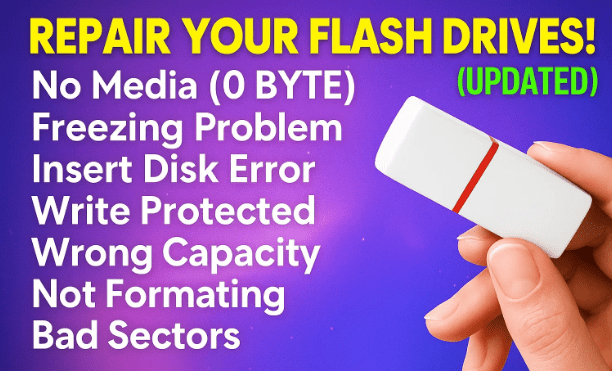
In this article, we’ll walk through all the reliable ways to fix a corrupted USB flash drive, from simple checks to advanced firmware flashing methods. Along the way, I’ll also highlight when you should stop and seek professional help — especially if your drive contains valuable data.
📌 Important Warning Before You Begin
⚠️ Disclaimer:
Most repair methods covered here will erase all data from your flash drive. If you have important files on the device, do not proceed on your own. Instead, contact a professional data recovery service.
These steps are intended for fixing drives where you don’t need the data anymore, or you already have a backup elsewhere.
🔍 Step 1: Check if Windows Detects the Flash Drive
The first step is simple: plug the USB flash drive into your computer and see how it behaves.
- Open File Explorer and look for a drive letter.
- If you see a drive letter but “No Media” is shown or opening it triggers an error, the drive controller is partially recognized.
- If no drive letter appears at all, Windows may not be detecting the storage component.
💡 Pro tip: Also open Disk Management (press Windows + X → Disk Management) to check if the drive is listed. Sometimes Disk Management shows “Unallocated” or “No Media” even when File Explorer doesn’t.
🖥️ Step 2: Use Command Prompt to Confirm Status
Now let’s go deeper with Command Prompt and DiskPart.
- Press
Windows + R, typecmd, and hit Enter. - Inside Command Prompt, type:
diskpart→ Press Enter. - Next, type:
list disk→ Press Enter.
This will show all connected storage devices. If your flash drive appears as Disk X but with 0 bytes in size and free space, it means the controller is detected but no actual storage is accessible. This matches what you’ll see in Disk Management.
At this stage, standard Windows tools won’t fix the problem — you’ll need to use more advanced methods.
🔧 Step 3: Identify the Flash Drive’s Controller Chip
Most USB flash drives consist of two main components:






- Controller chip – acts as the “brain” of the drive, managing communication with your computer.
- Storage (NAND) chip – stores the actual data.
When the firmware on the controller gets corrupted, the drive stops working. The solution? Re-flashing the firmware that matches the controller.
To find the exact controller, we use a free diagnostic tool called ChipGenius.
👉 Download from the official site: ChipGenius
After downloading and running the tool:
- Insert your USB flash drive.
- ChipGenius will scan and list detailed information about the controller.
- Copy the details to a text file for reference.
The key fields you need are:
- Controller Vendor
- Controller Part Number
- (Optional) VID & PID identifiers
🛠️ Step 4: Search for the Correct Firmware
With the controller information in hand, the next step is to locate the correct firmware or mass production tool (MPTool) designed for that controller model.
For example, if ChipGenius shows:
- Vendor: USBest
- Part Number: UT165
You would search online (trusted firmware repositories or the vendor’s site) for “USBest UT165 firmware” or “UT165 MPTool.”
💡 Tip: Always cross-check that the firmware you download matches your drive’s exact controller model. Flashing with the wrong firmware can permanently brick the device.
⚡ Step 5: Flash the Firmware
Once you’ve downloaded the correct firmware tool:
- Extract the files from the ZIP archive.
- Run the executable as Administrator.
- Insert your USB flash drive.
- The tool should detect the drive and display its details.
- Click on the Update or Start button to begin flashing.
During this process, the tool will erase the old firmware and install the new one. Wait until the operation is complete before unplugging the device.
After flashing, unplug and reinsert the drive. If successful, Windows should now detect the correct capacity, and you can format it for normal use.
🔍 Step 6: Special Case – Unknown Controller Numbers
Sometimes ChipGenius may fail to detect the controller properly and display “Unknown” for the part number. In this case, you’ll need to physically inspect the flash drive.
- Carefully disassemble the USB casing.
- Locate the controller chip (separate from the storage chip).
- Read the part number printed on the controller itself. Example: Phison PS7025.
- Use this number to search for the correct firmware tool online.
⚠️ Note: This method only works for standard USB flash drives with separate controller and storage chips. It will not work on micro USB drives or memory cards, which use integrated chips.
🖥️ Step 7: Use Mass Production Tools (MPTools)
Once you’ve identified the controller chip manually, download the corresponding MPTool.
- Run the tool and insert the drive.
- If it doesn’t detect automatically, try:
- Changing USB ports.
- Entering VID & PID values manually (available in Device Manager → Properties).
- Once recognized, click Start to flash.
If successful, the flash drive will be restored to its full storage size and functionality.
🧰 Alternative Approaches for Other Devices
The methods above work for most standard USB flash drives, but what about other storage devices?
- SD cards – Some manufacturers provide low-level formatting tools. For example, the SD Memory Card Formatter is often recommended.
- Fake flash drives – These are drives that misreport their size (e.g., a “128GB” drive that is actually 8GB). Firmware flashing can sometimes correct them, but reliability will remain poor.
- Micro USB flash drives – Because of their integrated design, they cannot usually be repaired with firmware tools.
❓ Frequently Asked Questions
Q1: Will this process recover my files?
No. These methods are for repairing the drive itself, not recovering lost data. All files will be erased. If you need the data, use professional recovery services instead.
Q2: What if my flash drive isn’t detected at all?
If neither Windows nor ChipGenius can see the device, the controller or storage chip may be physically damaged. At that point, home repair isn’t possible.
Q3: Is it safe to use firmware from unofficial sites?
Only if you are absolutely certain it matches your drive’s controller. Otherwise, you risk making the problem worse. Always prefer official or well-known firmware repositories.
Q4: Can these steps fix write-protected drives?
If the write-protection is caused by firmware corruption, yes. If it’s a physical lock switch on the drive, then no.
Q5: How can I avoid these problems in the future?
- Always eject drives safely before removing.
- Don’t use cheap, no-name flash drives for important files.
- Keep backups in multiple locations (external HDD + cloud).
⚠️ Final Thoughts
Fixing a corrupted USB flash drive is possible, but it requires patience and careful execution. Tools like ChipGenius and vendor-specific firmware utilities can bring a “dead” drive back to life. However, this process always wipes your data, so it should never be your first step if the information is valuable.
As with all storage devices, remember: flash drives are not meant for long-term data storage. They’re best used for transfers and temporary copies. For critical backups, always rely on external hard drives, SSDs, or cloud services.
And of course, the golden rule of data safety still applies: backup your important files before disaster strikes.
Tags
USB flash drive repair, pen drive fix, ChipGenius, corrupted USB firmware, mass production tool, SD card repair, fake flash drives, USB not detected, USB unable to format, storage troubleshooting
Hashtags
#USB #FlashDrive #PenDrive #DataRecovery #ChipGenius #StorageFix #TechTips #Windows







