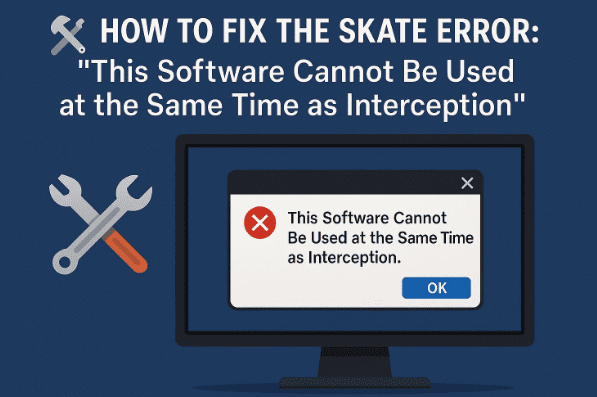
When trying to launch Skate on PC, many players have run into a frustrating error message:
“This software cannot be used at the same time as Interception.”
This problem often appears when certain background drivers or applications interfere with the game. It may sound confusing at first, but don’t worry—we’re going to walk step by step through the full process of fixing it.
By the end of this article, you’ll understand:
- What causes this error in Skate.
- How to check and close conflicting applications.
- How to safely uninstall the problematic Interception driver.
- How to use Command Prompt (CMD) correctly for the fix.
- What to do if the issue persists after following the steps.
So, let’s begin this troubleshooting journey. Don’t rush—we’ll go slowly and explain every step clearly.
1. Why Does the Skate Interception Error Happen?
Before fixing a problem, it’s always best to understand why it happens.
The Interception driver is a type of low-level driver for keyboards and controllers. It’s often bundled with third-party tools, such as controller emulators or key remapping software. When Skate detects this driver running in the background, it prevents the game from starting to avoid conflicts or possible cheating exploits.
Two main culprits usually cause this error:
- DS4 Windows – a tool used to emulate a PlayStation controller as an Xbox controller.
- Interception driver – installed manually or automatically with some controller utilities.
The good news is that this error is not a permanent game-breaking issue. It can be fixed by closing conflicting software and properly uninstalling the driver.
2. Step 1: Close DS4 Windows and Similar Programs
The first and simplest fix is to check whether DS4 Windows or similar applications are running. These can trigger the Interception error.
👉 Let’s carefully walk through it.






- Press Ctrl + Shift + Esc to open the Task Manager.
- Look for DS4 Windows in the list of running processes.
- If you see it, right-click > End Task.
- If you don’t see it but suspect it’s running, check your system tray (bottom-right corner of Windows).
- If DS4 Windows appears there, right-click it and choose Exit.
- Try launching Skate again.
If the game now works, the issue was simply DS4 Windows. But if the error persists, let’s move to the next step.
3. Step 2: Understanding the Interception Driver
This is where things get a little more technical.
The Interception driver may have been installed on your computer without you realizing it. It often comes packaged with controller utilities or experimental drivers. The file is usually named something like:
installerception.exe
Unlike normal apps, you can’t simply uninstall it from Control Panel. Instead, the proper method involves:
- Installing it fully (if it isn’t already).
- Then using Command Prompt to remove it.
This may sound counterintuitive, but it ensures that Windows correctly removes the driver from the System32 > drivers directory.
Let’s go step by step.
4. Step 3: Reinstall the Interception Driver with CMD
Now that we know the Interception driver is the problem, we need to install (or re-install) it before we can uninstall it properly.
Here’s what to do:
- Press Start and type
cmd. - Right-click Command Prompt and select Run as Administrator.
- A black CMD window will appear. Click Yes when Windows asks for permission.
Now, copy and paste the first command used to install Interception. (⚠️ This command varies depending on the distribution you got Interception from. If you’re unsure, check the official Interception GitHub: Interception Driver Project).
- Press Enter to run the command.
- If Interception is already installed, you’ll see an error message like:
could not write into System32\DriversThat means it’s present and ready to be removed. - Restart your PC before proceeding to the next step.
5. Step 4: Uninstall the Interception Driver with CMD
After restarting, we’re now ready to fully uninstall the driver.
- Open Command Prompt again as Administrator (same method as before).
- Copy and paste the second command for uninstalling Interception.
- Press Enter.
You should see a confirmation message:
Interception uninstalled
- Restart your PC once more to complete the process.
At this point, the driver should be completely removed, and Skate should no longer show the error.
6. Step 5: Restart and Test Skate Again
Now comes the final and most satisfying part: testing your game.
- Launch Skate after your second restart.
- If the fix worked, the game should start without showing the Interception error.
- You can now enjoy smooth gameplay without interference from background drivers.
If the error still appears, don’t worry—we have a few extra troubleshooting steps left to cover.
7. Extra Troubleshooting Tips if the Error Persists
Sometimes, even after following all the steps, the problem may remain. This usually means there are leftover files or another conflicting driver.
Here are some additional things you can try:
- Check the System32 Drivers folder manually
- Navigate to
C:\Windows\System32\drivers - Look for any files related to Interception. Delete them if safe to do so.
- Navigate to
- Reinstall Skate
- A fresh install can reset game dependencies and remove hidden conflicts.
- Disable other controller software
- Tools like InputMapper, reWASD, or other third-party drivers can also trigger the error.
- Use Windows Event Viewer
- Check logs under Windows Logs > System to see if there are warnings related to driver conflicts.
If none of these steps work, it may be best to reach out to EA/Skate support for advanced troubleshooting.
8. Frequently Asked Questions (FAQ)
Q1: Why does Skate block Interception?
Because it’s a low-level driver that can alter input, Skate’s anti-cheat system flags it to prevent unfair advantages.
Q2: Is it safe to uninstall Interception?
Yes. Unless you specifically rely on it for advanced controller remapping, most players won’t need it.
Q3: What if I still need DS4 Windows?
You can try alternatives like Steam’s built-in controller support, which usually works without causing this error.
Q4: Do I need to reinstall Interception before removing it?
Yes, this is the correct method. Installing it ensures that Windows recognizes it properly, making uninstallation possible.
Q5: Will this fix work on Windows 10 and Windows 11?
Yes, the process is the same for both operating systems. Just make sure to always run CMD as Administrator.
⚠️ Disclaimer
The steps described in this article involve editing and removing drivers from your Windows system. Follow them carefully and only remove the Interception driver. Deleting unrelated files may cause system instability. Neither the author nor this article’s publisher is responsible for accidental system damage. Always back up important data before making changes.
✅ That’s it! By following these steps, you should be able to fix the Skate error message and get back into the game.
Tags: skate game error fix, interception driver uninstall, ds4 windows error skate, skate pc troubleshooting, skate cannot run interception, skate game fix windows 10, skate windows 11 error
Hashtags: #Skate #PCGaming #ErrorFix #Troubleshooting #Windows11 #ControllerFix #GamingGuide








