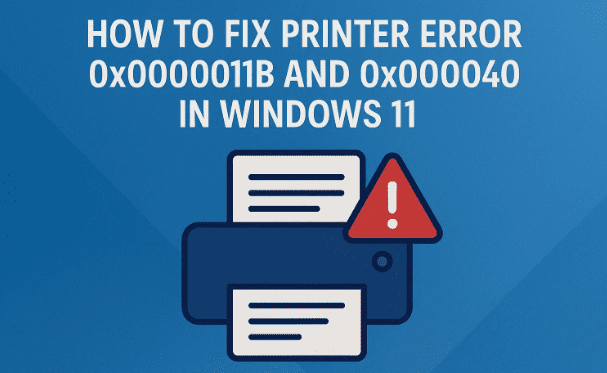
Printing is one of those things we often take for granted—until it stops working. Many Windows 11 users have reported facing printer errors like 0x0000011B and 0x000040, especially in shared or workgroup network environments. These errors usually appear when trying to connect to or use a network printer, leaving you stuck without access to essential printing tasks.
The good news is: these issues can be fixed. In this article, we’ll go through step-by-step solutions, explain why they happen, and give you multiple methods to get your printer working again.
Whether you’re a home user or someone managing office printers, this guide will walk you through everything in detail.
⚠️ Disclaimer Before You Start
This article involves using tools like the Registry Editor, Command Prompt, and Windows Services. If you’re not comfortable making such changes, proceed with caution. Always:
- Create a System Restore Point before applying registry or system changes.
- Back up important files in case you need to reset or roll back.
- If the printer is in an office environment, consult your IT admin before making changes.
📌 Why Does This Error Occur?
Before fixing the problem, it’s useful to understand why it happens in the first place. Printer errors like 0x0000011B and 0x000040 usually occur because of:
- Recent Windows updates: Microsoft sometimes changes how network printing works for security reasons, which breaks older configurations.
- Outdated printer drivers: Old drivers may not be compatible with Windows 11.
- Stopped or corrupted Print Spooler service: This is the background service that manages all printing tasks. If it stops or crashes, printing won’t work.
- Corrupted system files: Damaged Windows system files can prevent printer communication.
Now that we know the causes, let’s move to fixing them one by one.
1. Run the Built-in Printer Troubleshooter
The simplest place to start is with the Windows Troubleshooter, which can automatically detect and fix common problems.
Here’s how:
- Click on the Start button and select Settings.
- Navigate to System → Troubleshoot → Other troubleshooters.
- Find Printer in the list and click Run.
- Wait a few minutes while Windows scans and attempts to repair the issue.
👉 Sometimes, the troubleshooter alone is enough to fix error 0x000040 or 0x0000011B. If not, move on to the next step.
2. Update Your Printer Driver
Outdated drivers are one of the most common culprits. Let’s make sure your system has the latest printer driver.
Steps:
- Press Windows + X and select Device Manager.
- Expand the Printers or Print queues section.
- Right-click your printer name and choose Update driver.
- Select Search automatically for drivers.
If Windows finds a newer version, it will install it.



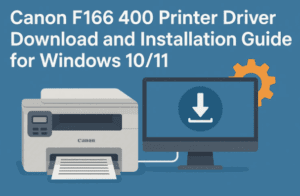
🔹 If no updates are found, visit your printer manufacturer’s official website (HP, Canon, Epson, Brother, etc.) and download the latest Windows 11 driver. Install it manually to ensure compatibility.
3. Restart or Reconfigure the Print Spooler Service
The Print Spooler is the engine behind printing in Windows. If it’s stopped, you’ll encounter errors.
Restarting the Print Spooler:
- Press Windows + R, type
services.msc, and hit Enter. - In the Services window, scroll down to Print Spooler.
- If the service is Stopped, double-click it and set Startup type to Automatic, then click Start.
- If it’s already running, click Stop, wait a few seconds, and then click Start again (this refreshes the service).
This alone resolves printing errors for many users.
4. Repair Corrupted System Files (SFC & DISM)
Sometimes the issue lies deeper within Windows itself. Using System File Checker (SFC) and Deployment Imaging Service and Management Tool (DISM), we can repair system corruption.
Steps:
- Click on Start, type
cmd, then right-click Command Prompt and select Run as administrator. - Type the following commands one by one and press Enter after each:
sfc /scannow
👉 This checks and repairs corrupted system files. It may take 5–10 minutes.
Next, run the DISM commands:
DISM /Online /Cleanup-Image /CheckHealth
DISM /Online /Cleanup-Image /ScanHealth
DISM /Online /Cleanup-Image /RestoreHealth
These commands check and restore the Windows image if there are deeper issues.
- Once completed, restart your PC.
At this point, test your printer again.
5. Advanced Fix: Registry Workaround for Error 0x0000011B
Error 0x0000011B is often caused by Microsoft’s security updates that change how Windows handles printer connections in workgroup networks.
If you are on a home or small office network, and you trust your environment, you can fix it by editing the registry.
Steps:
- Press Windows + R, type
regedit, and press Enter. - Navigate to:
HKEY_LOCAL_MACHINE\System\CurrentControlSet\Control\Print
- In the right panel, right-click → New → DWORD (32-bit) Value.
- Name it:
RpcAuthnLevelPrivacyEnabled
- Double-click it, set the Value data to
0, and click OK. - Restart your PC.
👉 This disables the new RPC authentication requirement that breaks some older network printers.
⚠️ Security Note: Only use this method in trusted local networks. For enterprise environments, check with IT support before applying this fix.
6. Check for Windows Updates
Ironically, while updates often cause printer errors, sometimes the latest cumulative patch actually fixes them.
- Go to Settings → Windows Update.
- Click Check for updates.
- Install any pending updates and restart.
7. Reinstall the Printer
If nothing works, it might be easier to remove and reinstall your printer.
- Go to Settings → Bluetooth & devices → Printers & scanners.
- Select your printer and click Remove device.
- Restart your PC.
- Go back to the same menu, click Add device, and let Windows detect and reinstall the printer.
❓ Frequently Asked Questions
Q1. Why does my printer work on Windows 10 but not Windows 11?
This usually happens due to compatibility issues or stricter security settings in Windows 11. Updating drivers or applying the registry fix often resolves it.
Q2. Can I safely disable RpcAuthnLevelPrivacyEnabled?
Yes, but only in trusted networks (like home or small office). For corporate or public networks, this may pose a security risk.
Q3. What if the Print Spooler keeps stopping automatically?
This may indicate malware or corrupted printer drivers. Run an antivirus scan and reinstall your printer driver.
Q4. Will Microsoft eventually fix this permanently?
Yes, Microsoft periodically updates Windows to patch printer issues. Always keep your system updated.
✅ Final Thoughts
Printer errors like 0x0000011B and 0x000040 can be frustrating, especially when they block your work. Thankfully, with the solutions above—troubleshooter, driver updates, spooler fixes, SFC/DISM scans, registry tweaks, and reinstalling—you should be able to get printing back on track.
If you’re in an office setting, coordinate with IT before making registry edits. For home users, follow the steps carefully and always back up your system.
Printing may not always be smooth, but with a little troubleshooting, you can overcome these errors and restore normal functionality.
Tags
printer error 0x0000011B, printer error 0x000040, Windows 11 printer fix, print spooler issue, update printer driver, troubleshoot printer problems, registry fix printer
Hashtags
#Windows11 #PrinterError #TechGuide #FixPrinter #PrintSpooler








