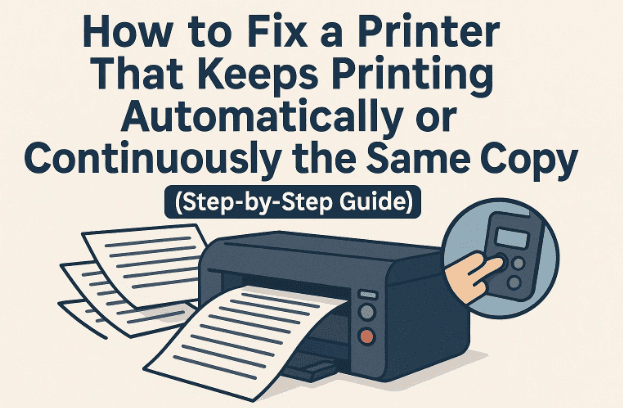
If your printer starts printing the same document repeatedly without stopping, it can be both confusing and wasteful. The pages keep coming out, the printer makes noise continuously, and even pressing Cancel seems to do nothing.
This frustrating issue is quite common in Windows PCs connected to HP, Canon, Epson, or Brother printers, and usually happens due to a stuck print queue, corrupted spool files, or driver malfunction. But don’t worry — you can fix it easily using some simple steps.
In this article, we’ll go through a complete, detailed step-by-step method to stop your printer from printing continuously, and ensure it behaves normally again.
Let’s get started.
⚙️ Understanding Why Your Printer Prints Continuously
Before fixing it, it’s important to understand why this happens. When you send a print command in Windows, it goes through a background service called the Print Spooler. This service queues up your print jobs, processes them, and sends them to your printer.
However, several issues can cause it to malfunction:
- Stuck print queue: A document in the queue keeps re-sending print commands.
- Corrupted spool files: Windows stores temporary print data in the “spool” folder. Corruption here can cause repeat prints.
- Driver malfunction: Outdated or buggy drivers may send duplicate jobs.
- Spooler service misconfiguration: If the service is stopped, frozen, or set incorrectly, prints can loop endlessly.
- Pending ghost files: Old temporary files that never got deleted.
Now that you know the reason, let’s fix it systematically.
🧹 Step 1: Clear All Pending Print Jobs from the Queue
The first and easiest fix is to cancel everything that’s currently stuck in your printer queue.
Steps:
- Click the Start menu and open Run (
Win + R). - Type:
controland click OK — this opens the Control Panel. - In Control Panel, set the View by: option to Large icons.
- Click on Devices and Printers.
- Find your connected printer in the list.
- Right-click on the printer → choose See what’s printing.
- A window will appear showing all pending print jobs.
- Select all items (press
Ctrl + A), then right-click → Cancel All Documents. - Confirm by clicking Yes.
After a few moments, the queue should be empty.
👉 If documents don’t cancel:
Close the window and continue to the next step where we’ll manually clear these files.
🧾 Step 2: Manually Delete Stuck Spool Files
If the queue refuses to clear, you can manually remove the files that store pending print jobs. These are temporary files stored in a system folder.









Steps:
- Open File Explorer and go to your C: drive.
- Navigate to this location:
C:\Windows\System32\spool\PRINTERS - If prompted for administrator permission, click Continue.
- Inside this folder, you’ll see files with
.splor.shdextensions — these are spool files. - Select all files (
Ctrl + A) → Right-click → Delete. - Once deleted, close the folder.
These files often cause continuous printing because Windows keeps reprocessing them. Deleting them clears the print memory.
🧠 Step 3: Restart the Print Spooler Service
Now that we’ve cleared old jobs, let’s reset the Print Spooler — the service that controls all printer communication.
Steps:
- Press
Win + R, type:services.mscand click OK. - A window will open listing all Windows services.
- Scroll down and find Print Spooler.
- Right-click on it → click Stop.
- Wait 5 seconds, then right-click again → click Start.
- If the Startup type is set to Manual, double-click Print Spooler → change Startup type to Automatic.
- Click Apply → OK.
This ensures that the spooler always starts automatically with Windows.
🧩 Why this helps: Restarting this service clears any stuck processes and refreshes communication between Windows and your printer.
🧰 Step 4: Disable and Re-Enable the Printer in Device Manager
Sometimes Windows gets confused about printer status — marking it “active” even when it’s frozen. Disabling and re-enabling it resets that connection.
Steps:
- Right-click This PC on your desktop → select Manage.
- In the left panel, click Device Manager.
- Expand the Printers section (or Print queues on some versions).
- Find your printer, right-click it → Disable device.
- Confirm by clicking Yes.
- Wait a few seconds, then right-click the same printer again → Enable device.
This refreshes your printer’s registration with Windows.
Now, if your printer keeps looping the same document, move on to the next step.
🔄 Step 5: Uninstall and Reinstall the Printer Driver
A corrupted or incompatible printer driver can cause repeating print commands. Let’s reinstall it cleanly.
Steps:
- In Device Manager, right-click your printer → Uninstall device.
- Confirm removal.
- On the top menu, click Action → Scan for hardware changes.
- Windows will automatically detect your printer again and reinstall the driver.
If it doesn’t, you can manually update it.
Manual Update:
- Right-click the printer → Update driver.
- Choose Browse my computer for drivers.
- Then click Let me pick from a list of available drivers on my computer.
- Select the correct printer model → click Next.
- Wait for installation to complete, then close the window.
You can also get the latest version directly from the manufacturer’s official website:
After installing, restart your computer and check whether the issue is resolved.
🧩 Step 6: Use Windows Troubleshooter for Printers
If the problem persists, let’s use Microsoft’s built-in Printer Troubleshooter, which automatically detects and fixes issues like stuck print queues, bad drivers, or miscommunication.
Steps:
- Click the Start menu → Settings.
- Go to Update & Security → Troubleshoot.
- Click Additional Troubleshooters.
- Find Printer, and click Run the troubleshooter.
- Select your printer model when prompted.
- Follow on-screen instructions and apply the suggested fixes.
- Once complete, close the window and restart your computer.
Windows will detect configuration problems and repair them automatically.
🧾 Step 7: Test Your Printer
Now that everything has been reset and repaired, it’s time to test your printer.
- Open Control Panel → Devices and Printers.
- Right-click your printer → Printer Properties.
- Click Print Test Page.
If only one page prints (and not a loop of repeated copies), congratulations — your issue is fixed! 🎉
If it still continues, try checking your printer’s physical buttons or cancel job feature on the device itself. Some models have their own internal memory that stores old jobs — clearing it manually can help.
⚡ Step 8: Optional — Check for Firmware or OS Updates
Outdated printer firmware or an unpatched Windows build can sometimes trigger repeated printing bugs.
Visit your printer manufacturer’s website and check for firmware updates for your exact model. You can find update tools here:
You should also update your Windows version to ensure compatibility with newer printer drivers.
💬 Frequently Asked Questions (FAQ)
Q1: Why does my printer print the same document over and over again?
It happens when a document is stuck in the print queue or spool folder. Windows keeps sending it repeatedly until it’s manually cleared.
Q2: I’ve canceled all print jobs but my printer still prints. What now?
Delete the files manually from the spool folder (C:\Windows\System32\spool\PRINTERS) and restart the Print Spooler service.
Q3: Will uninstalling the printer driver delete my documents?
No. Uninstalling and reinstalling the driver only affects how Windows communicates with your printer — your files remain safe.
Q4: Should I disconnect the printer cable while troubleshooting?
Yes, it’s a good idea to unplug it while deleting spool files or reinstalling drivers to prevent repeated command signals.
Q5: What if even after these steps my printer keeps printing automatically?
If the issue continues, it may be caused by:
- A physical button stuck on the printer.
- Hardware fault in the logic board.
- Network printer sending duplicate jobs from multiple computers.
In that case, disconnect the printer from all computers and test it on one PC to isolate the problem.
⚠️ Disclaimer
Deleting system files or stopping services should be done carefully. Always close other programs while performing these steps. Do not modify any files outside the spool/printers folder.
If your printer is still under warranty, you can also contact the official service center before trying advanced troubleshooting.
✅ Final Thoughts
A printer that keeps printing continuously is one of those annoying tech problems that waste paper, ink, and time. Fortunately, the solution is straightforward once you understand what’s happening behind the scenes.
By clearing the print queue, deleting spool files, restarting the Print Spooler service, and reinstalling drivers, you can fix almost all cases of continuous or looping prints in Windows.
If the problem still persists after following these steps, it’s worth checking the hardware or seeking official service assistance.
So far, you’ve done a great job working through each method. Take a moment to test a new document — and enjoy smooth, one-time prints again! 🖨️✨
#PrinterError #PrintSpooler #WindowsPrinterFix #PrinterTroubleshooting #HPPrinter








