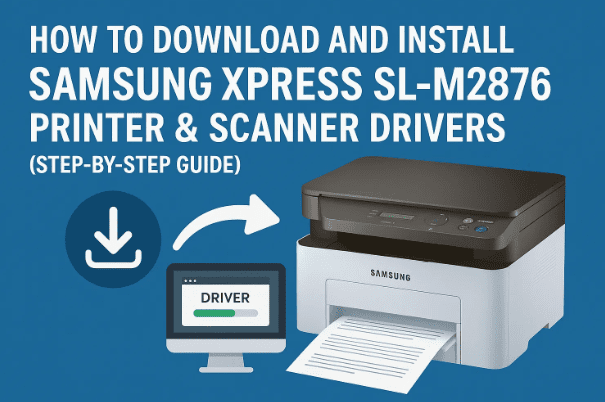
If your Samsung Xpress SL-M2876 printer or scanner isn’t responding properly, the issue often lies in missing or outdated drivers. Installing the correct drivers is essential for your computer to communicate effectively with your printer and scanner — ensuring smooth printing, scanning, and troubleshooting when issues arise.
This guide will walk you through the complete process of downloading and installing both printer and scanner drivers for the Samsung Xpress SL-M2876 Laser Multifunction Printer Series. You’ll also learn how to verify the installation and solve common driver issues.
1️⃣ Introduction: Why Printer Drivers Matter
Before jumping into downloads, let’s understand why these drivers are so important.
A printer driver acts like a translator between your computer and the printer hardware. It ensures that when you hit “Print,” your data is correctly converted into a format your printer understands. Similarly, a scanner driver helps your PC recognize and control the scanner’s functions, enabling it to capture, preview, and save scanned images correctly.
Using incorrect or outdated drivers can cause:
- Printing errors (blank pages, faded output)
- The printer not being detected
- Scanner failing to start
- Slow or laggy print commands
That’s why it’s always recommended to download drivers from the official HP Support website, as HP now manages Samsung printer support after acquiring Samsung’s printer division.
2️⃣ Step 1: Visit the Official HP Support Page
Let’s start by downloading the correct drivers.
Visit the official HP driver support page for the Samsung Xpress SL-M2876 series:
Once you’re there:
- The page will automatically detect your operating system (e.g., Windows 10, Windows 11, or macOS).
- If it doesn’t, manually select your OS from the dropdown menu.
- Scroll down to the section labeled “Driver – Printer” and “Driver – Scanner.”
You’ll now see two categories:
- Basic Printer Drivers
- Scan Drivers or Scanner Software
We’ll handle both one by one.
3️⃣ Step 2: Download the Printer Driver
Now that you’re on the HP page, let’s begin with the printer driver.




Before we start downloading, remember that the printer driver enables your PC to communicate with the printing component of your device — without it, even if your printer powers on, your computer won’t know how to send print commands correctly.
Here’s what to do:
- Find the Printer Driver section.
- Click on “Download” next to the latest available driver.
- You’ll be redirected to another page automatically.
- Wait for the download to begin — it usually starts within a few seconds.
💡 The download time depends on your internet speed. On a standard connection, it takes less than a minute.
Once the download completes:
- Go to your browser’s download bar.
- Click “Show all” and then “Show in folder.”
- Drag the downloaded file to your Desktop for easy access later.
You’ve now successfully downloaded your printer driver.
Let’s move on to the next step.
4️⃣ Step 3: Download the Scanner Driver
After completing the printer driver download, we’ll now download the scanner driver. This part controls how your system handles document and photo scanning.
Go back to the same HP support page and follow these steps:
- Scroll down to “Driver – Scanner” or “Scan Driver.”
- Expand the section labeled Basic Drivers.
- Click “Download.”
- The page may redirect again, and your download will start shortly.
- Once the file is downloaded, repeat the same step:
- Open your browser downloads list.
- Click “Show in Folder.”
- Drag the file to your desktop for convenience.
You should now see two files on your desktop:
- One for the printer driver
- One for the scanner driver
Now we’re ready to start the installation process.
5️⃣ Step 4: Install the Printer Driver
Alright, it’s time to set up your printer driver.
Make sure your printer is connected via USB and powered ON before starting.
Steps to Install the Printer Driver:
- Double-click the printer driver file you downloaded.
- A security prompt may appear — click “Yes.”
- Once the installer opens, click Next to begin.
- Read through the Terms & Conditions, check the box that says “I agree,” and click Next.
- You’ll see three setup options:
- New Printer – for setting up a brand-new printer.
- Existing Printer – if your printer is already installed but not functioning correctly.
- No Printer Connected – if your printer isn’t currently powered on or connected via cable.
If your printer is not yet connected or turned on, select “No Printer Connected” and click Next.
The installation wizard will start copying files and configuring the driver.
It might take a few moments depending on your PC’s performance.
Once done, click Finish.
Your Samsung Xpress M2876 printer driver is now installed successfully.
6️⃣ Step 5: Install the Scanner Driver
Now let’s install the scanner driver. This enables the scanning function of your all-in-one printer.
Follow these steps carefully:
- Double-click the scanner driver file on your desktop.
- Click Yes on the permission prompt.
- The installation wizard will open — click Next.
- Agree to the Terms & Conditions and tick the checkbox.
- When prompted with options like:
- New Printer
- Existing Printer
- No Printer Connection
Select “No Printer Connection” again if your printer isn’t connected yet.
- Click Next to continue the installation.
- If Windows shows a security warning such as: “Do you want to install this software?”
Click “Install this software anyway.”
This ensures that your driver files are properly registered.
- The installation will complete in a few seconds.
- Click Finish when done.
At this point, both your printer and scanner drivers are fully installed.
7️⃣ Step 6: Verify Installation in Control Panel
Now that everything’s installed, let’s confirm whether your system recognizes the printer correctly.
Here’s how:
- Open the Start Menu.
- Type Control Panel and open it.
- Click on Devices and Printers.
- You should now see your Samsung Xpress SL-M2876 Printer listed under printers.
If it appears there, congratulations — your printer and scanner are both ready to use!
You can now print a test page or scan a document to confirm everything works perfectly.
❓ Common Problems and Solutions (Q&A)
Let’s take a quick look at a few common issues users often face while installing these drivers — along with the fixes.
Q1. What should I do if the printer doesn’t appear after installation?
👉 Ensure the printer is connected via USB cable and powered on. Try another USB port. Then, restart your computer and reopen the “Devices and Printers” window.
Q2. I get a message saying “Cannot Install Driver” — what now?
👉 This usually happens if a previous version of the driver is conflicting. Go to
Control Panel → Programs and Features → Uninstall a program, remove any existing Samsung or HP printer drivers, and reinstall fresh.
Q3. The system asks, “Do you want to install this software?” multiple times. Is it safe?
👉 Yes, it’s completely safe as long as you’re downloading from HP’s official link provided above. Always choose “Install this software anyway.”
Q4. My printer prints blank pages — what’s wrong?
👉 Check your ink or toner levels. If they’re fine, reinstall the printer driver and perform a printer head cleaning from the maintenance options.
Q5. The scanner isn’t working, but the printer is fine.
👉 This usually means the scanner driver wasn’t installed correctly. Re-run the scanner driver installer and restart your PC after completion.
💡 Additional Tips for Smooth Installation
So far, we’ve done a great job setting everything up. Before you start printing and scanning, let’s go through some bonus tips that can help you avoid problems in the future.
- Always download drivers from the official HP website. Avoid third-party sites, as they may bundle malware or outdated software.
- Restart your computer after installing both drivers. This helps the OS register all device components properly.
- If you use Wi-Fi printing, ensure your printer and PC are connected to the same network.
- Regularly update drivers from HP’s site every few months to maintain performance and security.
- For large print jobs, avoid USB hubs; connect directly to the PC’s port for stable communication.
- Use HP Smart software or Windows Scan app for easier scanning operations once the driver is active.
⚠️ Disclaimer
Always download drivers and software from official and verified sources only.
This article is meant for educational purposes and aims to guide you safely through the process of installing printer and scanner drivers for the Samsung Xpress SL-M2876 Laser Multifunction Printer Series. HP owns the software and related driver packages. You can find them on the official HP Support site at:
🔗 HP Official Driver Page for Samsung Xpress SL-M2876 Series
✅ Final Thoughts
Installing your Samsung Xpress SL-M2876 printer and scanner drivers doesn’t have to be complicated.
By following this article carefully, you’ve learned:
- How to download both printer and scanner drivers
- The right order of installation
- How to verify the setup
- How to solve common driver issues
Now your printer is ready for work — whether you’re printing invoices, school projects, or scanning important documents.
#SamsungPrinter #HPDrivers #PrinterSetup #ScannerFix #Windows11 #TechGuide #DtpTips








