Setting up a printer isn’t always as simple as plugging it in — especially if you’ve recently upgraded to Windows 10 or Windows 11 and your system can’t automatically find the correct drivers.
If you own a Samsung Xpress M2876 or M2876ND laser multifunction printer, this guide will help you download and install the correct printer and scanner drivers on your PC or laptop.
We’ll go step-by-step through the process, starting from downloading the official driver from HP’s support page (since HP now manages Samsung printers) to verifying successful installation in your Control Panel.
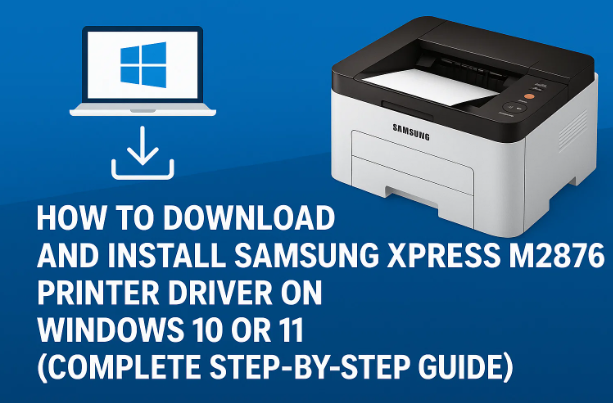
Let’s begin with a quick understanding of why installing the correct driver is essential.
🧩 Why You Need to Manually Install Samsung Printer Drivers
While Windows can often detect and install printers automatically, Samsung printers — especially the Xpress M series — sometimes require manual driver installation.
Here are a few reasons why:
- Your Windows 11 PC might not automatically recognize older printer models.
- Samsung printer drivers are now hosted on HP’s website (since HP acquired Samsung’s printer business in 2017).
- The built-in Windows “generic printer driver” might lack advanced printing and scanning features like duplex printing, toner-saving, and scanning profiles.
By installing the official Samsung/HP driver package, you ensure full compatibility, stable printing performance, and access to all available printer features.
⚙️ Step 1: Visit the Official HP Support Website
To begin, we’ll download the driver from HP’s official support page.
Never download printer drivers from random third-party sites — they can contain outdated or unsafe files. Always go to the manufacturer’s verified page.
🪜 Steps:
- Open your preferred web browser (such as Chrome, Edge, or Firefox).
- In the search bar, type:
Samsung M2876 printer driver download - From the search results, click on the official HP website link.
It should look like this:
👉 HP Samsung Xpress SL-M2876 Laser Multifunction Printer Driver Page - Once the page opens, HP’s website will automatically detect your operating system (e.g., Windows 10 64-bit or Windows 11 64-bit).
If it detects the wrong version, you can manually change it using the “Choose a different OS” option.
📦 Step 2: Identify the Correct Driver Package
The HP website typically lists three driver categories for Samsung printers:
- Printer Driver – Handles print functions (you must install this first).
- Scanner Driver – Enables document scanning functionality.
- Network Driver – Required only for network or Wi-Fi printer setups.
We’ll focus mainly on the Printer Driver and Scanner Driver, since these are essential for printing and scanning operations.







Let’s move forward with downloading them one by one.
💾 Step 3: Download the Printer Driver
Now that you’re on the official page and have identified your OS, let’s download the printer driver.
🪜 Steps:
- Scroll down to the Driver-Product Installation Software section.
- Click the small arrow (▼) next to it to expand the driver list.
- Find the driver titled something like:
Samsung Universal Print Driver or Samsung Printer Driver (Basic) - Click Download next to it.
Your browser will now begin downloading the file. Depending on your internet connection, this may take a few minutes.
Once completed:
- Open your Downloads folder.
- Locate the driver file (it usually ends with
.exe). - Drag it to your Desktop for easier access later.
🧰 Step 4: Install the Printer Driver
Now that the file has been downloaded, it’s time to install it.
🪜 Steps:
- Right-click the downloaded file and choose Run as administrator.
- The setup wizard will launch. Click Yes when prompted for permission.
- Select your preferred language (if asked) and click Next.
- Read and agree to the license terms. Tick both checkboxes and click Next.
You’ll then see three installation options:
- New Printer Installation – If this is the first time connecting your printer.
- Existing Printer – If you already have it installed but are reinstalling the driver.
- No Printer Connection – If you want to install the driver first and connect the printer later.
Choose New Printer Installation and click Next.
🔌 Connecting Your Printer
At this point, make sure:
- Your printer is powered on.
- The USB cable is securely connected to your PC.
The installer will automatically detect your printer model and begin installation.
This may take a few minutes. Be patient — once it finishes, click Finish to complete the process.
Congratulations! You’ve now installed the Samsung M2876 printer driver successfully.
📠 Step 5: Download and Install the Scanner Driver
Now that your printer driver is ready, it’s time to install the scanner driver so that you can scan documents directly from your computer.
🪜 Steps:
- Go back to the HP support page (the same one from Step 1).
- Scroll to the Driver-Product Installation Software section again.
- Expand it and find the Scanner Driver.
- Click Download next to the scanner driver file.
- Once downloaded, right-click the file and select Run as Administrator.
The setup wizard will start:
- Accept the license terms.
- Select No Printer Connection (if your printer is already connected).
- Click Next to continue.
Wait for the installation to finish.
Once done, click Finish to complete setup.
At this stage, both your printer and scanner drivers are installed and ready.
🧾 Step 6: Verify Installation Through Control Panel
Let’s double-check that Windows has successfully recognized your printer and scanner.
🪜 Steps:
- Press Windows + R to open the Run dialog box.
- Type:
control printersand press Enter. - This opens the Devices and Printers window.
Look under the “Printers” section — you should see your Samsung Xpress M2876 listed.
If you also see your printer under the “Scanners” section, it means the scanner driver has been installed successfully.
You can now test printing or scanning a page.
🖨️ Step 7: Test Your Printer and Scanner
Now comes the rewarding part — verifying that your setup works perfectly.
🪜 Steps:
- Turn on your printer.
- Open any document on your computer (e.g., a Word file or PDF).
- Press Ctrl + P to open the print dialog box.
- Choose Samsung Xpress M2876 as your printer.
- Click Print to send a test job.
If your printer successfully prints, you’re good to go!
To test scanning:
- Open Windows Fax and Scan from the Start menu.
- Click New Scan and select Samsung Scanner as your source.
- Click Preview to test the connection and scan quality.
If both print and scan work fine, your setup is 100% complete.
🧩 Step 8: Optional — Install Network Drivers (for Wi-Fi Printers)
If your printer supports network printing or you’re using it in an office setup, you can also install the network drivers.
These drivers allow you to print over Wi-Fi or Ethernet without connecting a USB cable.
🪜 Steps:
- On the HP driver page, expand Driver-Product Installation Software again.
- Locate the Network Driver package.
- Click Download, then install it using the same steps as above.
Once installed, open Settings → Bluetooth & devices → Printers & scanners → Add device to search for your printer over the network.
🧠 Troubleshooting Common Installation Issues
Sometimes, driver installation may not go smoothly due to minor conflicts. Here’s how to handle them:
🧩 1. Printer Not Detected
- Ensure your printer is turned on.
- Try using a different USB port.
- Use the original USB cable provided by Samsung or HP.
- Restart both your printer and PC.
🧩 2. “Driver Not Compatible” Error
- Confirm that you downloaded the correct version (32-bit or 64-bit).
- Go to Settings → System → About to check your Windows architecture.
- If unsure, reinstall using HP’s Universal Print Driver.
🧩 3. Print Command Doesn’t Work
- Open Services (services.msc) → Find Print Spooler → Restart it.
- Clear the print queue from Control Panel.
- Reboot your system and try again.
🧩 4. Scanner Not Working
- Ensure the Scanner Driver was installed (not just the printer driver).
- Try scanning from Windows Fax and Scan instead of a third-party app.
- Check USB connection stability.
If none of these steps work, reinstall both printer and scanner drivers cleanly by removing them from Control Panel first.
💬 Frequently Asked Questions (FAQ)
Q1: Do I need to install both printer and scanner drivers separately?
Yes. The printer and scanner functions use different drivers. Installing both ensures full device functionality.
Q2: My Samsung printer shows under HP in Windows — is that normal?
Yes. HP officially manages Samsung printer drivers after acquiring Samsung’s printing division. All drivers are distributed under HP branding now.
Q3: Can I use the same drivers for Windows 10 and Windows 11?
Yes. HP’s universal Samsung drivers are compatible with both Windows 10 and 11.
Q4: Is internet required during installation?
Only for downloading drivers. The actual installation is fully offline once the files are downloaded.
Q5: What if my printer is older than M2876?
Try using the HP Universal Print Driver (PCL6) available on HP’s website. It supports many older Samsung LaserJet printers as well.
🧾 Step-by-Step Recap
Here’s a quick recap of what we covered so far:
| Step | Action | Purpose |
|---|---|---|
| 1 | Visit HP official website | Safe source for drivers |
| 2 | Identify OS and correct driver | Avoid compatibility issues |
| 3 | Download printer driver | Enables printing functions |
| 4 | Install printer driver | Connects hardware to Windows |
| 5 | Download scanner driver | Adds scanning support |
| 6 | Verify installation | Confirms successful setup |
| 7 | Test print and scan | Ensures everything works |
| 8 | (Optional) Install network driver | For Wi-Fi or LAN printing |
Following these steps will help you set up your Samsung Xpress M2876 printer quickly and efficiently.
🧭 Final Thoughts
Installing a printer driver might seem like a small task, but doing it properly ensures smooth, error-free printing and scanning for years to come.
By downloading drivers only from HP’s official support website and following the correct installation order (printer first, scanner second), you avoid the common “driver missing” and “device not recognized” errors many users face.
Once installed, your Samsung M2876 printer becomes fully functional across Windows 10 and Windows 11 — ready for printing reports, scanning documents, or handling bulk jobs with ease.
⚠️ Disclaimer
All software and drivers mentioned in this article are owned and distributed by HP Inc..
This guide is for educational and troubleshooting purposes only.
Always download drivers from HP’s official website — never from unofficial or third-party sites.
#SamsungPrinter #HPDriver #Windows11 #PrinterSetup #TechGuide #PrinterInstallation







