If you’re an HP LaserJet P2035 printer user and recently upgraded to Windows 11, you might have noticed that the printer doesn’t work automatically after plugging it in. This happens because Windows doesn’t always come with built-in drivers for older printers, especially those released before Windows 10.
But don’t worry — you can still install the correct HP LaserJet P2035 driver manually and make your printer fully functional again.
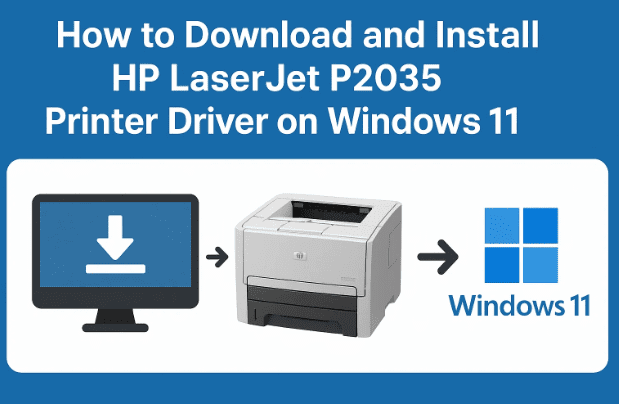
In this detailed article, we’ll go step-by-step through the entire process of downloading, extracting, and installing the HP LaserJet P2035 printer driver on Windows 11.
No third-party tools are required — everything is done through official HP sources and Windows’ built-in tools.
Let’s get started.
🧩 Step 1: Visit the Official HP Support Website
The first step is always to get the official driver from the trusted source — HP’s own website.
- Open any web browser on your Windows 11 PC (like Microsoft Edge, Chrome, or Firefox).
- In the address bar, type:
HP LaserJet P2035 driver downloadand press Enter. - You’ll see several results, but make sure you click on the official HP website link — it should start with:
https://support.hp.com/
and the full page for this specific model is:
👉 HP LaserJet P2035 Printer Series Drivers
This is the official HP driver download page for the P2035 printer model.
💡 Step 2: Select the Correct Operating System (Windows 11)
Once the HP driver page opens, you’ll see it automatically detects your operating system.
Sometimes it may incorrectly show Windows 10 or an older version. Don’t panic — the same driver usually works perfectly on Windows 11 too.
If your page says “Windows 10” — leave it as it is, because HP hasn’t re-released this driver separately for Windows 11.
These drivers are fully backward-compatible.
📘 Note: HP officially supports Windows 7 through Windows 10 for this model, but the same driver package functions flawlessly on Windows 11.
⬇️ Step 3: Download the HP LaserJet P2035 Driver
Once you’re on the correct driver page, follow these simple steps:
- Scroll down to the section that says “Driver – Product Installation Software.”
- You’ll see a driver name like “HP LaserJet P2030/P2050 PCL6 Print Driver”.
- Click the Download button next to it.
Your download will start automatically. The file size is small (usually around 3–5 MB), so it should only take a few seconds.









- Once downloaded, click Show in folder to locate the file.
You’ll find a file named something like:
ljP2035_PCL6_driver.zip
or
lj2030_2050_pcl6_win64.zip
This ZIP file contains the printer driver package we’ll install manually in the next steps.
🗂️ Step 4: Extract the Driver Files
After the download is complete, we need to extract the driver files so Windows can access them.
- Right-click on the downloaded ZIP file.
- Choose Show more options → Extract files… (if you’re on Windows 11).
- Select a location, such as your Desktop, and click OK.
A new folder will appear on your Desktop — this contains all the driver files you’ll need.
✅ Tip: Keep the folder name simple (like “HP2035Driver”) so you can find it easily later.
⚙️ Step 5: Open Control Panel and Add a Printer Manually
Now that the driver files are ready, let’s manually install the printer.
- Click on the Start button and type:
Control Panelthen press Enter. - Inside the Control Panel, click Devices and Printers.
- At the top, click Add a Printer.
Windows will now begin searching for available printers.
If your printer doesn’t appear (which is common when installing manually), don’t worry — we’ll add it ourselves.
🖨️ Step 6: Select “The Printer That I Want Isn’t Listed”
You’ll see an option that says:
“The printer that I want isn’t listed.”
Click this option.
This allows you to manually choose how to install the printer.
🔧 Step 7: Choose “Add a Local Printer or Network Printer with Manual Settings”
Next, a new window will appear with multiple choices.
- Select:
Add a local printer or network printer with manual settings - Click Next.
This tells Windows that we’ll manually assign the printer port and driver.
🔌 Step 8: Select the Correct USB Port
Now you’ll see a list of available ports (like LPT1, COM1, USB001, USB002, etc.).
Your HP LaserJet P2035 usually connects through USB, so:
- Look for something like USB001 (Virtual Printer Port for USB)
or USB002 if there are multiple entries.
Select the port and click Next.
💡 Tip: If you’re unsure which one is correct, choose USB001 — it’s the most common default port for HP USB printers.
📁 Step 9: Install the Driver from the Extracted Folder
Now comes the main part — installing the driver you downloaded earlier.
- Click Have Disk…
- Then click Browse.
- Navigate to the folder where you extracted the driver files earlier (for example, Desktop → HP2035Driver).
- Inside, you’ll find a file named:
hpc2035.infor something similar. - Select it and click Open → OK.
Windows will now display a list of compatible printer models.
Choose:
HP LaserJet P2035
and click Next.
🧰 Step 10: Complete the Installation
At this stage, Windows will ask you to name the printer. You can keep it as:
HP LaserJet P2035
Then click Next.
Windows will now copy the necessary driver files and complete the installation. This might take a few moments.
If Windows asks whether to replace an existing driver (in case you’ve installed it before), select Replace the current driver to ensure you have the latest one.
Once complete, you’ll see:
“The printer has been successfully installed.”
🧾 Step 11: Print a Test Page (Optional but Recommended)
Before finishing, you’ll get an option to Print a Test Page.
Click Print Test Page.
Your HP LaserJet P2035 should now print a sample document successfully.
If the page prints correctly — congratulations! 🎉
Your printer is now working perfectly on Windows 11.
Finally, click Finish to exit the wizard.
📍 Step 12: Verify Installation in Devices and Printers
To double-check everything:
- Open Control Panel → Devices and Printers again.
- You’ll see your new printer listed as:
HP LaserJet P2035 - Right-click on it → Printer Properties → Print Test Page (if you skipped earlier).
If it prints correctly, you’re all set.
🧩 Troubleshooting Common Issues
Sometimes, even after installing, your printer might not respond immediately.
Here are a few quick fixes you can try.
1. Printer Not Detected During Setup
- Make sure the USB cable is properly connected.
- Try a different USB port on your computer.
- Avoid using USB hubs — plug directly into the main port.
2. Print Command Not Working
- Go to Services.msc and check if Print Spooler is running.
If it’s stopped, right-click → Start. - Restart your PC and printer.
3. Driver Installation Failed
- Run the installation as an Administrator (right-click → Run as Administrator).
- Disable antivirus temporarily (sometimes it blocks driver files).
- Try downloading the driver again in case of file corruption.
4. Test Page Prints but Normal Pages Don’t
- Make sure the printer is set as Default Printer in Devices and Printers.
- Check that paper type and tray settings match your actual paper.
🧠 Understanding What You Just Installed
For those curious about the technical side:
- The HP LaserJet P2035 is part of the HP LaserJet P2030/P2050 series, using the PCL6 printer language (Printer Command Language).
- The driver you downloaded is the PCL6 driver, which provides stable performance and sharp text output — ideal for office or document printing.
- It is compatible with:
- Windows 7, 8, 8.1, 10, and 11 (both 32-bit and 64-bit versions).
- USB and Network connections.
⚙️ Alternate Option:
If you use older systems or have compatibility issues, HP also offers Universal Print Drivers (UPD) which support multiple models.
You can find them here:
HP Universal Print Driver
🔄 Updating or Reinstalling the Driver in the Future
If you ever need to reinstall or update the printer driver:
- Go to Device Manager → Print queues → HP LaserJet P2035.
- Right-click → Update Driver → Browse my computer for drivers.
- Point to the same folder where your driver is saved.
You can also uninstall the old driver from Control Panel → Programs and Features, then repeat this guide to install it fresh.
🧰 Additional Tip: Use HP Smart (Optional)
While the P2035 is an older model and doesn’t officially work with HP Smart, you can still use HP Smart to monitor print jobs and ink levels for newer devices.
For supported printers, download it from HP’s official site:
👉 HP Smart App
However, for the LaserJet P2035, manual installation (like we did) is the best and most reliable method.
🧾 Frequently Asked Questions (FAQ)
Q1: Does HP officially support Windows 11 for LaserJet P2035?
Not directly — HP lists drivers for Windows 10, but they work seamlessly on Windows 11 due to compatibility with the same print architecture.
Q2: What if the HP website shows “No driver available”?
Choose Windows 10 as the OS on the HP page — it will reveal the correct download link.
Q3: Do I need internet access after downloading the driver?
No. Once the driver ZIP file is downloaded and extracted, the installation works offline.
Q4: My printer prints blank pages — what should I do?
Check for paper jams or low toner levels. Also, verify you installed the correct driver (P2030/P2050 series PCL6).
Q5: Can I use this method for network printers too?
Yes. During setup, select “Add a network printer” and enter the IP address of the printer instead of choosing a USB port.
Q6: Is this driver safe?
Yes. It’s downloaded directly from HP’s official support website and digitally signed by HP.
✅ Wrapping Up
So far, you’ve learned how to:
- Download the official HP LaserJet P2035 driver from HP’s website.
- Extract and prepare the driver files.
- Manually add your printer through Control Panel.
- Assign the correct USB port and install the driver.
- Print a test page to verify everything works.
The process might sound lengthy, but once you’ve done it once, it becomes a quick routine — and your printer will work smoothly with Windows 11 for years to come.
If your printer still doesn’t respond after following all these steps, try using another cable, reinstalling the driver, or contacting HP support for hardware assistance.
Disclaimer:
This tutorial is intended for educational and troubleshooting purposes only. Always download drivers from official websites like HP Support to avoid malware or corrupted files. The HP LaserJet P2035 is a legacy printer, but its official PCL6 driver remains compatible with modern Windows versions.
#HPLaserJet #PrinterDriver #Windows11 #HPPrinterSetup #TechGuide #PrinterFix






