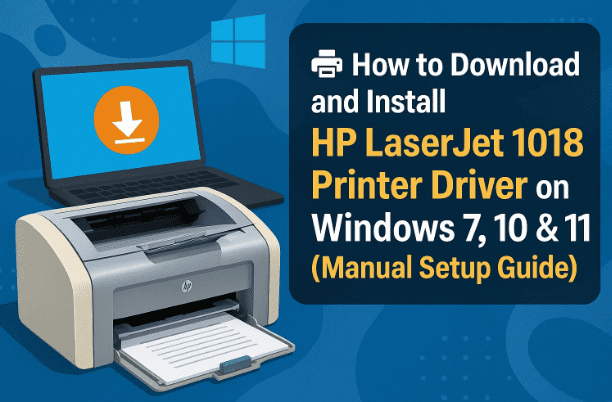
The HP LaserJet 1018 printer is one of HP’s most reliable classic laser models, still used by thousands of users even today for office and home printing. Despite its durability, the main challenge new users face is that HP no longer lists updated drivers for Windows 10 and 11 on its website.
But here’s the good news — you can install the Windows 7 driver version manually, and it works flawlessly on modern Windows versions too. In this detailed step-by-step guide, you’ll learn how to download, extract, and manually install the HP LaserJet 1018 driver, plus what to do if Windows doesn’t detect it automatically.
Let’s dive in.
🧠 Why HP LaserJet 1018 Drivers Need Manual Installation
Since the HP LaserJet 1018 is an older model, HP stopped releasing dedicated installation software for newer versions of Windows. Instead, the Windows 7 driver continues to serve as a stable universal driver for Windows 10 and 11 as well.
Modern Windows systems usually attempt to install a “Class Driver” automatically when you connect the printer, but this basic driver may not fully support duplex settings or correct paper alignment. That’s why manual driver installation is recommended — it ensures full compatibility with print queue management and original HP utilities.
🌐 Step 1: Download the Driver Files
Before doing anything, we’ll need the correct driver file package. There are three safe ways to download it — you can choose whichever is convenient for you.
Option A: Official HP Website
HP still hosts the LaserJet 1018 driver for Windows 7, which also works on newer systems.
Official HP Support Page:
🔗 https://support.hp.com/in-en/drivers/hp-laserjet-1018-printer/1814092
Steps:
- Open the above link in your browser.
- Scroll down to “Driver – Product Installation Software.”
- Click Choose a different OS if your Windows version isn’t detected.
- Select Windows 7 (32-bit) or Windows 7 (64-bit) depending on your system type.
- Click Update and then Download under the “HP LaserJet 1018 Full Feature Driver.”
Option B: Alternate Mirrors
If HP’s page loads slowly, you can also use these safe mirrors (identical files uploaded for easier access):
- Mega Download:
🔗 https://mega.nz/folder/YbgTHCIS#7s8jYkSiK_IqfSi0_8CBKA - Google Drive Mirror:
🔗 https://drive.google.com/drive/folders/1tCrzFvXrBdA3syIaFUaAt9niHNgjhFBe?usp=sharing
(Always verify the folder name and file type — it should be a ZIP or EXE from HP, around ~2–4 MB.)
![💻 Must-Know Windows 11 Keyboard Shortcuts, Clipboard Tricks, Voice Typing & Productivity Hacks [2025 Edition]](https://dtptips.com/wp-content/uploads/2025/06/image-618-300x186.png)


📦 Step 2: Extract the ZIP File
Once your download completes, let’s get the files ready for installation.
- Open the Downloads folder.
- Locate the HP LaserJet 1018 ZIP file.
- Right-click → Extract All… → choose a folder, preferably Desktop.
- Click Extract and wait a few seconds.
A new folder will appear containing multiple files and sub-folders. One of them will have an INF file, which we’ll use later.
So far, we’ve done a good job preparing everything. Next, we’ll install the printer manually through Control Panel.
⚙️ Step 3: Install the Driver Manually via Control Panel
Because the 1018 model doesn’t include an automatic installer, we’ll add the printer manually.
- Press Windows + R and type
control panel, then press Enter. - Navigate to Devices and Printers.
- Click Add a printer at the top.
- A wizard will appear — choose Add a local printer.
This approach gives us full control over the port and driver selection, avoiding mismatches or failed auto-installs.
🔌 Step 4: Select the Correct USB Port
This step is critical — selecting the wrong port can cause the printer to appear “offline.”
- In the port list, scroll to find your connected port.
- Common examples: USB001, USB002, LPT1, or DOT4_001.
- If your printer is connected via USB, select USB001 (Virtual Printer Port for USB).
- Click Next.
If you’re unsure, keep the printer turned on and plugged in; Windows will detect and list the active USB port automatically.
📂 Step 5: Locate the INF File from the Extracted Folder
At this stage, Windows will ask you to choose the printer driver. Since we already extracted it manually, we’ll simply point Windows to it.
- Click Have Disk…
- Choose Browse, then navigate to the Desktop → the folder you extracted earlier.
- Inside, you’ll find a sub-folder containing files like:
autorun.infsetup.exe- several
.dlland.catfiles
- Select the
.INFfile and click Open → OK.
Windows will now list available printer models. Choose HP LaserJet 1018 and click Next.
If prompted to rename the printer, you can simply keep it as “HP LaserJet 1018” or customize the name (e.g., “Office Printer”). Then click Next again.
🖨️ Step 6: Complete Setup and Print Test Page
Once you hit Next, Windows begins installing the driver. This may take 10–30 seconds.
When the installation finishes, you’ll see a confirmation window.
Now you have two options:
- Print a test page → Confirms driver communication with the printer.
- Finish without testing → If you’d rather test later.
If your test page prints correctly, congratulations — your HP LaserJet 1018 driver is installed and working perfectly.
🔎 Step 7: Verify Printer in Devices & Printers
Let’s make sure Windows recognizes it properly.
- Go to Control Panel → Devices and Printers.
- Look for HP LaserJet 1018 in the list.
- If you see a green checkmark next to it, that means it’s set as the default printer.
You can right-click → Printer Properties → Print Test Page anytime to verify.
If it doesn’t show up, disconnect and reconnect the USB cable once; Windows will refresh the device list.
🌍 Alternative Sources and Notes
HP officially retired driver updates for older models like LaserJet 1018 after Windows 7, but because the core architecture of printing subsystems hasn’t changed much, the same Windows 7 driver works fine on both Windows 10 and 11.
If you encounter any unsigned-driver warnings during installation:
- Click Install anyway — this is safe for HP’s official driver.
- Reboot your computer afterward.
Some users prefer downloading via Mega or Google Drive mirrors mentioned earlier for speed, but always verify the SHA-1 hash (or ensure the source points to HP’s original driver package).
💡 Frequently Asked Questions (FAQ)
Q 1. Can I still install HP LaserJet 1018 drivers on Windows 10 or 11?
Yes. Although HP lists drivers only up to Windows 7, the same package works reliably on Windows 10 and 11 when installed manually.
Q 2. My printer doesn’t appear in the USB port list. What should I do?
Try plugging the printer into a different USB port or cable. Then reopen the Add Printer wizard — Windows should refresh and show a new virtual port (e.g., USB002).
Q 3. The setup completed, but nothing prints.
Go to Printer Properties → Ports and ensure the correct USB port is selected. You can also run Troubleshoot from the context menu to reset the spooler.
Q 4. Is this driver safe to use on modern systems?
Yes. The HP LaserJet 1018 driver package is digitally signed by HP. Just make sure to download from HP’s official link or a verified mirror.
Q 5. Do I need HP Smart App or other software?
No. The LaserJet 1018 predates HP Smart and works with the basic print queue interface in Windows. Once installed, you can print directly from any application.
Q 6. Can I share this printer over a network?
Yes. Right-click on the printer → Printer Properties → Sharing → enable “Share this printer.” Other PCs on the same network can connect using this shared name.
Q 7. Does the LaserJet 1018 support scanning?
No. The LaserJet 1018 is a print-only monochrome model. If you need scanning features, use an all-in-one printer like HP DeskJet 2131.
Q 8. How do I uninstall or reinstall the driver?
Go to Control Panel → Programs and Features, uninstall “HP LaserJet 1018 Driver,” then restart your PC. Reinstall using the same steps from this article.
✅ Final Thoughts
We’ve now completed the full installation of the HP LaserJet 1018 printer driver on Windows 7, 10, and 11. Even though HP’s official support page lists only Windows 7 drivers, you can confidently use them on modern systems with excellent compatibility.
By following the above steps carefully — downloading, extracting, selecting the correct USB port, and pointing to the INF file — you can restore your LaserJet 1018 to perfect working order within minutes.
This manual method ensures that the driver is registered correctly in Windows and prevents the “printer not detected” or “driver unavailable” issues that occur with automatic installations.
So far, you’ve done a great job setting up one of HP’s most reliable laser printers. You’re now ready to print crisp, high-speed documents again!
⚠️ Disclaimer
This article is for educational and troubleshooting purposes. The HP LaserJet 1018 driver used here is the official HP Windows 7 version, which remains compatible with later Windows versions but is no longer actively maintained. Always download drivers from HP’s verified sources and back up your system before making major changes.
#HPLaserJet1018 #PrinterDriver #Windows7 #Windows10 #Windows11 #HPDrivers #PrinterSetup #ManualInstallation #Troubleshooting








