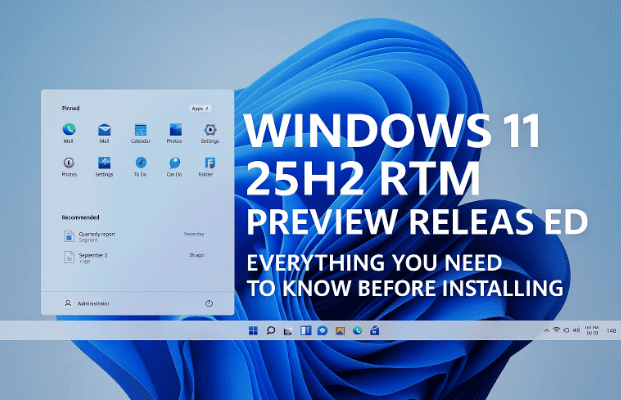
Windows continues its steady evolution, and this year brings another significant milestone: the Windows 11 version 25H2 RTM (Release to Manufacturing) build. This marks the first stage before the stable release expected later this year. But what does RTM mean, how is this version different from 24H2, and should you install it now?
In this detailed article, we’ll break down everything you need to know about the Windows 11 25H2 preview. We’ll cover the timeline, methods of installation, the role of the Windows Insider Program, and the risks of using an RTM build. By the end, you’ll be ready to decide whether to test it yourself or wait for the final rollout.
1. What is Windows 11 25H2 RTM?
Before we get into installation steps, it’s important to understand what RTM means.
- RTM (Release to Manufacturing) is a stage where Microsoft finalizes a build intended for OEMs (Original Equipment Manufacturers). It’s “feature complete” but not yet rolled out to the general public.
- This version is not the same as the stable update you’ll see in Windows Update later. Instead, it’s available through the Windows Insider Program and is meant for testing, validation, and early feedback.
- The build ensures hardware vendors and advanced users can check compatibility before the wider release.
Think of it like a “sneak peek” at the final product, but still carrying potential bugs and unfinished tweaks.
2. Release Timeline and What to Expect
The Windows 11 25H2 RTM build was released on August 29, 2025 in the Release Preview Channel for Insiders.
Here’s how the rollout looks:
- August 29, 2025 → Microsoft announced the availability of Windows 11 25H2 in the Insider Release Preview channel.
- September 2025 → ISO files are expected to be officially available for manual installation and testing.
- Late September to Early October 2025 → Stable rollout begins gradually to all Windows 11 users.
💡 Important: If you check your Windows Update right now as a regular user, you won’t see 25H2 yet. It’s only visible to Insiders or accessible through specific installation methods.
3. Differences Between 24H2 and 25H2
For months, 24H2 was considered the “final” big update of Windows 11. But now 25H2 takes that role. So what’s different?
- Enablement Package Approach → 25H2 isn’t an entirely new OS build; it shares the same servicing branch as 24H2. Instead, it’s delivered as an enablement package (KB update) that unlocks new features.
- Shared Features → Some features remain the same between 24H2 and 25H2. Microsoft is focusing on incremental improvements instead of drastic changes.
- Removed or Changed Features → Some older components may be phased out, but Microsoft hasn’t yet detailed the full list.
In simple terms: if you’re on 24H2, upgrading to 25H2 is more like flipping a switch than reinstalling Windows from scratch.
4. How to Install Windows 11 25H2 (Step by Step)
If you’re eager to try out Windows 11 25H2 before it hits the stable channel, there are three main ways to do it. Let’s walk through each carefully.
4.1 Method 1 – Join the Windows Insider Program
This is the official way to get early access to Windows 11 25H2.









Steps to join:
- Open Settings → Press
Windows + I. - Go to Windows Update → Look for “Windows Insider Program.”
- Click “Get Started.”
- Link Your Microsoft Account → Choose the account you want to use.
- Choose the Preview Channel → Select the Release Preview Channel for the most stable Insider builds.
- Confirm and Restart → Follow on-screen prompts and restart your PC.
- Check for Updates → After reboot, go back to Windows Update and click Check for updates. You should see Windows 11 25H2 appear.
👉 Once installed, your PC will be running the Insider RTM build.
4.2 Method 2 – Install via Enablement Package (KB Update)
If you already have the required base build installed, you can activate 25H2 using the enablement package.
- First, install Build 26200.5074 (Mic100.5074).
- Then download the enablement package KB5054156.
Steps:
- Install the required base build.
- Download the KB package installer.
- Run the installer and let it apply.
- After reboot, press
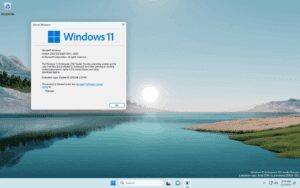
Windows + R, typewinver, and confirm that your version now shows 25H2.
⚠️ Note: This method still requires being part of the Insider Program.
4.3 Method 3 – Install Using ISO
Microsoft also releases Insider ISOs for clean installations or upgrades.
- When? ISOs for 25H2 are expected in the first week of September 2025.
- Where? Official ISOs will be available via Microsoft’s Insider Preview Downloads page.
Steps once ISO is available:
- Download the ISO file from Microsoft.
- Create a bootable USB using Rufus or similar tools.
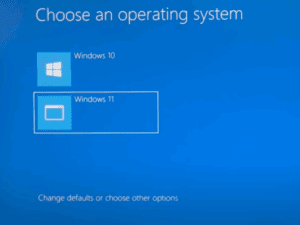
- Boot your PC from the USB.
- Follow the installation wizard to upgrade or clean install Windows 11 25H2.
💡 Pro Tip: Always back up your files before clean installs.
5. Risks and Precautions Before Installing
Now, let’s pause for a moment. Before you jump in and install 25H2, you should be aware of some risks:
- Not a Stable Build → RTM means it’s close to stable but may still include bugs.
- Driver Compatibility Issues → Some hardware drivers may not yet be optimized.
- Data Loss Risk → As with any upgrade, things can go wrong. Always keep a backup.
- Limited Support → Microsoft won’t provide full support until the stable rollout begins.
👉 Recommendation: If you use your PC for critical work, wait for the stable release. Use a secondary device or a virtual machine if you want to test 25H2 early.
6. Frequently Asked Questions (FAQs)
Q1. Can I install Windows 11 25H2 without joining the Insider Program?
Not directly. While ISOs will soon be available, they are still Insider builds. You’ll need to enroll in Insider to receive updates.
Q2. Will my files be safe during the upgrade?
Generally, yes. But unexpected errors may occur. Always back up important files before installing preview builds.
Q3. What happens if I want to leave the Insider Program?
You can opt out through Settings → Windows Update → Windows Insider Program → Stop receiving Insider builds. But you’ll only return to stable versions after the next major release.
Q4. Is 25H2 faster than 24H2?
Performance improvements are incremental. Some users report smoother updates, but don’t expect a massive speed boost.
Q5. Should gamers install 25H2?
Not recommended on a main gaming PC. New builds may cause instability with anti-cheat systems or GPU drivers.
7. Final Thoughts
The release of Windows 11 25H2 RTM shows that Microsoft is sticking with its yearly feature update cycle. While it doesn’t bring a revolutionary interface change, it focuses on refinements, compatibility, and shared servicing with 24H2.
If you’re an enthusiast who loves being ahead of the curve, enrolling in the Insider Program or trying the ISO might be worth it. But for most users, patience pays off—waiting until late September or early October will guarantee a smoother, more reliable experience.
At the end of the day, stability matters more than being first. A boring but reliable Windows is far better than a buggy one. Let’s hope Microsoft delivers a lightweight, fast, and error-free update when 25H2 rolls out to everyone.
Disclaimer
This article is for educational purposes only. Installing Insider or RTM builds may introduce instability or compatibility issues. Proceed at your own risk and always back up important data before upgrading.
Tags
Windows 11 25H2, Windows 11 RTM, Windows Insider Program, Windows 11 Preview Build, Windows 11 Enablement Package, Windows 11 ISO Download, Microsoft Windows Updates
Hashtags
#Windows11 #Microsoft #WindowsUpdate #TechGuide #WindowsInsider #OperatingSystem #Windows11Update








