Ever faced a situation where your desktop monitor suddenly stopped working, but you urgently needed access to data inside your CPU? If yes, you’re not alone. It happened to me too, and instead of panicking, I found a smart workaround: I turned my laptop into a display monitor for my desktop using an HDMI capture card.
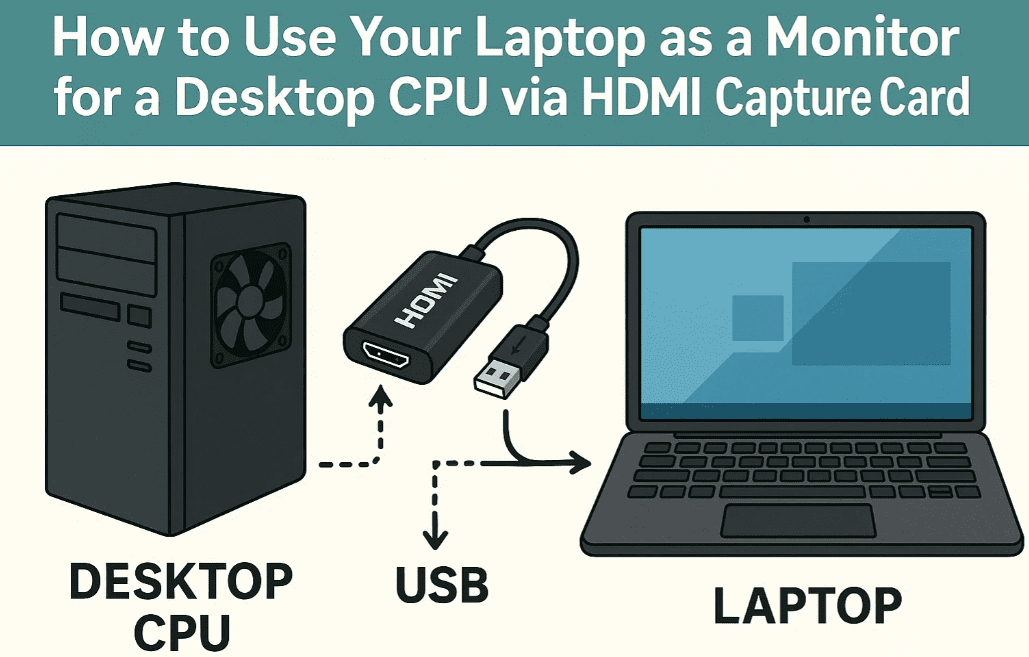
In this detailed blog, I’ll walk you through:
- What you need to make this setup work
- How to connect your desktop CPU to a laptop screen
- How to use OBS Studio for full-screen monitoring and recording
- FAQs and bonus tips for troubleshooting
Let’s dive in!
🔧 Requirements – What You’ll Need
Before you begin, ensure you have the following:
- A desktop CPU with an HDMI output port
- A laptop with a USB port
- An HDMI capture card
You can purchase one easily from Amazon [Affiliate link]
(This will act as a bridge between your CPU and laptop.) - An HDMI cable
- Optional but recommended: OBS Studio software (Free and open-source for recording and full-screen view)
🪛 Step-by-Step: Connect CPU Display to Laptop via Capture Card
🧩 Step 1: Connect the HDMI Capture Card
- Take the HDMI cable and plug one end into the HDMI OUT port of your desktop CPU.
- Plug the other end into the HDMI IN port of the capture card.
- Insert the capture card into the USB port of your laptop.
💡 Tip: Most HDMI capture cards are plug-and-play and do not require drivers.
🖥️ Step 2: Verify in Device Manager
To ensure your laptop recognizes the capture card:
- Press
Windows + X→ Select Device Manager - Expand the Cameras or Imaging Devices section
- You should see two entries:
- Integrated Camera (laptop’s built-in webcam)
- USB Video Device (this is your HDMI capture card)
📸 Step 3: Preview Using the Camera App
You can do a quick test using the built-in Camera app:
- Search and open Camera from Start
- Click the Switch Camera icon
- You’ll see your CPU’s display showing inside the camera app!
This confirms that your desktop screen is now being streamed into the laptop.
🎬 Step-by-Step: Use OBS Studio for Fullscreen View and Recording
If you want a proper fullscreen display (and even record or livestream), use OBS Studio – a powerful free tool.
📥 Step 1: Download and Install OBS Studio
- Visit https://obsproject.com and download OBS for Windows
🧰 Step 2: Set Up OBS Scene and Source
- Open OBS Studio
- In the Scenes panel, click + to create a new scene
- In the Sources panel, click + and select Video Capture Device
- Name it (e.g., “CPU Monitor”) and click OK
- In the dropdown list, select USB Video Device
- Click OK
You should now see your desktop CPU screen live inside OBS on your laptop.
🖵 Step 3: Fullscreen the CPU Display in OBS
- Right-click inside the video preview
- Select Fullscreen Projector (Preview) → Choose your laptop screen
- Now you have a full monitor view of your desktop CPU on your laptop!
🔴 Step 4: (Optional) Record or Stream
Want to record what’s happening on your desktop?




- In OBS, click Start Recording
- To stop, click Stop Recording
Your video will be saved in your Videos folder by default.
🎯 Use Cases
- Access files from CPU if the monitor is dead
- Record tutorials from another computer
- Livestream gameplay or presentations
- Use your old laptop as a second monitor via HDMI
❓ Frequently Asked Questions
Q: Can I control my CPU from the laptop?
🅰️ No, this method only mirrors the display. For control, you’ll need remote desktop software like AnyDesk or TeamViewer.
Q: Will this work if my CPU has only a VGA port?
🅰️ You’ll need a VGA to HDMI adapter, and quality may reduce.
Q: Is the capture card reusable?
🅰️ Yes! You can use it to record console gameplay, DSLR output, or even livestream webinars.
Q: Can this damage my laptop or CPU?
🅰️ No, as long as you use a reliable HDMI capture card, this process is completely safe.
🛒 Recommended Product
- HDMI Capture Card on Amazon – Click here to view [Affiliate link]
- OBS Studio (Free Software) – https://obsproject.com
✅ Tags:
laptop as monitor, use laptop screen for cpu, hdmi capture card tutorial, cpu monitor broken solution, obs studio setup, camera app trick, full screen hdmi input, desktop without monitor, tech hacks, display mirroring windows
✅ Hashtags:
#LaptopAsMonitor #HDMICaptureCard #OBSStudio #TechHacks #MonitorBrokenFix #DisplayTricks #CPUTroubleshooting #WindowsTips #TechSolutions
🔐 Disclaimer: This guide is for educational purposes only. Always buy electronics and accessories from trusted sources. We are not responsible for hardware compatibility issues or third-party device malfunctions.
Final Thoughts:
If your monitor ever fails, don’t panic or rush to buy a new one. Just use this clever trick and turn your laptop into a monitor using an HDMI capture card. It’s cost-effective, quick, and highly useful in emergencies.








