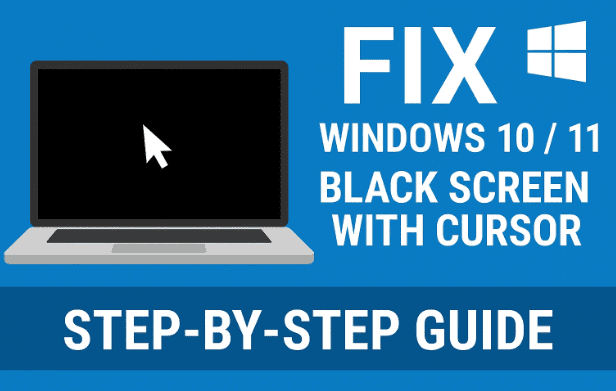
One of the most frustrating issues Windows users encounter is the black screen with only a mouse cursor visible. You start your PC, expect to see your desktop — but instead, all you get is a black screen. The system seems alive because you can move your cursor, yet nothing loads.
This problem is common on both Windows 10 and Windows 11, and it usually happens after a system update, a driver failure, or software conflicts. The good news is: you can fix it yourself — even if you can’t access your desktop.
In this detailed guide, we’ll walk through every possible method to fix the black screen with cursor issue — from using Task Manager to entering Safe Mode or performing an automatic repair.
1. Why Does the Black Screen with Cursor Issue Happen?
Before we dive into the fixes, it’s important to understand why this happens. That way, you can prevent it from occurring again in the future.
The “black screen with cursor” problem is usually caused by one or more of the following:
- A failed Windows update that disrupts startup processes.
- Corrupted App Readiness service or system startup dependencies.
- Incorrect registry entries under the Winlogon key.
- Broken display drivers or mismatched GPU configurations.
- Third-party software (like antivirus or system tuners) blocking explorer.exe from launching.
Now that we know what’s behind the issue, let’s get into the step-by-step solutions.
2. Fix 1: Restart Windows Explorer via Task Manager
Let’s start with the simplest fix — sometimes, the black screen occurs because Windows Explorer didn’t load properly. This can be fixed directly from Task Manager.
Here’s what you need to do:
- Press
Ctrl + Alt + Deleteon your keyboard.- This should bring up the blue Windows security screen.
- Click on Task Manager.
- Once Task Manager opens, click File → Run new task.
- In the box, type:
explorer.exe - Press Enter or click OK.
If everything goes well, your desktop and taskbar should reappear instantly.
If not, or if Task Manager doesn’t open at all, don’t worry — we’ll move on to the next step.
3. Fix 2: Disable App Readiness Service
If restarting Explorer didn’t work, the next most common cause is a misbehaving App Readiness service. This background service prepares apps for first use after updates or installations — but sometimes it gets stuck and prevents Windows from loading the desktop.











Here’s how to disable it:
- Press
Ctrl + Alt + Deleteagain and open Task Manager. - Click File → Run new task.
- Type:
services.msc - Tick the box “Create this task with administrative privileges.”
- Click OK.
A window named Services will open.
- Scroll down and find App Readiness.
- Double-click it.
- Change Startup type to Disabled.
- Click Apply → OK.
This prevents the App Readiness service from running during startup.
Now, let’s restart your computer safely:
- Go back to Task Manager → File → Run new task.
- Type:
cmd.exeand check “Create this task with administrative privileges.” - In Command Prompt, type the following command and press Enter:
shutdown /s /f /t 0This will force a complete shutdown.
Restart your PC normally. In most cases, the black screen problem will be gone after this step.
If the issue still persists, we’ll move on to checking your registry.
4. Fix 3: Check and Correct the Shell Registry Entry
If your Windows shell value is incorrect or missing, your system won’t know which interface to load — resulting in a blank screen.
Let’s fix that carefully using the Registry Editor.
- Press
Ctrl + Alt + Delete→ Task Manager → File → Run new task. - Type:
regedit - Check “Create this task with administrative privileges.”
- Click OK.
Now, navigate to the following path:
HKEY_LOCAL_MACHINE\SOFTWARE\Microsoft\Windows NT\CurrentVersion\Winlogon
Once you’re there:
- Look for a key named Shell in the right panel.
- Double-click on Shell.
- Ensure the Value data is exactly:
explorer.exe - If it’s anything else (like cmd.exe, blank, or some unknown name), replace it with
explorer.exe. - Click OK and close the Registry Editor.
Finally, restart your PC. If the registry key was the issue, your desktop will now appear normally after boot.
5. Fix 4: Use Safe Mode or Automatic Repair
Now let’s talk about what to do if you can’t even reach the Task Manager screen — meaning Ctrl + Alt + Delete doesn’t respond, or your system hangs before showing any options.
In that case, we’ll use Automatic Repair Mode to access Safe Mode and fix the issue from there.
Entering Automatic Repair Mode
- Make sure your PC is powered off.
- Press the Power button to turn it on.
- As soon as you see the manufacturer’s logo (HP, Dell, Lenovo, etc.), press and hold the power button again for 5 seconds to force a shutdown.
- Repeat this process 2 to 3 times — turning on and then forcing shutdown — until Windows enters Automatic Repair Mode.
You’ll then see a screen that says:
“Diagnosing your PC” → followed by “Automatic Repair” options.
Using Troubleshoot Options
Once you reach the Automatic Repair screen:
- Click Advanced options.
- Choose Troubleshoot.
- Click Advanced options again.
Now you have multiple paths to fix the system:
Option 1: Startup Repair
Select Startup Repair and let Windows automatically scan for boot issues.
This can sometimes fix the black screen if caused by corrupted startup files.
Option 2: System Restore
If the black screen started after a recent update or app installation, choose System Restore.
Select a restore point from a date when your PC was working fine, then let Windows roll back the changes.
Option 3: Enter Safe Mode
If neither of the above works, the next step is Safe Mode — a diagnostic version of Windows that loads only essential drivers.
To enter Safe Mode:
- Go to Troubleshoot → Advanced Options → Startup Settings.
- Click Restart.
- After your PC reboots, press the number 4 key to enable Safe Mode.
Now, Windows will load a minimal interface with basic drivers and no third-party programs.
6. Fix 5: Uninstall Problematic Apps from Safe Mode
Once inside Safe Mode, we can remove the culprit applications that might be causing the black screen — for example, a buggy driver tool, antivirus, or recently installed software.
Here’s how to do it:
- Click the Start Menu → open Settings.
- Navigate to Apps → Installed Apps (in Windows 11) or Apps & Features (in Windows 10).
- Sort the list by Install date to see recently added apps.
- Identify any suspicious or unnecessary software added just before the black screen started.
- Click Uninstall for those apps.
Once done, restart your PC normally. If a faulty program was responsible, your desktop should now load correctly.
7. Bonus: Additional Tips for Prevention
So far, you’ve fixed the issue — great work! But let’s make sure it doesn’t return.
Here are a few preventative measures:
- Keep display drivers updated: Outdated GPU drivers often trigger black screen issues. Visit the official website of your GPU manufacturer (NVIDIA, AMD, Intel) and install the latest drivers.
- Avoid forced shutdowns: Abruptly powering off your system repeatedly can corrupt system files.
- Use trusted software: Avoid downloading system optimizers or “registry cleaners” that might interfere with startup processes.
- Create restore points: Regularly create a System Restore point after major updates or driver installations.
- Check startup apps: Too many startup programs can cause delays or conflicts. Use Task Manager → Startup tab to disable unnecessary entries.
8. Frequently Asked Questions (FAQ)
Let’s address a few common questions users often ask about this issue.
Q1. Why can I only see my cursor on a black screen after logging in?
This usually means Windows Explorer didn’t launch correctly or a system service (like App Readiness) is stuck. Use Task Manager → Run explorer.exe to reload the desktop.
Q2. What if Ctrl + Alt + Delete doesn’t work at all?
Then you’ll need to boot into Automatic Repair Mode (as explained above) and use Safe Mode or System Restore.
Q3. Can a Windows Update cause this issue?
Yes. Occasionally, a buggy or incomplete update can break system processes. In that case, use System Restore to roll back to an earlier date.
Q4. How do I know if it’s a display driver problem?
If your screen flickers, or if you see a cursor but the monitor goes black after the Windows logo, it could be the GPU driver. Boot into Safe Mode and reinstall or update your graphics driver.
Q5. Does disabling the App Readiness service cause other problems?
No — it only affects initial app setup after updates. Disabling it doesn’t harm system performance and can prevent this black screen bug.
Q6. Can malware cause a black screen with cursor?
It’s rare, but possible. Once your system is back up, perform a full antivirus scan with Windows Defender or any trusted security suite.
9. Final Thoughts
The “black screen with cursor” issue can feel terrifying — as if your entire PC is gone. But most of the time, it’s caused by a stuck process or startup glitch that can be fixed with the right steps.
To recap, here’s what you should try in order:
- Restart Windows Explorer from Task Manager.
- Disable the App Readiness service.
- Verify your registry shell entry.
- Use Automatic Repair and Safe Mode if you can’t reach Task Manager.
- Remove problematic software in Safe Mode.
By following these methods carefully, you can bring your system back to normal without reinstalling Windows or losing data.
If you’re still facing issues, it might indicate deeper hardware or driver corruption — in that case, consider performing a Windows Repair Installation (using the official Microsoft Media Creation Tool) to refresh system files without deleting your data.
Once everything is back to normal, take a moment to set a restore point and back up your files — prevention is always better than cure.
Disclaimer:
This article provides general troubleshooting steps for resolving display-related startup issues on Windows 10 and 11. Always proceed with caution when modifying registry entries or system services. The author is not affiliated with Microsoft, and users are advised to create a backup or restore point before making system changes.
Tags: Windows 10 Black Screen, Windows 11 Black Screen with Cursor, App Readiness Service, Windows Explorer Not Loading, Safe Mode, Automatic Repair, Winlogon Registry Fix, Task Manager Commands
Hashtags: #Windows11 #BlackScreenFix #Windows10 #SafeMode #Troubleshooting #Winlogon #AppReadiness #TechGuide








