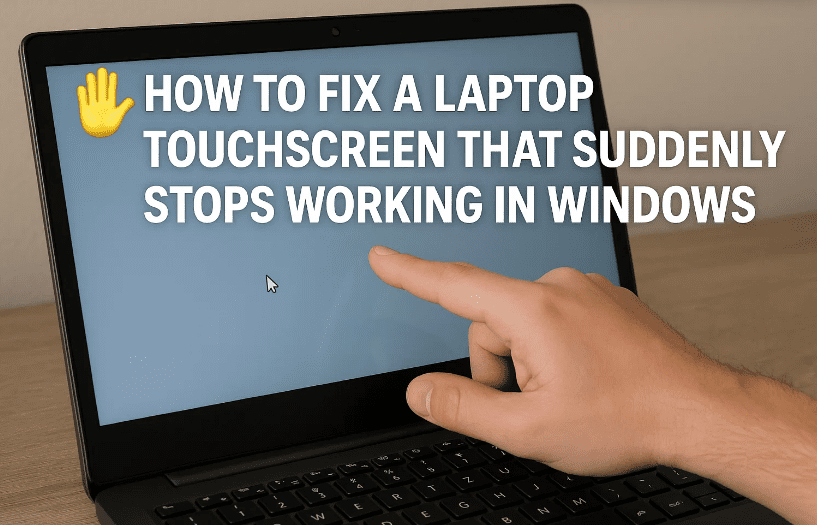
A laptop’s touchscreen can be incredibly convenient — allowing you to scroll, tap, draw, or even sign documents without needing a mouse. But sometimes, the touchscreen suddenly stops responding while the keyboard and trackpad still work fine.
If you’ve run into this problem, don’t panic. In most cases, it’s not a hardware failure but rather a driver or settings issue that you can fix yourself. In this guide, we’ll walk you through step-by-step troubleshooting methods to bring your laptop’s touchscreen back to life.
1️⃣ Why Do Touchscreens Stop Working?
Before we jump into solutions, it’s important to understand the possible causes:
- Driver conflicts after a Windows Update
- Corrupted driver files from improper installation
- Disabled hardware in Device Manager
- Temporary glitches in Windows services
- Physical issues (though less common if keyboard/mouse still work fine)
👉 In most cases, fixing or reinstalling the driver resolves the issue. That’s what we’ll focus on in this article.
2️⃣ Step 1: Check for the Touchscreen Driver in Device Manager
The first thing to do is confirm that Windows still recognizes your touchscreen hardware.
- Right-click the Start menu (Windows logo in the bottom-left).
- Select Device Manager.
- In the list, expand Human Interface Devices (HID).
- Look for HID-compliant touchscreen.
👉 If you see this driver, it means Windows detects the hardware. If it’s missing entirely, you may need to check your laptop manufacturer’s support page for the driver.
3️⃣ Step 2: Roll Back the Touchscreen Driver
Sometimes, a recent driver update causes incompatibility. Rolling it back to the previous version can restore functionality.
Steps:
- Right-click HID-compliant touchscreen → Properties.
- Go to the Driver tab.
- If available, click Roll Back Driver.
- Follow the prompts to confirm.
👉 After rollback, test your touchscreen. If it works again, the update was the problem. You can block future automatic updates for this driver via Windows Update settings.
4️⃣ Step 3: Disable and Re-Enable the Device
If rollback doesn’t help, sometimes simply toggling the device resets its functionality.
- In Device Manager, right-click HID-compliant touchscreen.
- Select Disable device.
- Wait a few seconds, then right-click again and select Enable device.
👉 This refreshes Windows’ connection to the touchscreen hardware.




5️⃣ Step 4: Uninstall and Reinstall the Touchscreen Driver
If disabling/enabling still doesn’t work, the next step is a clean reinstall of the driver.
- Right-click HID-compliant touchscreen in Device Manager.
- Select Uninstall device.
- Confirm when prompted.
- Restart your laptop.
👉 After restart, Windows will automatically attempt to reinstall the correct driver. If it doesn’t, you can manually download it from your laptop manufacturer’s support site.
6️⃣ Step 5: Restart and Test the System
Once the driver is reinstalled, restart your computer again to ensure all changes are applied. After reboot:
- Try touching the screen to test responsiveness.
- Open apps like Paint or the On-Screen Keyboard to check multi-touch input.
If it works, congratulations — your touchscreen is back online.
7️⃣ Additional Troubleshooting Tips
If the above steps don’t solve the issue, here are some extra things you can try:
- Run Windows Update: Sometimes a missing update includes a fixed driver.
- Check BIOS/UEFI Settings: Ensure touchscreen is enabled in firmware.
- Use Windows Troubleshooter: Settings → Update & Security → Troubleshoot → Hardware and Devices.
- System Restore: Roll back your system to a point where the touchscreen was working.
- Check for Physical Damage: If your laptop was dropped or exposed to liquid, the hardware may be damaged.
8️⃣ Frequently Asked Questions (FAQs)
Q1. What if HID-compliant touchscreen is missing from Device Manager?
👉 This usually means the driver isn’t installed. Download the latest driver from your laptop brand’s official support page (Dell, HP, Lenovo, etc).
Q2. Will reinstalling Windows fix touchscreen issues?
👉 Yes, but it should be your last resort. Try driver fixes first, as reinstalling Windows wipes your apps and settings.
Q3. Can I damage my laptop by uninstalling the driver?
👉 No. Windows automatically reinstalls essential drivers on reboot. Just be sure to restart after uninstalling.
Q4. Does disabling Safe Mode affect the touchscreen?
👉 In Safe Mode, most drivers are disabled, so the touchscreen may not work there. That’s normal.
Q5. Is it always a software problem?
👉 Not always. If the touchscreen doesn’t respond even in BIOS or a Linux live USB, it’s likely a hardware issue.
⚠️ Disclaimer
This guide is for educational purposes. Follow these steps carefully and create a restore point before uninstalling drivers. If your touchscreen still doesn’t work after troubleshooting, consult your device manufacturer or a certified technician, as the issue may be hardware-related.
📑 Tags
fix touchscreen not working windows, laptop touchscreen driver, hid compliant touchscreen missing, enable touchscreen windows, touchscreen suddenly stopped working, laptop touchscreen troubleshooting, reinstall touchscreen driver windows, touchscreen disable enable fix
📢 Hashtags
#Windows11 #Windows10 #TouchscreenFix #LaptopRepair #DeviceManager #TechTips #DriverFix #Touchscreen #HID #WindowsTroubleshooting








