If you’ve been playing Little Nightmares III and suddenly ran into a message like “You have lost connection to the internet” or “Your connection has timed out,” you’re not alone.
Many PC players face this frustrating issue when launching or connecting to the game servers, even when their internet connection appears to be working fine.
The good news? You can fix this by following a few simple but effective troubleshooting steps. In this article, we’ll go through all the tested methods to resolve connection errors in Little Nightmares III or similar online PC games.
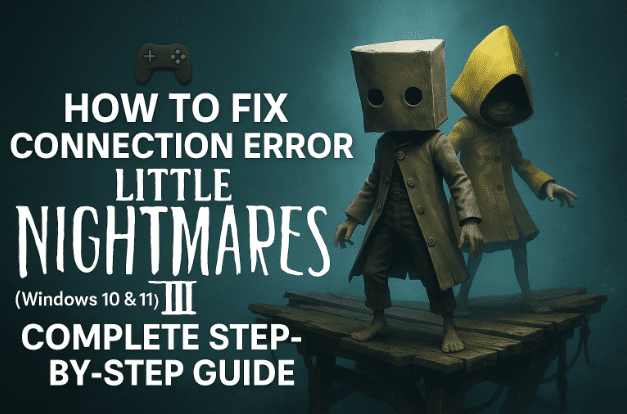
1️⃣ Why Little Nightmares III Shows a Connection Error
Before we begin troubleshooting, it’s important to understand why these connection issues occur. Common causes include:
- Outdated or corrupted network configuration on your PC.
- Firewall or antivirus blocking the game’s online access.
- DNS issues from your ISP.
- IPv6 misconfiguration on modern Windows systems.
- Damaged or missing game files in Steam.
- Incorrect date, time, or region settings.
Now that we know the usual suspects, let’s fix them one by one.
2️⃣ Disconnect and Reconnect Your Wi-Fi
Let’s start with the simplest step. Often, a quick network reset fixes temporary packet loss or poor routing.
Steps:
- Click the Wi-Fi icon in your Windows taskbar.
- Disconnect from your current network.
- Wait 10–15 seconds, then reconnect.
- Launch Little Nightmares III again and check if the error persists.
If it’s still showing a connection issue, let’s move to a more advanced fix.
3️⃣ Switch to a Different Network or Use Mobile Hotspot
Sometimes the issue lies with your internet provider or router. To check this, try using a different network.
Here’s what to do:
- If you have another Wi-Fi connection available, switch to it and launch the game.
- If not, try using your mobile phone hotspot:
- Enable Personal Hotspot on your smartphone.
- Connect your PC to your phone’s network.
- Try playing the game again.
If the game connects successfully via mobile data, your primary ISP may be blocking or throttling the connection.
4️⃣ Perform a Power Cycle (Router and PC)
Power cycling helps clear temporary glitches in your router and PC network memory. It’s a simple but powerful step.
Steps:
- Shut down your computer completely.
- Unplug the power cable from your PC.
- Turn off your Wi-Fi router and unplug it.
- Wait for at least 30–60 seconds.
- Plug in your router again and wait for it to stabilize.
- Reconnect your PC’s power and restart it.
- Launch the game once more.
This resets the IP lease and flushes any routing issues between your PC and the internet gateway.









5️⃣ Try Using a Public DNS (Google or Cloudflare)
If the issue is with DNS resolution, switching to a public DNS can help. Let’s configure Google DNS first.
Steps for Google DNS:
- Open the Windows search box and type
Control Panel. - Go to Network and Internet → Network and Sharing Center.
- Click on your active internet connection.
- Select Properties.
- Choose Internet Protocol Version 4 (TCP/IPv4) → click Properties.
- Select Use the following DNS server addresses and enter:
- Preferred DNS server:
8.8.8.8 - Alternate DNS server:
8.8.4.4
- Preferred DNS server:
- Tick Validate settings upon exit and click OK.
Now try launching the game again.
If it still doesn’t work, try Cloudflare DNS (1.1.1.1).
Steps for Cloudflare DNS:
- Follow the same steps as above.
- Replace the DNS values with:
- Preferred:
1.1.1.1 - Alternate:
1.0.0.1
- Preferred:
- Apply the settings and restart your PC.
If the connection issue is resolved, you can keep using these DNS servers — they are secure and fast. Otherwise, switch back to automatic DNS to restore defaults.
6️⃣ Temporarily Disable IPv6
Sometimes IPv6 can conflict with game servers that only support IPv4.
To disable IPv6:
- Open Control Panel → Network and Internet → Network Connections.
- Right-click on your active network adapter and choose Properties.
- Uncheck Internet Protocol Version 6 (TCP/IPv6).
- Click OK and close all windows.
Now, launch the game. If it works fine, you can leave IPv6 disabled while playing and re-enable it later.
7️⃣ Run the Game as an Administrator
Running the game with administrative privileges can help bypass permission issues or restricted access to online services.
Here’s how:
- Open Steam.
- Right-click the game in your Library → select Manage → Browse Local Files.
- In the game folder, right-click the main
.exefile (e.g.,LittleNightmares3.exe). - Choose Run as administrator.
To make this permanent:
- Right-click the
.exe→ select Properties → open the Compatibility tab → tick Run this program as an administrator → click Apply → OK.
Now reopen the game to see if the connection issue is resolved.
8️⃣ Allow the Game Through Windows Security and Firewall
Your Windows Defender or antivirus might be blocking the game’s connection. Let’s whitelist it properly.
Steps:
- Open Settings → Privacy & Security → Windows Security → Virus & threat protection.
- Scroll down and click Manage ransomware protection.
- Click Allow an app through controlled folder access → select Yes if prompted.
- Click Add an allowed app → Browse all apps.
- Navigate to your game’s installation folder (e.g.,
C:\Program Files (x86)\Steam\steamapps\common\Little Nightmares III) and select the main.exefile. - Repeat for any secondary executables (like
SMG Binaries\Win64).
Now we’ll allow it through the firewall too:
- Open Control Panel → System and Security → Windows Defender Firewall.
- Select Allow an app or feature through Windows Defender Firewall.
- Click Change settings → Allow another app → Browse.
- Select your game’s
.exefile and click Add. - Ensure both Private and Public boxes are checked.
If you’re using third-party antivirus software (like BitDefender, Avast, McAfee, etc.), add the same .exe files to its Exclusions list.
9️⃣ Run Network Reset Commands
If none of the above steps help, resetting your network stack might fix the root cause. This flushes DNS cache, resets Winsock, and rebuilds IP interfaces.
Steps:
- Type cmd in the Windows search bar.
- Right-click Command Prompt → Run as administrator.
- Copy and paste the following commands one by one, pressing Enter after each:
ipconfig /flushdns
ipconfig /release
ipconfig /renew
netsh winsock reset
netsh int ip reset
netsh interface ipv4 reset
netsh interface ipv6 reset
netsh interface tcp reset
- Once all commands are executed, restart your computer — this step is essential.
Now open the game again. Many users report this step alone resolves 80% of persistent connection issues.
🔄 10. Turn Off (or On) VPN and Try a Wired Connection
If you use a VPN, try both options:
- Turn it off to see if your regular connection works better.
- If it doesn’t, turn the VPN on and select a nearby server region — sometimes your ISP may block certain ports the VPN can bypass.
Additionally, if your PC has an Ethernet port, use a wired connection instead of Wi-Fi.
A stable Ethernet cable can significantly reduce packet loss and latency issues common with wireless setups.
11. Verify or Repair Game Files on Steam
Corrupt or missing files can prevent the game from establishing an online connection. Let’s check that next.
Steps:
- Open Steam and go to your Library.
- Right-click Little Nightmares III → select Properties.
- Go to the Installed Files tab.
- Click Verify integrity of game files.
Steam will scan the installation and re-download any damaged or missing files.
Once it shows 100% complete, launch the game and check if the issue persists.
You can learn more about this feature on Steam Support.
12. Check Date, Time, and Region Settings
Incorrect system time can cause authentication or server handshake errors.
To fix this:
- Right-click the date and time in your taskbar.
- Click Adjust date and time.
- Turn on both Set time automatically and Set time zone automatically.
- Click Sync now.
- If you see a red error, click Sync again a few times until you see a green check mark.
- Then go to Settings → Time & Language → Language & Region.
- Ensure your Country/Region matches your actual location.
Now restart your PC and launch the game once again.
13. Frequently Asked Questions (FAQs)
Q1. Does this method work for other Steam games too?
Yes. These steps are universal and can fix connection issues in most multiplayer titles like Apex Legends, COD, Valorant, or Fortnite.
Q2. Is it safe to disable IPv6?
Yes, it’s safe. IPv4 is still the primary standard for most online games. You can re-enable IPv6 anytime.
Q3. My Wi-Fi works but the game still can’t connect. Why?
That usually means your DNS or firewall is blocking specific ports. Try Google DNS and check your Windows Firewall settings again.
Q4. Should I reinstall the game if nothing works?
Only as a last resort. Try verifying game files first — Steam automatically repairs most corrupted data.
14. Conclusion
Connection issues can be incredibly frustrating, especially when your internet works for everything else. But as we’ve seen, these problems are almost always fixable with a few smart steps.
Start with simple things like reconnecting Wi-Fi or switching networks, then move on to DNS changes, firewall permissions, and finally network command resets.
After following these methods, most players successfully reconnect to Little Nightmares III servers without reinstalling the game or Windows.
Take your time, go step by step — and you’ll be back guiding your favorite characters through eerie worlds in no time.
⚠️ Disclaimer
This article is intended for educational and troubleshooting purposes.
The steps provided are tested on Windows 10 and Windows 11 systems. Always back up important data before running command-line operations. The author is not responsible for data loss or system misconfiguration resulting from improper use of administrative tools.
Tags
Little Nightmares III, Game Connection Error, Lost Internet Connection, Fix Timeout Error, Windows 11 Network Issue, Steam Connection Fix, Game DNS Settings, IPv6 Disable, Flush DNS Commands, Verify Steam Files
Hashtags
#LittleNightmares3 #ConnectionError #Windows11 #SteamFix #NetworkTroubleshooting #GameErrorFix #DNSFix #IPv6 #FirewallSettings #GamingGuide







