The Complete Guide to Using AWZ Screen Recorder: Installation, Setup, Features & Real-World Tips
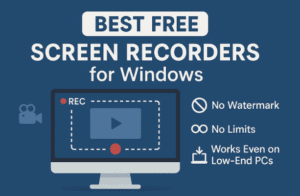
Finding the right screen recorder today can feel overwhelming—especially if you’re using an older PC, want something lightweight, or simply don’t want to spend hours configuring complicated settings.
That’s exactly why this guide exists.
In this article, we’ll explore a simple, powerful, and extremely lightweight screen recorder called AWZ Screen Recorder. You’ll learn how to install it, configure it properly, use its tools, record gameplay, add annotations, compress videos, remove noise, and much more.
Let’s walk through everything step by step.
🖥️ Introducing AWZ Screen Recorder — Lightweight, Fast, and Beginner-Friendly
Before diving into installation and features, it’s worth understanding what makes this tool special.
Many screen recorders today require heavy CPU usage, complex setups, or large installations. AWZ Screen Recorder takes the opposite approach:
- Small installer size (just ~1.3 MB)
- Runs on older computers without lag
- No advanced configurations needed
- Great for tutorials, gameplay, webcam recordings, or desktop captures
- Offers both free and lifetime (Pro) versions
Most of the features we use in this guide work perfectly in the free version, so you won’t miss anything essential.
🔽 Step 1: Downloading and Installing AWZ Screen Recorder
Before we get to features, let’s get the tool running.
- Visit the official website:
https://www.awzware.com/screen-recorder - Click the green download button.
- A tiny 1.3 MB installer will be saved on your computer.
- Open the installer → click Install.
- Wait a few seconds until installation is complete.
- Click Start Now to open the software.
The recorder will immediately launch on your screen—no extra setup needed.
⚙️ Step 2: Initial Configuration (Recommended Settings)
Now that the recorder is open, let’s configure the essential settings so your recordings look clean and professional.
Start by clicking the three-line menu (≡) → Settings.
Here are the recommended options:





🎬 Video Settings
- Format: MP4 (universally compatible and highly recommended)
- Frame Rate:
- 30 FPS → for tutorials/general usage
- 60 FPS → for gameplay
- Quality: Original (best balance of clarity and size)
🔊 Audio Settings
- Audio Bitrate: 320 kbps
- Sample Rate: 48 kHz
- Format: MP3
This ensures your microphone and system audio sound crisp.
🌍 Language & Saving Folder
You can select:
- Default save folder
- Interface language (Portuguese not available yet)
Once done, hit Apply.
You are now fully configured and ready to record.
🎥 Step 3: Choosing What to Record (Full Screen, Region, Webcam, etc.)
Before recording, choose your capture mode.
AwZ gives you several options:
📌 1. Record Full Screen
Best for:
- Gameplay
- Tutorials
- Software demonstrations
📌 2. Record a Specific Region
You can draw a custom box around the area you want to capture.
Useful for:
- Zoomed-in tutorials
- Capturing only a window
- Social media-specific content
📌 3. Preset Resolutions
AWZ includes ready-made formats for:
- YouTube
- TikTok
- Standard formats (16:9, 4:3 etc.)
📌 4. Record Only Webcam
If your webcam is connected, it appears automatically.
You can switch between multiple cameras easily.
📌 5. Microphone & Speaker Control
Once your microphone or headset is plugged in:
- AWZ detects it
- Lets you switch devices
- Lets you mute or enable inputs
This is extremely useful for creators who use multiple audio devices.
🖱️ Step 4: Mouse Click Effects & Keyboard Shortcuts
Before recording, you can improve clarity for your viewers.
🟡 Mouse Click Animation
You can:
- Highlight clicks
- Change click color
- Choose animation style
Great for tutorial creators.
⌨️ Keyboard Hotkeys
Set shortcuts for:
- Start recording
- Pause
- Resume
- Stop recording
- Screenshot
This helps you control recordings while playing games or multitasking.
🎮 Step 5: Recording a Game or Application
Let’s move to real-world usage.
If you select Game Mode, AWZ will automatically detect supported games and record them without capturing unnecessary desktop visuals.
To start recording:
- Click REC
- A 3-second countdown begins
- Recording starts instantly
You can pause anytime using your hotkey.
Recordings appear immediately in your library at the bottom.
✍️ Step 6: Real-Time Screen Annotations
This is one of AWZ Screen Recorder’s most impressive features.
During recording, you can click the pencil icon to open a live annotation bar.
You can add:
- Arrows
- Highlights
- Freehand drawings
- Circles
- Squares
- Text
- Lines
This feature is amazing for tutorials, walkthroughs, or explaining steps visually.
You can undo, erase, or delete everything at once.
📸 Step 7: Screenshots While Recording
With the screenshot tool, you can:
- Capture a specific region
- Highlight items
- Save instantly to your folder
It works even while recording video.
🗂️ Step 8: Accessing, Editing & Managing Your Recordings
After recording, new files appear instantly in the library.
Click the three dots on a video to access options:
- Play
- Edit
- Compress
- Remove background noise
- Copy
- Share
- Rename
- Open file location
- Trim or cut video
AWZ offers a surprisingly complete post-production toolkit for a lightweight recorder.
🗜️ Step 9: Compressing Videos Without Losing Quality
If your files are too large, AWZ can reduce them drastically.
Choose compression level:
- Low
- Medium
- High
Example:
A 3.44 MB video compressed to 1.57 MB with almost no quality loss.
🔇 Step 10: Removing Microphone Noise (Denoise Tool)
If you record in a noisy environment, this feature is extremely helpful.
The Denoise Tool removes:
- Fan noise
- Keyboard sound
- Background hum
- Low static
Just click Denoise, wait a few seconds, and AWZ processes the audio.
🎯 Final Thoughts
AWZ Screen Recorder is:
- Extremely lightweight
- Perfect for older PCs
- Beginner-friendly
- Feature-rich
- A complete recorder + editor combo
If you want a stable, simple, and fast screen recorder without complicated setup—this tool is an excellent choice.
❓ Optional Q&A
Q1: Is the free version enough for basic recording?
Yes. Gameplay, tutorials, webcam, system audio—everything works in the free version.
Q2: Does AWZ work on low-end PCs?
Absolutely. It was designed for low-resource machines.
Q3: Which format should I use for recording?
MP4 (recommended for YouTube, PC playback, and editing).
Q4: Can I edit videos after recording?
Yes. You can cut, trim, annotate, compress, and denoise videos directly inside AWZ.
Q5: Does it record internal audio?
Yes, as long as your Windows audio permissions are configured correctly.
#ScreenRecorder #AWZRecorder #PCRecording #TutorialCreator #GameplayRecording #WindowsTools #TechGuide