Sharing files across a local network often requires installing additional software, configuring settings, or using clunky file-sharing tools. But what if you could securely share any folder on your LAN (Local Area Network) with just one click—without installing anything extra?
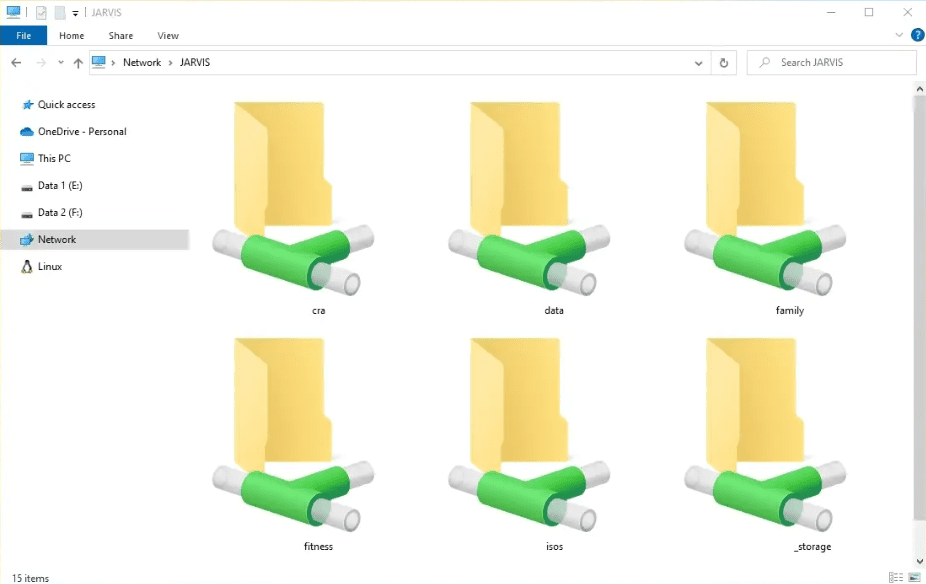
In this article, we’ll walk you through how to create a simple Python script that enables password-protected folder sharing from any computer that has Python installed.
✅ What This Script Does
This script allows you to:
- Share any folder or file over your local network with one click.
- Add username and password protection for secure access.
- Access shared folders from any device connected to the same network.
- Avoid installing third-party software—just use Python!
🛠️ What You’ll Need
- A Windows PC or any machine with Python installed
👉 Download Python
💡 Note: If Python is not installed on your system, you can visit the official Python website and install it easily. This script requires no other dependencies.
📂 How to Use the Script
Step 1: Go to the Folder You Want to Share
Navigate to the folder you wish to share. For example, if you want to share your ISO folder on your external hard drive, go to that directory.
Step 2: Create a Python Script
- Right-click in the folder → Choose New → Text Document
- Open the text file and paste the following Python script.
🔐 Below is the secured version of the script with username and password authentication:
import http.server
import socketserver
import os
from http import HTTPStatus
from base64 import b64decode

PORT = 8080
USERNAME = "username"
PASSWORD = "123"

class AuthHandler(http.server.SimpleHTTPRequestHandler):
    def do_HEAD(self):
        self.send_response(HTTPStatus.OK)
        self.end_headers()

    def do_AUTHHEAD(self):
        self.send_response(401)
        self.send_header('WWW-Authenticate', 'Basic realm=\"Protected\"')
        self.end_headers()

    def do_GET(self):
        key = self.headers.get('Authorization')
        if key is None:
            self.do_AUTHHEAD()
        else:
            user_pass = b64decode(key.split()[1]).decode('utf-8')
            user, passwd = user_pass.split(':')
            if user == USERNAME and passwd == PASSWORD:
                super().do_GET()
            else:
                self.do_AUTHHEAD()

Handler = AuthHandler
os.chdir(os.path.dirname(os.path.abspath(__file__)))
with socketserver.TCPServer(("", PORT), Handler) as httpd:
    print(f"Serving at port {PORT}")
    httpd.serve_forever()
You can modify:
USERNAME = "username"→ Replace with your desired username.PASSWORD = "123"→ Replace with your preferred password.PORT = 8080→ You can change the port (e.g., 9000, 5000) if needed.
Step 3: Save the File with .py Extension
- Go to File → Save As
- In the dialog:
- File Name:
folder_share.py(or any name ending with.py) - Save as type:
All Files
- File Name:
- Click Save
Now, the script file should appear in your folder with a Python icon.
🚀 How to Run the Script
- Double-click the
.pyfile or open it with Python. - A terminal window will open showing the link to access the folder.
- It will be something like:
http://localhost:8080 - To open, press
Ctrl + Clickon the link in your terminal.
- It will be something like:
- A login prompt will appear. Enter your username and password that you set in the script.
🌐 Access from Another Computer
Want to access the shared folder from another PC or device (like a MacBook) on the same LAN?
Step-by-Step:
- On the host computer (the one sharing the folder):
- Open Command Prompt
- Type
ipconfigand press Enter - Look for the IPv4 Address (e.g.,
192.168.0.147)
- On the other device:
- Open a browser
- Enter:
http://<host_ip>:<port>
Example:http://192.168.0.147:8080
- You will be prompted for login.
- Enter the same username and password as in your script.
- Done! You now have remote access to that folder.
🔐 Security Note
This script uses basic HTTP authentication, which is suitable for local network sharing but not recommended for sharing over the internet, as credentials are transmitted in base64 encoding.
For internet use, consider setting up HTTPS and a proper file-sharing server.








🧼 To Stop Sharing
To stop sharing the folder, simply close the terminal or command prompt window that opened when you ran the Python script.
📌 Final Thoughts
This simple Python-based solution is great for quick, no-install folder sharing across your local network. It’s fast, lightweight, and secure with a username-password setup.
If you want a no-frills way to move files between devices—especially across different operating systems like Windows and macOS—this is a powerful tool to have in your workflow.
🔗 Useful Links
📢 Disclaimer
This script is designed for educational and local-network usage only. Please do not expose it over the internet without proper security layers. The author and publisher are not responsible for any unauthorized data access resulting from misuse.
🏷️ Tags
python script, local network sharing, folder sharing, file sharing, share folder on LAN, simple http server, secure file sharing, tricknology, python for windows, no software file sharing
🔖 Hashtags
#Python #FileSharing #LAN #SecureSharing #PythonScript #WindowsTips #TechTutorial #LocalServer #OpenSource #CyberSecurity








