If you’ve ever looked at the back (or side) of your Mac and felt confused about which port to use for what, you’re not alone. Many Mac users—especially those who recently upgraded—struggle to differentiate between USB, Thunderbolt, and HDMI ports. They all look similar, yet they behave very differently depending on the device you connect.
In this article, we’ll take a deep dive into Mac connection ports. We’ll break down their shapes, functions, speeds, and real-world usage. By the end, you’ll know exactly which port to use for your display, external drives, or accessories.
📑 Table of Contents
- Why Ports Matter on Your Mac
- USB vs Thunderbolt: What’s the Difference?
- Types of USB Ports (A, B, C, and More)
- USB Speeds Explained (USB 1.0 to USB 4)
- Thunderbolt Ports: The Powerhouse Connection
- Why Some Ports Are Labeled (and Some Aren’t)
- Compatibility Between Ports and Devices
- Choosing the Right Cable (USB-C vs Thunderbolt Cables)
- Connecting Displays to Your Mac
- Connecting USB Devices (Drives, Keyboards, etc.)
- HDMI Ports on Macs: When to Use Them
- How to Prioritize Ports for Best Performance
- FAQs About Mac Ports
1. Why Ports Matter on Your Mac
Think of your Mac as a brain and the ports as its hands. The way you connect devices—monitors, external drives, printers, or audio gear—determines how efficiently your Mac can work. Using the wrong cable or port won’t necessarily damage your Mac, but it can bottleneck speed, reduce display quality, or cause frustration when things don’t work as expected.
For example, if you connect a fast external SSD to a standard USB port instead of Thunderbolt, it may only run at one-third of its actual speed. Similarly, if you plug a monitor into HDMI when Thunderbolt is available, you may lose resolution or refresh rate options.
So, understanding ports isn’t just technical—it directly affects your productivity.
2. USB vs Thunderbolt: What’s the Difference?
At first glance, USB-C and Thunderbolt ports look identical. Both use the same rounded, reversible USB-C connector. But the capabilities are different:
- USB Ports handle standard data transfers, charging, and basic accessories.
- Thunderbolt Ports are more advanced. They support USB and Thunderbolt-specific devices, can transfer data at much higher speeds, support external displays, and even deliver power to your MacBook.
👉 Key takeaway: Every Thunderbolt port is also a USB port, but not every USB port is a Thunderbolt port.
3. Types of USB Ports (A, B, C, and More)
To avoid confusion, let’s quickly review USB shapes:
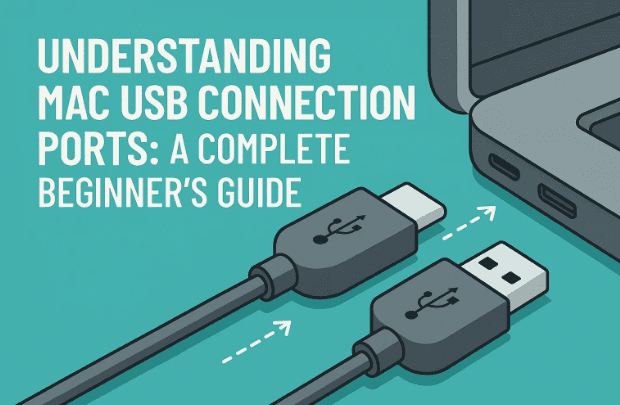
- USB-A – The large rectangular port that’s been around for decades. Found on older Macs, PCs, and accessories.
- USB-B – The chunky square port, often used in printers and scanners. Rare on modern Macs.
- USB-C – The modern reversible oval-shaped port found on all recent Macs. Used for both USB and Thunderbolt.
So if you see a rectangular port on a Mac Studio—it’s USB-A. If you see a small oval—check if it’s just USB-C or Thunderbolt.
4. USB Speeds Explained (USB 1.0 to USB 4)
Another layer of confusion is that USB numbers (2.0, 3.0, 3.2, 4.0) don’t describe shape—they describe speed and protocol.
- USB 1.0/1.1 – Very slow, nearly obsolete.
- USB 2.0 – Still common for keyboards/mice. Max 480 Mbps.
- USB 3.0 / 3.1 / 3.2 – Common in modern drives. Up to 20 Gbps.
- USB 4 – Latest version, up to 40 Gbps. Comparable to Thunderbolt 3.
👉 The good news: USB is backward-compatible. A USB 2.0 device works in a USB 4 port—it’ll just run at its original speed.








5. Thunderbolt Ports: The Powerhouse Connection
Thunderbolt is Apple’s preferred “do-it-all” port. With Thunderbolt 3, 4, and now 5, you get:
- Faster data transfer (up to 80 Gbps with Thunderbolt 5).
- External display support (up to two 6K displays on some Macs).
- Daisy-chaining multiple devices from a single port.
- MacBook charging directly through the port.
For external drives, high-end displays, or professional workflows, Thunderbolt is the clear winner.
👉 Official reference: Apple Thunderbolt Support.
6. Why Some Ports Are Labeled (and Some Aren’t)
On some Macs, you’ll see a little lightning bolt symbol above certain USB-C ports. That means Thunderbolt-capable.
- If a Mac has both USB and Thunderbolt ports, Apple labels the Thunderbolt ones.
- If all ports are Thunderbolt, Apple often leaves them unlabeled.
For example:
- 2023 iMac → 2 labeled Thunderbolt ports, 2 unlabeled USB ports.
- 2024 iMac → all ports are Thunderbolt, so no labels.
7. Compatibility Between Ports and Devices
Here’s where users often get stuck:
- Plugging a USB device (like a mouse) into a Thunderbolt port? ✅ Works fine.
- Plugging a Thunderbolt device (like a pro SSD) into a plain USB-C port? ❌ Won’t work.
So the safe rule is: Always prefer Thunderbolt for high-performance gear and displays. Use plain USB ports for keyboards, printers, and small drives.
8. Choosing the Right Cable
Here’s another trap: Not all USB-C cables are equal.
- A cheap USB-C cable may only support charging or USB 2.0 speeds.
- To use Thunderbolt, you need a certified Thunderbolt cable (often marked with the ⚡ logo).
- For DisplayPort, you need a USB-C to DisplayPort cable.
👉 Tip: Always check your cable specs before blaming your Mac.
9. Connecting Displays to Your Mac
This is one of the most common questions. Let’s break it down:
- DisplayPort or Mini DisplayPort Displays → Use Thunderbolt port + proper cable.
- Thunderbolt Displays (e.g., Apple Studio Display) → Use a Thunderbolt cable for full functionality, including USB hub features.
- HDMI-only Displays or TVs → Use HDMI port (if available) or a USB-C to HDMI adapter.
👉 Best quality = Thunderbolt/DisplayPort. HDMI is mainly for TVs and projectors.
10. Connecting USB Devices
For accessories like external hard drives, flash drives, printers, or audio interfaces:
- If you have both USB and Thunderbolt ports → Use USB ports first, save Thunderbolt for displays or pro drives.
- If you only have Thunderbolt ports (like newer iMacs) → Don’t worry, they handle USB devices just fine.
This way, you maximize performance without wasting your Thunderbolt capacity.
11. HDMI Ports on Macs: When to Use Them
Some Macs still include HDMI (e.g., Mac Studio, MacBook Pro). But here’s the truth: HDMI is secondary.
- Use HDMI only for TVs, projectors, or displays that lack DisplayPort/Thunderbolt.
- For computer monitors, always prefer Thunderbolt → DisplayPort.
HDMI is useful for:
- Presentations in classrooms or offices.
- Video editing previews on a standard TV.
- Connecting to large projectors.
But for everyday display setups, Thunderbolt wins.
12. How to Prioritize Ports for Best Performance
Here’s a practical checklist:
- First priority: Displays → Always connect them to Thunderbolt.
- Second priority: Thunderbolt devices → e.g., external SSDs, docks.
- Third priority: USB devices → Use USB ports when possible, Thunderbolt if needed.
👉 Think of Thunderbolt as “premium lanes” on a highway. Save them for devices that require speed or display support.
13. FAQs About Mac Ports
Q1: Can I charge my MacBook through any USB-C port?
Yes, but only if the port supports Thunderbolt/USB-C power delivery. Most modern Macs allow charging through all USB-C/Thunderbolt ports.
Q2: Do I need an adapter to use older USB devices?
Yes, you may need a USB-C to USB-A adapter for older accessories. Apple sells one: Apple USB-C to USB Adapter.
Q3: How do I know if my cable is Thunderbolt or just USB-C?
Look for the ⚡ symbol on the cable or its packaging. Thunderbolt cables also tend to be more expensive.
Q4: Will plugging a USB device into Thunderbolt damage it?
No. Thunderbolt ports are designed to handle USB devices safely.
Q5: Should I use HDMI or Thunderbolt for my monitor?
Use Thunderbolt whenever possible. HDMI is fine for TVs or projectors but may limit display resolution/refresh rate.
14. Conclusion
So far, we’ve unpacked the mystery behind Mac connection ports. What may seem like identical holes on the back of your Mac are actually powerful, versatile interfaces.
- Use Thunderbolt ports for displays and high-speed storage.
- Use USB ports for everyday devices like mice, keyboards, and flash drives.
- Use HDMI ports only when DisplayPort or Thunderbolt isn’t an option.
Next time you set up your Mac, think of your ports as a priority system: displays first, high-speed devices second, and regular USB gadgets last. With the right cables and understanding, you’ll unlock the full potential of your Mac hardware.
⚠️ Disclaimer
While this article provides general guidance, always double-check your Mac’s official Tech Specs on Apple’s website for exact port compatibility and supported configurations.
Tags: mac ports, usb vs thunderbolt, macbook display connection, imac ports guide, usb c thunderbolt difference, mac external monitor setup
Hashtags: #MacTips #USB #Thunderbolt #MacBook #iMac #AppleTech







