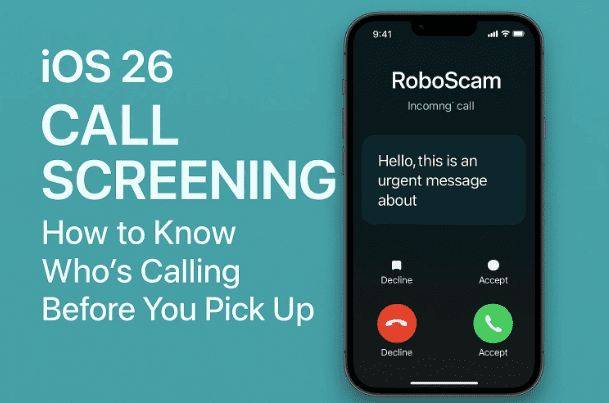
Unwanted calls and unknown numbers have always been a major frustration for smartphone users. Apple has been improving call management features with every iOS release, and in iOS 26, a brand-new feature called Call Screening has been introduced.
This feature allows your iPhone to screen calls from unknown numbers in real time—asking callers to identify themselves and state their reason for calling—before you decide to answer. Think of it as having a personal assistant who checks the caller’s intent before you pick up the phone.
In this guide, we’ll cover everything you need to know about iOS 26’s Call Screening feature, including:
- How it works and why it’s useful.
- Step-by-step instructions to enable it.
- The difference between Silencing Unknown Callers and Screening Calls.
- How to read live transcripts of incoming calls.
- Replying via text while screening.
- FAQs about safety, privacy, and real-world use.
- A comparison with call screening on Android.
By the end, you’ll be fully equipped to manage unwanted calls and make your iPhone even smarter at handling interruptions.
1. What is Call Screening in iOS 26?
Call Screening is a new privacy and productivity feature in iOS 26 designed to help you identify unknown callers without answering.
Instead of picking up a call blindly from an unsaved number, your iPhone will automatically:
- Ask the caller to state their name and reason for calling.
- Display that information to you in real time.
- Let you decide whether to answer, decline, or reply via text.
This feature is especially useful if you get spam calls, telemarketing calls, or unexpected unknown numbers.
2. How Does Call Screening Work?
Here’s the process in simple terms:
- When an unknown number calls you, your iPhone does not ring immediately.
- Instead, the caller hears a prompt asking them to identify themselves and explain the reason for their call.
- The iPhone then rings, and you receive a notification showing the caller’s response.
- You can tap View to read a live transcript of what the caller is saying.
- Based on that, you can:
- Answer the call.
- Send a text reply.
- Decline and let it go to voicemail.
This way, you avoid spam and scams while still catching important calls from unknown numbers (e.g., couriers, job interviews, or urgent personal contacts).
3. Step-by-Step: How to Enable Call Screening on iPhone
Enabling call screening takes just a few steps. Let’s go through them carefully:
- Open Settings on your iPhone.
- Scroll down and tap Apps.
- Use the search bar at the top to find the Phone app.
- Tap Phone when it appears in the results.
- Scroll down until you find the Screen Unknown Callers section.
- Here you’ll see two options:
- Silence – sends unknown numbers directly to voicemail.
- Ask Reason for Calling – activates Call Screening.
- Select Ask Reason for Calling.
That’s it! From now on, when an unknown number calls, your iPhone will screen the call before ringing.






4. Silence Unknown Callers vs Ask Reason for Calling
It’s important to understand the difference between the two modes:
- Silence Unknown Callers:
- Any call from an unsaved number goes straight to voicemail.
- You won’t hear the phone ring.
- Useful if you never want to be disturbed by unknown numbers.
- Ask Reason for Calling (Screening):
- Unknown numbers are screened.
- The caller is prompted to provide details.
- You still have the chance to answer if it’s important.
👉 Recommendation: Use Ask Reason for Calling if you don’t want to miss important calls but still want protection from spam.
5. Reading Live Transcripts in Real Time
Once call screening starts, you’ll see a live transcript of what the caller says.
- Tap View on the notification to expand the transcript.
- You’ll see the caller’s name and their stated reason.
- The transcript updates in real time as they speak.
This allows you to decide without the pressure of picking up immediately. It’s similar to Google’s call screening feature on Pixel phones but now directly built into iOS.
6. Replying During Call Screening
Sometimes you may want to reply without answering. Apple has included this option:
- Tap the Type to reply field.
- Enter a custom text response such as:
- “Please send me more details.”
- “I can’t talk right now.”
- Or choose from suggested replies like Send more information.
This feature makes it possible to handle calls professionally without speaking aloud.
7. Answering or Declining After Screening
Once you’ve read the transcript, you can decide what to do:
- Slide to Answer – If the caller seems legitimate, pick up.
- Decline – If it’s spam, simply ignore or let voicemail take it.
- Reply via Text – Handle the conversation without talking.
This flexibility is what makes call screening powerful—it gives control back to the user.
8. Benefits of Call Screening
Let’s highlight why this feature is such a game changer:
- 🚫 Spam Protection: Blocks spam before it wastes your time.
- 📞 Catch Important Calls: Don’t miss important unknown numbers (e.g., delivery drivers).
- 👤 Privacy: Keeps you in control of who gets through.
- 💼 Professional Use: Great for freelancers or business owners screening clients.
- 🛡️ Security: Reduces risk of scam calls by forcing identification.
9. Comparison: iOS 26 Call Screening vs Android Call Screening
Apple is not the first to introduce call screening; Google has offered it on Pixel devices for years. But here’s how they compare:
| Feature | iOS 26 Call Screening | Android Call Screening (Pixel) |
|---|---|---|
| Prompt Caller | Yes | Yes |
| Live Transcript | Yes | Yes |
| Reply via Text | Yes | Limited |
| Integration with Voicemail | Yes | Yes |
| System-wide availability | iOS 26 devices only | Pixel & some Android devices |
Apple’s version is simpler and integrated directly with the Phone app.
10. FAQs About iOS Call Screening
Q1. Does call screening work for all calls?
No. It only applies to numbers not saved in your contacts.
Q2. Can spam callers fake their details?
Yes, they might—but you’ll see suspicious responses in the transcript.
Q3. Is the transcript saved?
Apple has not confirmed long-term storage, but transcripts appear to be temporary.
Q4. Does it work internationally?
Yes, as long as your carrier supports iOS 26 features.
Q5. Can I still use Silence Unknown Callers instead?
Yes, both options are available under Phone settings.
11. Disclaimer and Privacy Notes
- Privacy First: Apple emphasizes that call screening is processed locally on-device. Transcripts are not sent to Apple servers.
- Beta Features: Since iOS 26 is still new, some carriers or regions may not support every feature. Always check for software updates.
- Voicemail Still Works: Even with call screening enabled, callers can leave a voicemail if you decline.
12. Final Thoughts
iOS 26’s Call Screening is a practical upgrade that gives users control over their calls. In an age where spam and scam calls are increasing, this feature helps separate important conversations from distractions.
By enabling Ask Reason for Calling, you can finally stop wasting time on unknown numbers while still being available for real people who need to reach you.
It’s one of the most user-focused improvements in iOS 26, and if you haven’t enabled it yet, now is the perfect time.
Tags
ios 26 call screening, iphone unknown caller, screen calls iphone, ios 26 features, apple privacy tools, silence unknown callers, live transcript iphone, iphone voicemail screening
Hashtags
#iOS26 #iPhoneTips #CallScreening #ApplePrivacy #iPhoneFeatures








