Modern smartphones are more than just communication devices — they can act as powerful Wi-Fi hotspots that keep your other gadgets online. If you use an Infinix smartphone, you may have noticed a feature called “Super Hotspot” or “Personal Hotspot.” It’s a built-in tool that lets you share your mobile data connection with multiple devices simultaneously — such as laptops, tablets, or other phones.
In this detailed step-by-step guide, we’ll explore every option available inside the Infinix hotspot settings, from enabling it for the first time to managing data limits, device connections, and automatic shutoff.
By the end of this article, you’ll understand not only how to turn it on, but also how to optimize it for performance, security, and convenience.
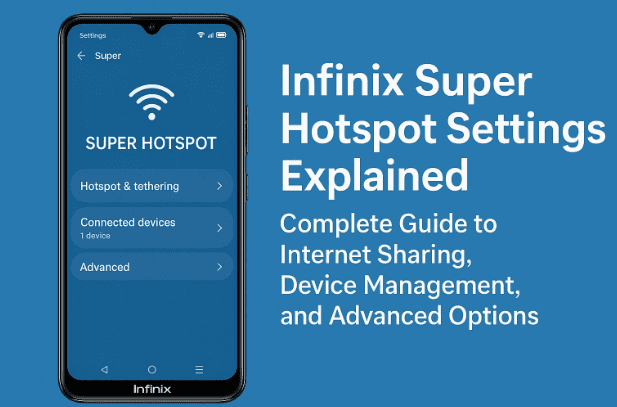
1. What Is the Hotspot Feature in Infinix Phones?
Before jumping into configuration, let’s first understand the purpose of the hotspot feature.
A hotspot allows your phone to share its mobile data connection with other devices. Think of it as turning your smartphone into a small portable Wi-Fi router.
The Infinix Super Hotspot function provides:
- Wi-Fi sharing: Create a wireless access point for multiple devices.
- USB tethering: Connect your PC or laptop via cable to use your phone’s internet.
- Bluetooth tethering: Share the connection through Bluetooth for low-power devices.
This can be extremely useful when you’re traveling, have no Wi-Fi network, or need to provide internet to your laptop using mobile data.
2. How to Access the Hotspot Settings
To begin, open your Settings app from the Infinix main menu. You can also swipe down from the top of the screen and tap the ⚙️ gear icon.
Now follow these steps carefully:
- In the Settings menu, look for the Search bar at the top.
- Type “Hotspot” or “Tethering.”
- You’ll now see several related options like:
- Personal Hotspot
- USB Tethering
- Bluetooth Tethering
💡 Tip: Searching is faster than scrolling through menus, especially since some Infinix models categorize this under “Network & Internet” or “Connections.”
3. Turning On the Infinix Personal Hotspot
Once inside the Personal Hotspot section, you can easily enable it with a single toggle.



Here’s how it works:
- Tap Personal Hotspot → Turn On Hotspot.
- The Hotspot icon will appear on your phone’s status bar, confirming it’s active.
This makes your phone discoverable to nearby devices. Anyone who knows your hotspot name (SSID) and password can now connect and use your mobile data.
If you’re setting it up for the first time, it’s recommended to rename your hotspot and change the default password for security — we’ll explain this in the next section.
4. Understanding Internet Sharing Options (Wi-Fi, USB, Bluetooth)
Infinix smartphones offer three different methods for sharing your internet connection. Each serves a specific purpose depending on the situation.
Let’s explore them one by one.
🔹 Wi-Fi Hotspot
This is the most common method. It turns your phone into a wireless access point, allowing multiple devices to connect simultaneously. Perfect for laptops, tablets, and other phones.
- You can connect up to 10 devices at a time (may vary by model).
- Works best when mobile data is strong (4G or 5G).
- Consumes more battery, so keep your phone plugged in for long sessions.
🔹 USB Tethering
Ideal for connecting your phone directly to a computer or laptop using a USB cable.
Steps:
- Plug your Infinix phone into your PC via USB.
- Go to Settings → Hotspot & Tethering → USB Tethering.
- Turn it ON.
Your PC will now use your phone’s mobile internet — stable and fast, with no Wi-Fi interference.
🔹 Bluetooth Tethering
This method uses Bluetooth instead of Wi-Fi. While slower, it’s efficient for low-data tasks like email or messaging.
- Enable Bluetooth on both devices.
- Pair your devices.
- Turn on Bluetooth Tethering in the hotspot settings.
This can save battery compared to Wi-Fi sharing.
5. Customizing Your Hotspot Name and Password
By default, your Infinix hotspot will have a generic name and a randomly generated password (like AS36704). You can easily personalize it:
- Go to Settings → Personal Hotspot.
- Tap Hotspot Name (SSID) → enter your custom name (e.g., Rakesh_Hotspot).
- Tap Password → create a strong password (8+ characters, mix letters and numbers).
💡 Tip: Avoid using simple passwords like “12345678” — it exposes your data to nearby users.
Once changed, click Save. Your new hotspot name will now appear to all nearby devices.
6. Managing Connected Devices
When devices connect to your hotspot, you can monitor and manage them in the Connection Manager section.
Here’s what you can do:
- View connected devices: See their device names, IP addresses, and connection time.
- Set connection limits: You can choose how many devices are allowed — 1, 2, 5, or 10.
- Disconnect a device: Long-press the device name to remove it.
If you’re sharing internet with family or colleagues, limiting the number of connections helps maintain better speed and stability.
7. Setting Data Limits for the Hotspot
Data control is one of the smartest features in Infinix hotspot settings.
To set a usage limit:
- Open Settings → Hotspot → Data Limit.
- Turn ON Data Limit.
- Specify your maximum limit (e.g., 2GB, 5GB, etc.).
Once the limit is reached, your phone automatically stops sharing the connection — helping you avoid unexpected mobile data charges.
💬 This is especially helpful when your data pack is small or when multiple users are connected.
8. Auto Turn-Off and Battery Optimization Options
There’s another practical feature under hotspot settings — auto turn-off.
When enabled, it automatically disables the hotspot if no device is connected for 10 minutes.
To enable or disable:
- Go to Settings → Hotspot → Turn Off Automatically.
- Toggle ON/OFF based on preference.
However, most users prefer keeping it off, because it can interrupt your connection if a device temporarily disconnects.
💡 If you’re using your phone as a home hotspot for smart TVs or PCs, it’s better to keep this disabled.
9. Hotspot QR Sharing Feature
Infinix phones allow you to share hotspot details easily using a QR code. This avoids typing long passwords manually.
Steps:
- Go to Settings → Personal Hotspot → Share Hotspot.
- You’ll see a QR code on the screen.
- The other person can scan it from their phone to connect instantly.
This feature is especially handy when helping guests or family members join your Wi-Fi without revealing your password directly.
10. Blacklisting Devices and Connection Control
If you suspect someone is misusing your hotspot, you can blacklist their device to block access.
- Go to Hotspot → Connection Manager.
- Find the connected device you want to block.
- Tap Blacklist Device.
Once added to the blacklist, that device will no longer be able to connect — even if it knows your password.
This is an excellent security feature, especially when sharing Wi-Fi in public areas or among multiple users.
11. VPN and Other Advanced Connectivity Settings
Infinix also allows you to configure a VPN (Virtual Private Network) from the same network section.
While it’s not directly part of hotspot sharing, enabling a VPN on your phone can encrypt your mobile data traffic, adding a layer of privacy for all connected devices.
Steps to set it up:
- Go to Settings → Network & Internet → VPN.
- Tap Add VPN.
- Enter your VPN credentials (server, username, password).
- Save and connect.
Once active, all devices using your hotspot will also enjoy secured internet access through the VPN tunnel.
👉 For official setup guidance, visit the Infinix website.
12. Troubleshooting Common Hotspot Issues
Even the best hotspot setup can sometimes face hiccups. Here are quick solutions to common problems:
Problem 1: Hotspot not turning on
- Check if Mobile Data is enabled.
- Restart your phone.
- Disable Battery Saver (it sometimes limits tethering).
Problem 2: Devices can’t connect
- Double-check your password and band settings.
- Turn hotspot off → wait 10 seconds → turn back on.
- Forget and reconnect the network on the other device.
Problem 3: Slow connection
- Reduce the number of connected devices.
- Move to an area with stronger mobile network signals.
- Avoid background downloads while tethering.
Problem 4: Hotspot turns off automatically
- Disable the “Turn Off Automatically” feature.
- Keep at least one device connected if you need it running continuously.
13. Frequently Asked Questions (FAQs)
Q1. How many devices can connect to an Infinix hotspot at once?
You can connect up to 10 devices, but fewer connections mean better performance.
Q2. Can I use hotspot without mobile data?
No, hotspot requires an active data connection (SIM-based or Wi-Fi sharing).
Q3. Does hotspot drain battery fast?
Yes, especially when sharing with multiple users. Keep your phone plugged in for long sessions.
Q4. Can I rename my Infinix hotspot?
Yes, under Personal Hotspot → Hotspot Name (SSID) you can set a custom name.
Q5. What’s the difference between USB and Bluetooth tethering?
USB tethering offers faster and more stable internet, while Bluetooth uses less power but slower speeds.
14. Disclaimer
This article is intended for educational purposes and aims to guide users in setting up and optimizing hotspot features on Infinix smartphones.
The steps and names of menus may vary slightly depending on your Infinix model and Android version. Always verify your device documentation or contact Infinix Support for model-specific instructions.
Infinix® is a registered trademark of Infinix Mobility Limited.
Tags & Hashtags
Tags: Infinix hotspot setup, mobile tethering, USB sharing, Bluetooth tethering, data limit settings, Infinix Wi-Fi hotspot, VPN setup, Android hotspot troubleshooting, connection management
Hashtags: #InfinixHotspot #WiFiSharing #TetheringGuide #AndroidTips #MobileInternet #HotspotSettings #VPNSetup #TechGuide #InfinixPhone








