Email is something we use every single day — to log into accounts, apply for jobs, receive updates, and communicate with others. Yet surprisingly, most people don’t fully understand what terms like email account, email service, email address, or email program actually mean.
These words are often used interchangeably — which leads to confusion, especially when trying to switch from one email platform to another. For instance, many people say, “I want to change my email program from Hotmail to Gmail” — but that’s technically not correct, because Hotmail (now Outlook.com) is a service, not a program.
So, let’s clear up this confusion step-by-step. By the end of this article, you’ll understand exactly how these terms differ, how they work together, and what to do when changing your email setup.
🧩 Why Email Terminology Matters
Let’s begin with a simple truth — words matter in technology.
When you mix up “email program” and “email account,” you might end up asking for the wrong help, changing the wrong settings, or losing access to your messages. Understanding what each term means helps you:
- Troubleshoot issues more easily.
- Move to a new computer without losing emails.
- Choose better, more secure email options.
So, let’s define each component carefully — starting from the foundation.
🏢 What Is an Email Service?
An email service is the backbone that makes sending and receiving emails possible. It’s the system of servers and infrastructure managed by a company or organization that handles your email traffic.
Common examples include:
- Gmail (by Google)
- Outlook.com (by Microsoft)
- Yahoo Mail
- ProtonMail, Zoho Mail, and your Internet Service Provider (ISP) email.
An email service handles:
- Routing emails: Making sure messages go from sender to receiver.
- Storing emails: Keeping your messages on servers until you access them.
- Security: Filtering spam and detecting malicious attachments.
You can think of the email service as the apartment building where your mailbox (email account) resides. The service provides the infrastructure — the hallways, rooms, and mailroom — while you simply rent a unit within it.
🏠 What Is an Email Account?
Now that we understand the “building,” let’s talk about your “apartment.”








An email account is your personal space within an email service. It contains your emails, contacts, calendar, and sometimes additional services like cloud storage or chat.
When you create an account on Gmail or Outlook.com, you’re registering with that email service provider — getting your own inbox and unique login credentials.
For example:
- A Gmail account gives you access not only to email but also to Google Drive, Photos, Calendar, and YouTube.
- A Microsoft account (Outlook.com or Hotmail) connects your mail, OneDrive, and Office Online.
So, your email account is the relationship between you and your chosen email provider. It defines what you can access, how much storage you have, and what features you can use.
Continuing our metaphor, if the service is the apartment building, your account is the specific apartment unit you occupy.
📬 What Is an Email Address?
Your email address is your unique digital identity — the “address” others use to send you messages.
It always follows this format:
name@domain.com
For example:
Breaking it down:
- The part before @ (like “john.doe”) is your unique identifier — think of it as your apartment number.
- The part after @ (like “gmail.com”) is the domain, which routes your mail to the correct service (the building).
So, when someone sends an email to john.doe@gmail.com, it first goes to Google’s Gmail servers (domain), and then Google looks for “john.doe” (the apartment) to place the message in the correct inbox.
💻 What Is an Email Program?
Now let’s move to another crucial piece — the email program (sometimes called an email client).
An email program is a piece of software that helps you access and manage your emails on your computer or mobile device. You install it, connect it with your email account, and use it to read, compose, and organize messages.
Examples of popular email programs include:
- Microsoft Outlook (Desktop) – part of Microsoft Office or Microsoft 365.
- Mozilla Thunderbird – a free, open-source email client.
- eM Client, Mailbird, or Apple’s built-in Mail app.
When you use such a program, you must enter:
- Your email address
- Your password
- Incoming and outgoing server settings (IMAP, SMTP, POP3)
Once configured, the program connects to your email service and downloads your messages locally.
Think of it this way:
Your email program is like a personal assistant who runs to the building’s mailroom, collects your mail, and brings it to your desk — without you having to go downstairs yourself.
🌐 Email Programs vs Web-Based Email
This is where most confusion begins — and it’s understandable.
There are two ways to access your email:
- Using an email program installed on your device.
- Visiting an email website through your browser (like Chrome or Edge).
Let’s compare them briefly:
| Feature | Email Program | Web-Based Email |
|---|---|---|
| Example | Outlook (desktop), Thunderbird | Gmail.com, Outlook.com |
| Access | Installed software | Web browser |
| Storage | Downloads emails locally | Stored online (cloud) |
| Offline Use | Available | Limited or none |
| Speed | Faster once synced | Depends on internet speed |
| Setup | Requires configuration | Just sign in via browser |
If you open Gmail.com in Chrome, you’re not using a program — you’re using web-based email.
If you open the Outlook app installed on your computer, you’re using an email program.
Both methods show you the same messages but handle them differently.
✉️ Is Gmail a Service, an Account, or a Program?
Here comes another common point of confusion — “Is Gmail an email account, a service, or a program?”
The answer: It depends on the context.
- Gmail (the service): Google’s mail system that manages email delivery and storage.
- Gmail account: Your personal account registered with Google.
- Gmail address: Your unique identifier (like user@gmail.com).
- Gmail.com: The website where you access your messages through a browser.
However, Gmail is not a program — it’s not software you install on your computer. When you visit Gmail.com, you’re using your web browser as the interface.
That’s why saying “I’m switching my email program from Hotmail to Gmail” is technically incorrect. You’re not switching programs — you’re switching email services.
🌀 Understanding the Many Faces of Outlook
If Gmail is confusing, Microsoft Outlook takes it to another level.
There are actually three different products called Outlook, and each means something different:
- Outlook (Desktop App) – Part of Microsoft Office or Microsoft 365. It’s a full-fledged email program.
- Outlook (New/Windows 11 App) – A simplified built-in mail program for Windows 11.
- Outlook.com – A web-based email service (formerly Hotmail).
Here’s the quick breakdown:
| Version | Type | Description |
|---|---|---|
| Outlook (Classic) | Email Program | Installed on PC, feature-rich (part of Office suite). |
| Outlook (New) | Email Program | Lightweight app bundled with Windows 11. |
| Outlook.com | Email Service | Web-based platform for Microsoft accounts. |
So, when someone says “I have an Outlook account,” they probably mean Outlook.com, the service — not the app itself.
Microsoft’s naming has caused confusion for years, but remembering these distinctions helps avoid setup errors or lost emails.
🖥️ How to Move Email to a New Computer
Let’s move on to a practical question many people ask:
“I bought a new laptop — how do I get my emails there?”
The answer depends on whether you use an email program or web-based email.
If You Use an Email Program:
- Install the same program (like Outlook or Thunderbird) on your new machine.
- Export your old data — emails, contacts, and settings — from the old system.
- Import or copy that data to the new machine.
- Add your email account again (enter your address, password, and server info).
- Sync to download any new emails from the server.
- Stop syncing on the old machine once everything’s confirmed.
If You Use Web-Based Email:
It’s much simpler — just open a browser on your new computer, go to your email website (like Gmail.com or Outlook.com), and sign in.
All your emails are stored online, so there’s nothing to move!
🔄 How to Change Your Email Service
If you want to switch email providers (say from Hotmail to Gmail), here’s what really happens.
You’re not changing your program — you’re creating a new email account with a different email service.
Here’s what to do:
- Create a new account on your chosen service (for example, sign up at https://mail.google.com).
- Get your new email address (like example@gmail.com).
- Add your new account to your email program (if you use one).
- Notify your contacts — friends, colleagues, newsletters, etc.
- Forward old mail (if supported) or download it before closing your old account.
If you use web-based email, simply sign into your new service through the browser — no extra setup needed.
❓ Common Questions and Answers
Q1. Can I have multiple email accounts with one service?
Yes. You can create multiple accounts (like personal and business) under the same provider, but each has its own address.
Q2. What’s the difference between Hotmail and Outlook.com?
Hotmail was rebranded by Microsoft — all Hotmail users now use Outlook.com, which is the modern version of the same service.
Q3. Is it safer to use an email program or webmail?
Webmail is usually safer since emails remain on the cloud, but programs offer offline access. Security depends more on your passwords and two-factor authentication.
Q4. Can I move my old emails to a new service?
Yes, some services allow importing or forwarding emails. You can also use IMAP settings to sync and transfer messages between accounts.
Q5. What happens if I forget my email password?
Most services provide password recovery using alternate email, phone verification, or security questions. Always keep these updated.
Q6. Can I use one email program for multiple accounts?
Absolutely. You can configure multiple accounts (like Gmail + Yahoo + Outlook) within the same program.
🧠 Final Thoughts
Email is simple to use but complex behind the scenes. Once you understand how each part fits together — service, account, address, and program — you’ll be able to troubleshoot issues confidently and make smarter choices when switching platforms.
In short:
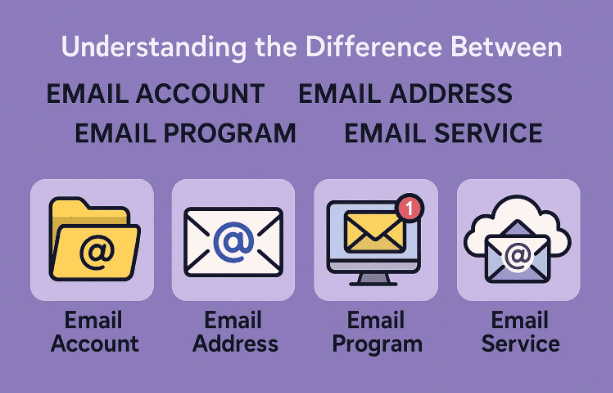
- Email Service: The company that handles your mail (like Gmail or Outlook.com).
- Email Account: Your personal login and inbox on that service.
- Email Address: Your public identifier (name@domain.com).
- Email Program: The tool or app you use to access your mail.
Knowing this difference will save you hours of frustration — and maybe even prevent you from losing important emails during a transition.
⚠️ Disclaimer
This article is for educational purposes only. Settings, interfaces, and policies may change over time. Always refer to your email provider’s official help page (e.g., Gmail Help, Microsoft Support) for the latest configuration details.
#EmailBasics #Gmail #Outlook #EmailTips #TechExplained #EmailGuide #DigitalLiteracy






