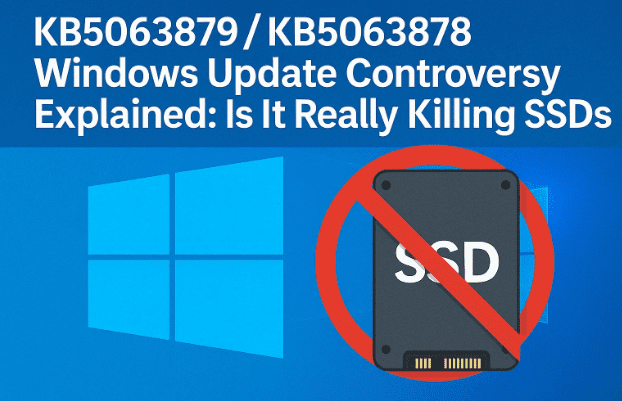
When headlines scream that a Windows update is “killing SSDs,” it’s natural to worry. Over the last few weeks, several creators and forum posts claimed that an August 2025 Windows 11 security update (commonly referenced as KB5063878 for 24H2, or KB5063875 for 23H2) is bricking drives, corrupting data, and preventing PCs from booting. Microsoft has now investigated and says it found no evidence linking the August update to SSD/HDD failures. SSD controller maker Phison ran ~4,500 hours of tests and also reported zero reproducible failures. Still, scattered user reports continue, which keeps the anxiety alive.
This article gives you the full picture—what Microsoft and partners actually said, what likely went on, and exactly how to protect yourself: how to pause updates, uninstall a specific KB, confirm drive health, and recover if something goes wrong. I’ll guide you like a calm friend on a call—no scare tactics, no shortcuts, just clean, careful steps.
1) What Happened? (Rumors vs. Microsoft’s Findings)
Let’s start with the claim: “The August 2025 Windows 11 update kills SSDs and corrupts data.” The rumor snowballed across socials and forums. Microsoft investigated and published an admin center service alert noting no link between the August security patch and reported failures. Major tech outlets corroborated Microsoft’s position, and Phison independently tested drives for thousands of hours without reproducing failures.
That doesn’t mean no one had problems—some users did post incidents (failed installs, disappearing drives after heavy writes, etc.). But across telemetry and vendor testing, there’s no broad causal connection proven between the patch and drive deaths. The best current reading is: some real failures occurred, but likely due to edge conditions, pre-existing drive issues, or unrelated bugs. Microsoft says it’s still monitoring.
2) Which KB Are We Talking About—5063878, 5063875, or 5063879?
- Windows 11 24H2 (most new PCs): August 12, 2025 cumulative security update KB5063878. Microsoft Catalog and Support pages list it clearly.
- Windows 11 23H2/22H2 (some devices): KB5063875 for Patch Tuesday, same date.
- Windows 10/Server variants: separate KBs (e.g., KB5063877 for 1809 LTSC).
If your Settings shows KB5063879, verify it under Settings → Windows Update → Update history. Microsoft’s public docs emphasize KB5063878/3875 for Windows 11 in August 2025; 3879 may be a device-specific or regional bundle, or a mis-read. Always trust your Update history screen as the source of truth and cross-check the exact KB on Microsoft Update Catalog.
3) Should You Worry Right Now?
Short answer: probably not, but act prudently.
- Microsoft: “No evidence the August update bricked SSDs.”
- Phison: 4,500+ hours, no failures; also flagged that fake “controller list” images were circulating.
- Press: Multiple outlets concluded the panic is largely unfounded.
If your PC is running fine after the update, don’t panic—don’t uninstall just because of headlines. If you are seeing storage weirdness (vanishing drives, repeated write errors, install loops), follow the steps below to pause, verify, and (if necessary) uninstall safely.
4) First-Aid: Simple Things to Do Before Anything Else
Before we run big hammers, let’s stabilize:
- Back up critical files (Documents, Desktop, project folders). Use OneDrive, an external SSD/HDD, or your NAS.
- Avoid huge writes (like >50 GB transfers) while you diagnose—several anecdotal posts noted issues during sustained transfers on nearly full drives.
- Check Windows Update status to confirm exactly which KB(s) installed and when.
- Make a restore point (if System Protection is on).
Now let’s create breathing room by pausing updates.
5) How to Safely Pause Windows Updates (Short-Term)
If you need to stop new patches from arriving for a bit while you test:
Windows 11 / Windows 10







- Go to Settings → Windows Update.
- Click Pause for 1 week (repeat to extend), or open Advanced options and set a resume date (up to 35 days).
This buys you time to validate your drive health without new updates landing unexpectedly.
6) How to Uninstall a Specific Windows Update (GUI & Command Line)
If your issues started immediately after a particular KB and persist, uninstalling can be reasonable.
A) Uninstall via Settings (easiest)
- Settings → Windows Update → Update history → Uninstall updates.
- Select the KB number (e.g., KB5063878) and click Uninstall.
Note: Some security updates cannot be removed. If the button is grayed out, try the command-line method or Safe Mode.
B) Uninstall with Command Line (WUSA)
- Open Command Prompt (Admin).
- Run:
wusa /uninstall /kb:5063878 /quiet /norestart
- Reboot when prompted.
C) If Uninstall Fails
- Try Safe Mode and repeat the GUI or WUSA uninstall.
- Use System Restore to revert to a restore point from before the update.
Tip: If you manage multiple PCs or hit WSUS errors like 0x80240069 during deployment, check admin threads describing workarounds (primarily affects enterprise/WSUS environments, not home users).
7) Check Drive Health & File System Integrity (S.M.A.R.T., CHKDSK, SFC)
Here’s where we calmly verify your hardware and file system.
A) Read S.M.A.R.T. & Temperature
- Use your SSD vendor tool (e.g., Samsung Magician, Crucial Storage Executive, WD Dashboard) or a neutral utility (CrystalDiskInfo) to read S.M.A.R.T. attributes and drive temps. Watch for Reallocated Sectors, Pending Sectors, Uncorrectable Errors, Media Wearout, and Total Host Writes spikes.
B) Run CHKDSK (File System)
Open Command Prompt (Admin) and run:
chkdsk C: /scan
If it reports issues that require a rebooted fix:
chkdsk C: /f
(You’ll be asked to schedule it on next restart.)
C) Run SFC (System Files)
If you suspect Windows corruption (post-update oddities, app crashes):
sfc /scannow
Reboot after completion.
D) Optional: DISM Health Restore
If SFC can’t fix everything:
DISM /Online /Cleanup-Image /RestoreHealth
These steps don’t delete data—they diagnose and repair.
8) If the PC Won’t Boot: Recovery Paths That Actually Work
If your machine fails after the update (blue screens, no boot):
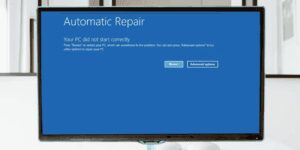
- Interrupt boot 3x to enter Windows Recovery Environment → Advanced options.
- Try System Restore (if enabled).
- Try Uninstall Updates (from Recovery menu): choose Uninstall latest quality update.
- If you can reach Safe Mode with Networking, uninstall the specific KB via Settings or WUSA as shown above.
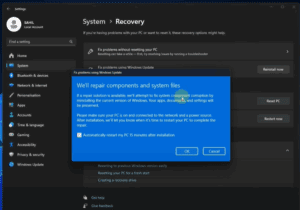
- As a last resort: Reset this PC → Keep my files → Cloud download (pulls fresh components from Microsoft). Back up before this if you can. (You’ll need to reinstall apps.)
9) So Why Are People Seeing Failures? Plausible Reasons (Without Hype)
From the best available evidence, a few factors could explain the scattered failures:
- Coincidental drive issues surfacing post-update (firmware quirks, aging NAND, thermal throttling, marginal PSUs).
- Heavy sustained writes on nearly-full SSDs triggering controller errors that were coming anyway. Several reports mentioned failures during very large transfers on drives >60% full.
- Installation problems (e.g., WSUS deployment failures, partial installs), not actual storage death.
- Misinformation amplification—a few anecdotal posts became “proof” without reproducible test data. Press follow-ups and Phison’s lab work haven’t found a causal link.
Bottom line: while your concern is understandable, broad SSD-killing behavior from the KB isn’t supported by current vendor or Microsoft evidence.
10) Quick Comparison Table: Pause vs. Uninstall vs. Full Rollback
| Action | When to Use | Pros | Cons | How-to |
|---|---|---|---|---|
| Pause Updates | You’re stable but cautious; want to observe for a week or two | Fast, reversible; buys time | Doesn’t remove the installed KB | Settings → Windows Update → Pause / Advanced options date picker (Microsoft Support) |
| Uninstall KB | Symptoms appeared right after a specific update | Often fixes post-patch regressions | Some security fixes removed; sometimes not available to uninstall | Settings → Update history → Uninstall updates or wusa /uninstall /kb:XXXXX (Microsoft Support) |
| System Restore | You had restore points and want a quick rollback | Reverts system state, light-touch | Not always enabled; may miss user data changes | WinRE → Troubleshoot → System Restore |
| Reset this PC (Keep files) | Nothing else works; OS integrity questionable | Clean baseline; keeps personal files | Apps removed; time to rebuild | Settings → Recovery → Reset this PC (use Cloud download) |
11) FAQs
Q1) Is the August 2025 Windows update (KB5063878/KB5063875) confirmed safe?
Microsoft and Phison say they found no evidence that the update causes SSD failures. They’re still monitoring, but the broad “SSD-killing” claim is not supported.
Q2) I still see KB5063879 on my machine—what gives?
Use Update history to confirm the exact KB. Public docs emphasize KB5063878 (24H2) and KB5063875 (23H2). If you truly have 3879, take a screenshot and cross-check on Microsoft Update Catalog. The fix/rollback steps are the same.
Q3) Should I uninstall the update preemptively?
If your system is stable, no. Security updates matter. Consider pausing future updates briefly if you’re nervous, but don’t remove a working patch without cause.
Q4) My update won’t install (errors like 0x80240069). Is that related?
That’s more of a deployment/servicing issue (common with WSUS). It’s annoying, but not an SSD death signal. Check admin threads for workarounds.
Q5) If my drive actually failed, is Microsoft liable?
Not generally—storage devices can fail at any time. If your SSD is under manufacturer warranty, open an RMA with the vendor and share any SMART logs. Keep Windows fully updated after you resolve the hardware issue. (See Phison’s statement for context.)
12) Final Thoughts & A Calm Path Forward
I know how unsettling it feels when headlines suggest an update might “brick” your storage. But after reading Microsoft’s service alert, scanning support pages, and reviewing vendor tests, the most responsible interpretation is: keep calm, stay patched, and be prudent.
If your PC is fine, carry on. If you’re seeing issues, you now have a safe, staged plan:
- Pause briefly and back up.
- Uninstall the specific KB only if the timing matches your symptoms.
- Validate the disk (SMART, CHKDSK) and system files (SFC/DISM).
- Recover via Restore/Reset if needed.
- Re-enable updates once stable—security patches protect you from real threats every month.
If you need, I can also add a short “Troubleshooting Flowchart” graphic for this post—handy for readers who just want the “do this → then that” view.
Disclaimer
This article is for educational purposes. While the steps here are safe and widely used, changing system settings, uninstalling updates, running disk checks, or resetting Windows can have side effects. Back up your important files before making major changes. If your device is under warranty or part of an organization, consult the vendor/IT policy first.
Tags
windows 11 august 2025 update, kb5063878, kb5063875, kb5063879, windows update uninstall, pause windows update, ssd failure rumor, phison testing, microsoft update catalog, windows 11 24h2 patch, windows 11 troubleshooting
Hashtags
#Windows11 #KB5063878 #WindowsUpdate #SSD #Troubleshooting #Microsoft #PCMaintenance #DataSafety #TechGuide








