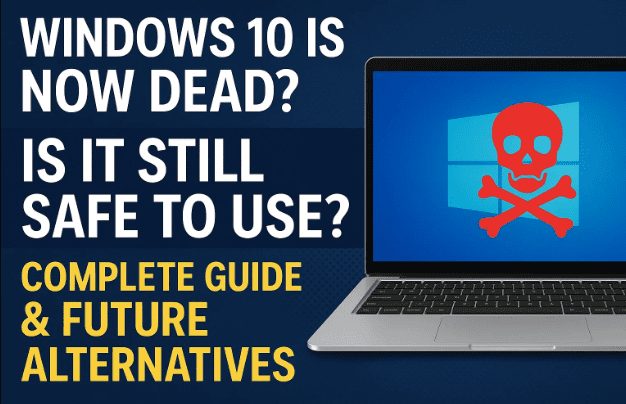
Microsoft has finally confirmed what many users feared — Windows 10 is reaching its end of life on October 14, 2025. After that date, regular users will no longer receive free security updates, patches, or bug fixes.
This announcement has left millions of PC owners wondering:
“What happens to those who still use Windows 10 after October 2025?”
“Will my system become unsafe?”
“Do I need to upgrade to Windows 11 or is there any other option?”
If you’ve been asking the same questions, this article will give you every answer in detail — what Microsoft’s decision means, how it affects you, and what you can do next.
🕰️ 1. What Exactly Is Happening to Windows 10?
Let’s start with the facts.
Microsoft officially announced that Windows 10 support will end on October 14, 2025.
After that date:
- You will no longer receive free updates, including security patches and driver fixes.
- Microsoft will stop releasing feature updates or cumulative patches.
- The OS will enter “End of Life” (EOL) status — meaning you can still use it, but at your own risk.
Even today, over 40% of all PCs worldwide still run Windows 10. Many users prefer it because it’s stable, fast, and lightweight compared to Windows 11. But time is ticking — and change is coming soon.
💡 2. Why Microsoft Is Ending Support
When Microsoft launched Windows 11 in 2021, it positioned it as the future of its desktop platform.
Over the years, the company has been steadily shifting focus toward modern security standards, cloud integration, and AI-powered services — things that Windows 10 simply wasn’t built for.
Ending support for Windows 10 serves two main goals:
- Encourage users to upgrade to Windows 11, which has stricter security (TPM 2.0, Secure Boot, etc.).
- Reduce maintenance overhead for Microsoft’s engineering teams.
From a business standpoint, Microsoft can’t continue patching two different generations forever. But for users with older PCs, this transition feels more like forced obsolescence than progress.
👥 3. Who Will Be Affected by This Change
Anyone who is:


- Still using Windows 10 Home or Pro, and
- Has not upgraded to Windows 11 or an alternative OS
…will lose free security support after October 14, 2025.
That’s hundreds of millions of users — including small businesses, schools, and home PCs that still rely on Windows 10 for daily tasks.
Many older computers, especially those without TPM 2.0 or modern CPUs, cannot officially install Windows 11. That’s where the biggest problem lies.
⚙️ 4. Will Windows 10 Stop Working After 2025?
Here’s the good news: No, Windows 10 will not suddenly stop working.
You can continue using it just like people still use Windows 7 or even Windows XP today. The OS won’t lock you out or disable itself.
However, there’s a catch — it will become increasingly unsafe over time because:
- No new security patches will arrive.
- Vulnerabilities discovered after 2025 will remain unpatched.
- Hackers often target outdated systems for easy exploits.
So while your PC may run fine, it will gradually turn into a security risk, especially if you browse the web, manage bank accounts, or handle sensitive work.
💰 5. Free vs Paid Updates – The Extended Support Plans
This is where things get a bit confusing, so let’s clarify.
Microsoft has introduced something called the Extended Security Updates (ESU) program — similar to what it did for Windows 7 users.
Here’s how it works:
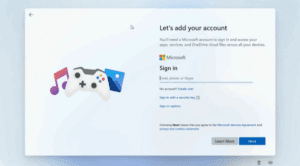
- If you sign in with a Microsoft account on Windows 10, you’ll get one extra year of free updates — until October 2026.
- If you don’t use a Microsoft account, you can pay $30 per year for continued updates for that same duration.
- Some users can even redeem “Microsoft Rewards” points (1000 points ≈ 1 year extension) to get that extra year for free.
In short:
You can stretch Windows 10 security support for one more year — but after that, it’s truly done.
What’s unclear right now is how Microsoft will handle users with multiple PCs under one account. Will every system qualify for the free extension, or will you need separate accounts? Microsoft hasn’t confirmed that yet.
⚠️ 6. Risks of Using Windows 10 After End of Support
Using an unsupported OS doesn’t mean your PC will explode — but it does make you vulnerable.
Here are the major risks you should know:
1. Security Vulnerabilities
Without updates, new viruses and ransomware can easily exploit unpatched loopholes.
2. Software Incompatibility
Future versions of popular apps (like browsers, banking tools, or drivers) may stop supporting Windows 10.
3. No Technical Support
You won’t get help from Microsoft or many OEMs if something breaks.
4. Privacy Risks
Outdated systems are easier targets for phishing, malware injection, or account hijacking.
If your PC is connected to the internet or you handle professional data, staying on Windows 10 indefinitely is risky.
🧭 7. What You Should Do Before October 2025
Now that we understand the situation, let’s move to the next step — what you can do to prepare.
Here’s a quick checklist:
- Backup all important data. Use an external drive or cloud storage like OneDrive.
- Check if your PC supports Windows 11. You can use Microsoft’s PC Health Check tool.
- Update Windows 10 to the latest build (22H2). It’s the final feature version before end-of-life.
- Note your product key and activation details. They might be useful for upgrades or reinstallations.
- Decide early whether to upgrade, extend, or switch. Don’t wait until October 2025 — plan ahead.
🔄 8. Upgrading to Windows 11 – Requirements and Advice
If your system is less than 3–4 years old, chances are high that it supports Windows 11.
To install it safely, you’ll need:
- TPM 2.0 enabled in BIOS
- Secure Boot turned on
- At least 4 GB RAM and 64 GB storage
- A compatible 64-bit CPU
Once upgraded, your PC will continue receiving regular updates, performance boosts, and better integration with Microsoft 365 and Copilot AI features.
If you’re unsure how to install it, Microsoft provides a clean guide at Windows 11 Download Page.
Tip: Always back up your files before upgrading, and create a restore point.
🧰 9. Alternative Options – Lightweight or Custom Builds
But what if your PC doesn’t meet Windows 11’s strict requirements?
You still have options.
Several developers and communities have created custom or lightweight builds of Windows 11 that run on older hardware — with TPM and CPU checks removed.
While not official, these versions let you experience the Windows 11 interface without hardware limitations.
Some examples include:
- Tiny11 – a minimal Windows 11 build optimized for older PCs.
- Rufus ISO Bypass Method – lets you install official Windows 11 on unsupported devices.
⚠️ Important: Custom builds don’t come with Microsoft’s official updates. Use them only if you’re comfortable with minor instability and have strong security practices.
🐧 10. Switching to Linux – The Freedom Option
If you decide it’s time to leave Windows entirely, Linux is your best friend.
Modern Linux distributions are user-friendly, visually clean, and run perfectly even on low-spec PCs.
A few beginner-friendly options include:
| Distribution | Key Feature | Why It’s Great for Ex-Windows Users |
|---|---|---|
| Zorin OS (zorin.com) | Windows-like interface | Can run Windows apps using Wine |
| Linux Mint | Familiar desktop | Excellent for everyday users |
| Ubuntu LTS | Long-term support | Big community and regular security updates |
Linux doesn’t force online accounts or expensive updates. It’s open-source, secure, and fast — ideal for users who want long-term stability without paying for extended Windows support.
❓ 11. Frequently Asked Questions (FAQs)
Q1. Can I keep using Windows 10 after 2025?
Yes, but it won’t be secure. You’ll receive no official patches or bug fixes.
Q2. Will Microsoft offer paid updates?
Yes — through the Extended Security Updates (ESU) program for one additional year.
Q3. What if I have multiple PCs under one Microsoft account?
Currently unclear. Microsoft hasn’t announced whether the free one-year extension applies per account or per device.
Q4. Will Windows 11 run on my old PC?
Check with the PC Health Check Tool. If not supported, try custom builds like Tiny11 (unofficial).
Q5. What are the safest alternatives to Windows?
Linux Mint, Zorin OS, or Ubuntu LTS — all stable, secure, and free.
🏁 12. Conclusion
So, is it safe to use Windows 10 after 2025?
Technically yes — practically no.
Your PC won’t stop working, but the longer you stay on an unsupported system, the more vulnerable you become.
If you use your PC for browsing, banking, email, or professional work, upgrading is no longer optional — it’s a necessity.
Here’s a simple comparison:
| Aspect | Windows 10 (after 2025) | Windows 11 / Linux |
|---|---|---|
| Security Updates | ❌ Stopped (except paid ESU) | ✅ Active and Regular |
| Online Safety | ⚠️ High Risk | ✅ Improved Protection |
| Compatibility | ⚠️ Gradually Declining | ✅ Future-Ready |
| Cost | Free to use but unsupported | Windows 11 – Free Upgrade / Linux – Free Forever |
| Hardware Support | ✅ Old PCs | ⚠️ Modern only (for Win 11) / ✅ for Linux |
Ultimately, every user will have to make a choice — between familiarity and safety, or freedom and change.
If your PC supports it, upgrade to Windows 11.
If not, give Linux a chance — it may surprise you how capable and polished it has become.
The end of Windows 10 isn’t the end of your computer’s life — it’s simply the beginning of your next chapter.
Disclaimer:
This article is for informational and educational purposes only. Modifying or installing unofficial Windows builds can void warranties or violate Microsoft’s terms. Always back up your data and proceed responsibly.
Tags: Windows 10, Windows 11, Microsoft Support End, OS Upgrade Guide, Data Security, Linux Alternatives, PC Maintenance, Extended Security Updates, Operating System
Hashtags: #Windows10 #Windows11 #Microsoft #OSUpgrade #DataSecurity #LinuxAlternatives #TechGuide #dtptips








