For years, Microsoft has been steadily pushing users toward signing in with a Microsoft account when installing Windows 11. That account connects your PC to the cloud for services like OneDrive, BitLocker key recovery, and Microsoft 365 syncing.
But what if you simply don’t want any of that? What if you prefer the good old-fashioned local account, where everything stays on your machine and nothing is tied to an online identity?
Recent Windows 11 updates have made this harder than ever. Many of the older “offline setup” tricks have been removed. Yet, there is still a working method — a little time-consuming, but simple and effective — to install Windows 11 Home or Pro with only a local account.
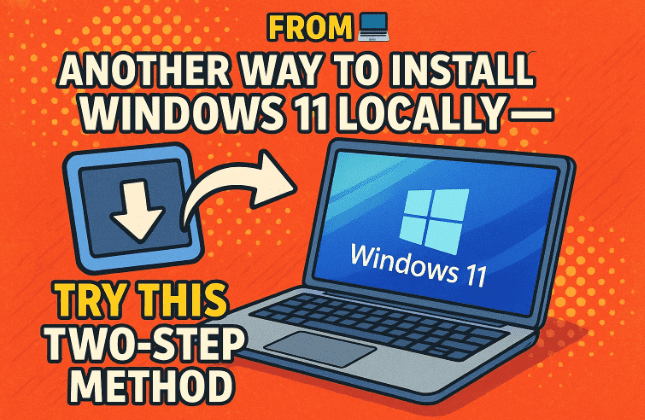
Let’s walk through it step by step.
🧩 Why Microsoft Keeps Removing Local Account Options
Before jumping into the procedure, it’s worth understanding why this workaround even exists.
Microsoft’s justification is that a connected account ensures users “don’t miss important parts of setup.” In reality, it’s mainly about tighter integration — linking Windows 11 to cloud backups, Office subscriptions, and security recovery services.
However, many users, especially those setting up offline workstations, lab environments, or private machines, don’t want any of that. They simply want a clean, local-only Windows installation.
That’s where this clever method — what we’ll call the Windows 11 Local Account Two-Step — comes in.
⚙️ The Windows 11 Local Account Two-Step — Overview
This method works by installing Windows 10 first, creating a local account there, and then upgrading that system to Windows 11 without ever connecting to the internet.
Since Windows 11 respects your existing account type during an upgrade, you’ll end up with Windows 11 using the same local account, bypassing the Microsoft-login requirement entirely.
It’s easy in principle, but there are a few key precautions along the way. Let’s go through them one by one.



🪟 Step 1 — Install Windows 10 with a Local Account
The first half of this process begins by installing a clean copy of Windows 10. You’ll need either a USB installer or an ISO image. You can download the official media creation tool directly from Microsoft’s website:
👉 Download Windows 10
💡 Important Preparation
Before you start, make sure:
- The PC is not connected to the internet. Unplug any Ethernet cable and disconnect Wi-Fi.
- You have your Windows 10 installation media ready.
- You’re willing to erase existing data (this method assumes a fresh install).
Now, let’s walk through the installation process.
🪜 Installing Windows 10 (Offline Setup)
- Boot from your Windows 10 USB/DVD.
When the installer loads, choose your language, time, and keyboard layout, then click Next → Install Now. - Enter your product key (optional).
If you have a valid Windows 10 key, you can enter it now. Otherwise, choose I don’t have a product key. You can activate later. - Select your edition.
Pick Windows 10 Home or Windows 10 Pro, depending on what you intend to upgrade to later.
(This guide uses Home, since it’s the edition that normally blocks local accounts during Windows 11 setup.) - Accept the license terms.
Click Next → Custom: Install Windows only (advanced). - Delete all existing partitions.
On the drive selection screen, delete each partition until you see only Unallocated Space. Then select it and click Next.
Windows will automatically create the required partitions. - Wait for copying and installation.
This step may take 15–30 minutes and several automatic restarts.
When the PC reboots into setup, you’ll be asked to confirm region and keyboard settings. Choose your country and layout, then skip adding a second keyboard if you don’t need one.
🔌 The Crucial Part — Avoid Internet Setup
Eventually, you’ll reach the “Let’s connect you to a network” screen. This is where most people get stuck in Windows 11 Home, since it forces you to sign in with Microsoft.
In Windows 10, however, you can still choose:
“I don’t have Internet.”
Click that. Then choose:
“Continue with limited setup.”
This will trigger the local account creation wizard.
- When asked “Who’s going to use this PC?”, enter a username (for example,
Leoor your preferred name). - Create a password, confirm it, and fill in the security questions.
(These questions are mandatory in Windows 10 Home; choose ones you’ll remember.)
Afterward, you’ll be prompted for privacy options. Feel free to leave defaults or disable telemetry settings — this doesn’t affect our process.
Once done, Windows 10 will complete installation and open the desktop with your new local account.
You can confirm this by checking:
Start → Settings → Accounts, where it should display “Local account” next to your name.
So far, so good — that’s step one complete.
🚀 Step 2 — Upgrade That Installation to Windows 11
Now that we have a clean Windows 10 local account, it’s time for the second step — upgrading it to Windows 11, while keeping the internet disconnected.
What You’ll Need
- The Windows 11 installation media (ISO or USB).
👉 You can download the official ISO here: Download Windows 11
Make sure your hardware meets Windows 11 requirements — TPM 2.0, Secure Boot, and compatible CPU. If not, you may need a bypass script, but most modern systems already qualify.
🧭 Running the Windows 11 Setup
- Insert your Windows 11 installer while still inside Windows 10.
- Open File Explorer, go to your USB/DVD drive, and run setup.exe.
- When prompted, choose Upgrade this PC now (if using ISO) or simply continue from the USB.
- Keep your PC offline during the entire process — no network cable, no Wi-Fi.
The installer will begin preparing and copying files. This can take anywhere from 30 minutes to an hour depending on your system.
Once installation completes, your computer will restart and show the Windows 11 out-of-box experience (OOBE) — those familiar blue setup screens.
🎉 The Result — Windows 11 with a Local Account
When the desktop appears, you’ll notice that Windows 11 has automatically kept your existing local account from Windows 10.
You can confirm by opening:
Start → Settings → Accounts → Your Info.
It should display Local Account, Administrator.
You’ve now successfully installed Windows 11 without ever logging into a Microsoft account.
Let’s move on to what to do after installation to make sure everything runs smoothly.
🔄 Step 3 — Connect to the Internet and Update Safely
Until now, we’ve kept the PC offline to prevent Microsoft from enforcing sign-in requirements. Once Windows 11 is running and the local account confirmed, you can safely connect to the Internet.
But don’t rush — follow these checks.
🧰 After Reconnecting
- Connect Ethernet or Wi-Fi.
- Immediately open Settings → Windows Update.
- Click Check for updates repeatedly until it says You’re up to date.
Because the setup skipped certain online stages, your new installation will need to download a large number of updates — including drivers and cumulative patches. Expect this to take a while.
🧠 Understanding the Trade-Offs of a Local Account
While this method gives you a privacy-first Windows installation, it also removes certain conveniences. Here’s what you should know.
🔒 What You Lose
- OneDrive auto-sync and cloud backup.
- BitLocker key storage in your Microsoft account.
- Cross-device sync for settings and themes.
- Easier access to Microsoft Store purchases and cloud apps.
💪 What You Gain
- Complete privacy and independence — no forced cloud connections.
- No telemetry sign-ins tied to a Microsoft identity.
- Faster setup on new or test systems.
- Ideal for lab PCs, secure environments, or shared workstations.
It’s a trade-off, but for many users, that’s exactly the point.
🧱 Step 4 — Resist Microsoft’s Future Prompts
Even after setup, Windows 11 will occasionally “suggest” that you sign in or link a Microsoft account. You may see banners like:
“Sign in to make the most of your Windows experience.”
You can safely ignore or dismiss these. If you click through any of them and sign in, your local account may automatically convert into a Microsoft account — undoing all your effort.
Be especially cautious when:
- Accessing Microsoft Store apps.
- Signing into Xbox or Outlook.
- Using system settings that say “Required for cloud sync.”
As long as you avoid those, your system will remain purely local.
⚡ Step 5 — Optional Activation and Cleanup
If you skipped entering a product key during the Windows 10 setup, you can still activate now that Windows 11 is running.
Go to:
Settings → System → Activation → Change product key.
You can use either:
- A valid Windows 10/11 key, or
- A digital license already associated with your device.
Once activated, you’ll receive updates and full functionality just like any regular Windows installation.
Finally, feel free to tidy up leftover setup files using Disk Cleanup → Clean up system files, removing old Windows 10 installations to reclaim space.
🧩 Why This Works — The Logic Behind the Two-Step
You might wonder: Why can’t I just install Windows 11 directly offline?
The answer is that Microsoft intentionally removed the “I don’t have Internet” option from Windows 11 Home setup. Even if you disconnect your network, the installer refuses to proceed until you sign in or create an online account.
By installing Windows 10 first, you bypass that requirement because Windows 10 still allows offline setup. Then, when you upgrade to Windows 11, the installer respects your current login type and carries it over unchanged.
In short:
Windows 11 won’t let you start offline, but it will let you stay offline.
That’s the subtle loophole this method takes advantage of.
🧰 Pro Tips for Offline or Local-Only Windows Installs
Once you have a local account build, here are a few best practices to maintain your privacy and stability:
- Create a full system image backup right after installation using tools like Macrium Reflect or built-in Windows Backup.
- Manually manage updates — don’t delay them, even if offline.
- Set a strong local password and consider adding a PIN for security.
- Turn off sign-in suggestions under Settings → Privacy & Security → General.
- If you later decide to use Microsoft services like the Store, create a separate limited user account tied to that email instead of converting your admin profile.
💬 Frequently Asked Questions (FAQ)
Q1. Can this method work with Windows 11 Pro too?
Yes. The same principle applies — install Windows 10 Pro offline with a local account, then upgrade using Windows 11 Pro media.
Q2. Can I activate Windows 11 later with my Windows 10 key?
Absolutely. Once Windows 10 is activated, the digital entitlement carries over automatically during the upgrade.
Q3. Do I lose any features by skipping Microsoft login?
Only cloud-related features like OneDrive, Microsoft 365 sync, and remote management. Core Windows functions remain intact.
Q4. What if Microsoft blocks this trick in future versions?
It’s possible. For now (as of 2025), this method still works. Keep an archived copy of Windows 10 installation media in case you need it again.
Q5. Is this legal?
Yes. You’re still installing genuine Windows software and activating normally. You’re simply choosing not to associate it with a Microsoft account — a valid and supported option for offline users.
⚠️ Disclaimer
This article is for educational and informational purposes only. The steps described were tested on Windows 11 build 24H2 as of early 2025. Microsoft may change setup behavior in future releases. Always back up your data before performing any operating system installation or upgrade.
Official installation tools and ISOs can be downloaded from:
🧩 Final Thoughts
Microsoft’s vision for Windows 11 clearly leans toward cloud integration and connected services. But for users who prefer autonomy, privacy, or offline reliability, local accounts remain essential.
This two-step install method — first setting up Windows 10 offline, then upgrading to Windows 11 — restores that control. It’s not flashy, but it works reliably and preserves the simple, private computing environment many of us still value.
Until Microsoft closes this loophole, it remains one of the cleanest ways to enjoy Windows 11 Home or Pro — without ever signing in to a Microsoft account.
Try it once, and you’ll see how straightforward it really is.
#Windows11 #LocalAccount #MicrosoftAccount #Windows10 #OfflineSetup #WindowsTips #OSInstall #Privacy #TechGuide #dtptips







