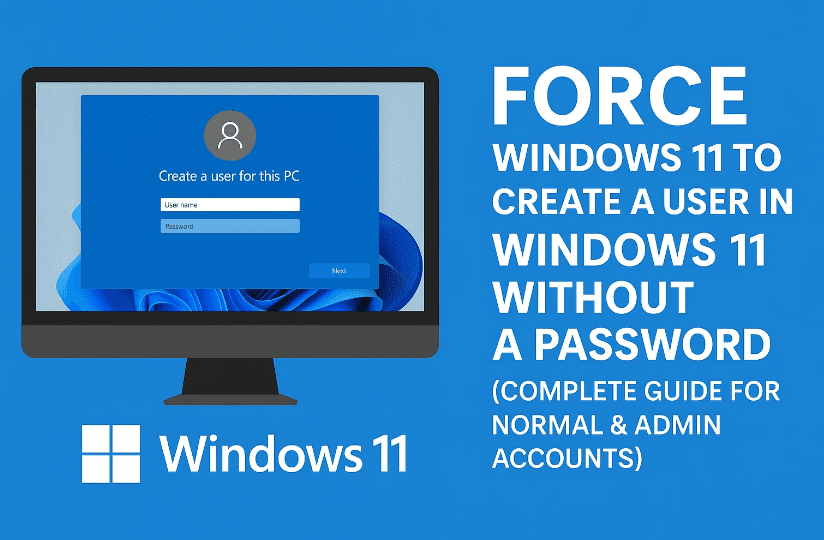
Windows 11, by default, nudges users into creating either a Microsoft account or at least a password/PIN for every new local account. But what if you don’t want to assign a password at all? Maybe you’re setting up a guest account, a test environment, or a shared PC at home where security isn’t critical.
The problem many people face is that Windows 11 often refuses to allow blank passwords. You might even see an error like:
“The password does not meet the password policy requirements. Check the minimum password length, password complexity and password history requirements.”
In this article, we’ll go step by step on how to:
Create a normal user account without a password.
Create an administrator account without a password.
Fix the situation if Windows forces you to set one.
Adjust system policies so you can bypass restrictions.
4. When Windows Refuses Blank Passwords (Password Policy Errors)
If you see an error like:
The password does not meet the password policy requirements.
Check the minimum password length, password complexity and password history requirements.
…it means Password Policy is preventing blank or weak passwords.
This happens often in Windows 11 Pro/Enterprise (due to Group Policy) and sometimes in Home edition via registry defaults.
Don’t worry—we’ll fix it.
5. Fix 1 – Adjust Password Policy in Local Security Policy (Pro/Enterprise)
If you have Windows 11 Pro or Enterprise, you can use the Local Security Policy editor.
Press Win + R, type: secpol.msc and press Enter.
Go to: Security Settings → Account Policies → Password Policy.
Adjust these:
Minimum password length → Set to 0.
Password must meet complexity requirements → Set to Disabled.
Apply and close.
Next, go to: Security Settings → Local Policies → Security Options
Find: Accounts: Limit local account use of blank passwords to console logon only.
Set it to Disabled (if you want remote logins too).
Now retry creating the user.
6. Fix 2 – Registry Tweak for Windows 11 Home Users
Windows 11 Home doesn’t include secpol.msc. Instead, use Registry Editor:
Press Win + R, type: regedit, hit Enter.
Navigate to: HKEY_LOCAL_MACHINE\SYSTEM\CurrentControlSet\Control\Lsa
Find LimitBlankPasswordUse.
Double-click and set its value to 0.
Restart your PC.
This removes the restriction on accounts without passwords.
7. Fix 3 – Using net accounts to Reset Policy Requirements
Another simple method:
Open Command Prompt (Admin).
Run: net accounts /minpwlen:0 net accounts /maxpwage:unlimited
Press Enter after each.
This resets the password rules so blank passwords are allowed.
8. Important Security Considerations
While blank passwords make life easier, remember:
Anyone with physical access to your PC can log in.
Remote access features (like Remote Desktop) are less secure.
Apps or network shares may refuse connections from blank-password users.
👉 Recommendation: If this is a home PC for family/guests, fine. But if it’s your primary PC, consider using a very simple password (like 123) and then enabling auto-login instead.
9. Alternative: Auto-Login With a Simple Password
If you want to avoid typing even a simple password, enable auto-login:
Press Win + R, type: netplwiz, and hit Enter.
In the User Accounts window, select your account.
Uncheck Users must enter a user name and password to use this computer.
Click Apply.
Enter your password once, then Windows will auto-login next time.
This way, you can keep a password for safety but never type it at startup.
10. FAQs
Q1: Can I create an administrator account with no password? Yes—just add the account normally and then use:
net localgroup administrators UserName /add
Q2: Why can’t I see Local Security Policy (secpol.msc)? It’s only available in Pro/Enterprise editions. Home users must use the Registry Editor.
Q3: Can I later add a password to the user? Yes. Go to Settings → Accounts → Sign-in options and add one anytime.
Q4: Will apps or Microsoft Store work with no-password accounts? Yes for most local apps. But syncing Microsoft services may require a password/Microsoft account.
Q5: Is it safe to disable password policies permanently? Not on laptops or internet-facing PCs. Do this only for controlled environments.
11. Final Thoughts
Creating a user in Windows 11 without a password sounds simple but can be tricky due to Microsoft’s strict password policies.
For normal cases, just use Settings or Command Prompt with net user.
If Windows blocks you, adjust Password Policy (Pro/Enterprise) or edit the Registry (Home).
For better balance, consider setting a very simple password and enabling auto-login.
So, whether you need a no-password guest account, a quick testing account, or just want to bypass Microsoft’s strictness, these steps give you full control.
Disclaimer: This guide is for educational use. Disabling password policies can make your system vulnerable. Only apply these changes if you understand the risks and the PC is in a secure environment.
Tags
windows 11, windows 11 user account, create user without password, windows password policy, secpol, registry tweak windows 11, local account windows 11, net user command
Emily is a Windows power user and technical writer from the UK. She has spent 7+ years in IT consulting, helping businesses migrate to new Windows versions, optimize performance, and solve common errors. Emily’s articles combine professional experience with step-by-step clarity, making even registry hacks accessible to everyday users.