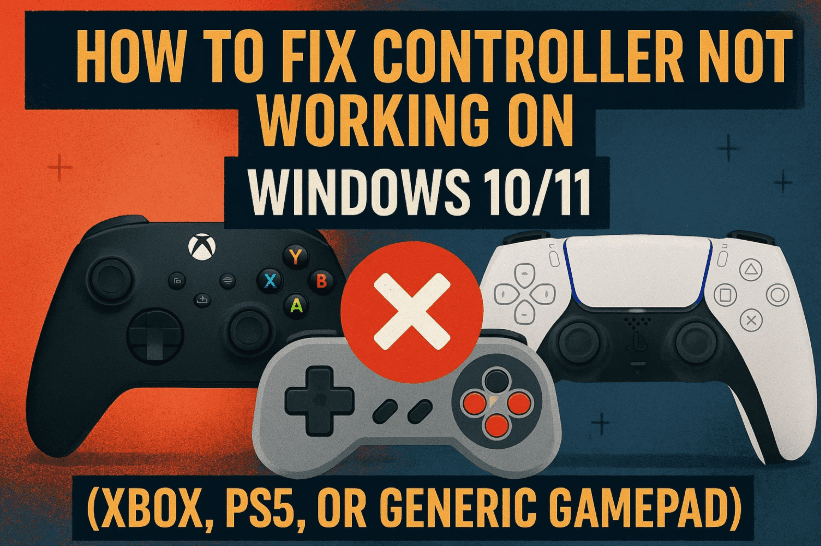
Playing games on PC with a controller can be incredibly smooth — until the moment it stops responding mid-game. Many Windows users experience issues where their Xbox, PlayStation, or third-party controllers don’t work correctly in Steam or specific titles such as The Outer Worlds 2, Elden Ring, or Rocket League.
If your controller doesn’t respond or acts strangely, don’t panic. The issue usually lies in input settings, conflicting drivers, or outdated firmware — all fixable. In this article, we’ll walk through every working method to fix controller detection and functionality problems on Windows 10 and 11.
🧩 1. Check Steam Input Settings (Enable or Disable)
The first and most common fix involves Steam Input — a feature that controls how Steam handles your game controller.
Sometimes enabling Steam Input resolves detection issues; other times, disabling it helps. Let’s walk through both.
Steps to Adjust Steam Input:
- Open Steam on your PC.
- Go to your Library and locate the problematic game (e.g., The Outer Worlds 2).
- Right-click the game → select Properties.
- In the left menu, click Controller.
- Under Override for this game, try:
- Disable Steam Input → relaunch the game and test.
- If it still doesn’t work, set it back to Enable Steam Input, relaunch, and test again.
💡 Tip: Different games use different input APIs (XInput for Xbox, DirectInput for others). Steam Input sometimes interferes, so testing both states is essential.
If Steam Input wasn’t the culprit, let’s move to the next step.
⚙️ 2. Disable Conflicting Human Interface Devices (HID)
Windows automatically installs drivers for connected peripherals under the Human Interface Devices (HID) category.
However, some external keyboards, mice, or virtual devices can confuse the system, preventing proper controller input.
Steps:
- Press Start → type “Device Manager” → open it.
- Expand Human Interface Devices.
- Look for external device entries such as:
- Keychron Keyboard
- Razer Huntsman
- Flight Sim Hardware (HOTAS, Pedals)
- Right-click → Disable device for any non-essential or conflicting hardware.
- Close Device Manager and relaunch the game.
If you have USB dongles (for wireless keyboards, mice, or arcade sticks), unplug them temporarily and restart your game.
These devices sometimes register as separate controllers and override your actual gamepad input.
🔌 3. Disconnect Extra USB Devices and Dongles
Many players forget they have multiple control devices connected — wheels, VR sensors, or older pads — which can conflict with your primary controller.
Here’s what to check and disconnect:
- Unplug external keyboards, mice, or macro pads (like Razer Tartarus).
- Remove flight-sim accessories such as HOTAS, yokes, and pedals.
- Disconnect arcade sticks, steering wheels, or USB hubs.
- Unplug wireless dongles for unused devices.
- Uninstall virtual joystick tools like vJoy if installed.
Once you’ve simplified your connections to only the essential controller, relaunch your game and test again.


🧠 Note: Windows sometimes re-prioritizes the “first detected” controller. Fewer connections mean fewer conflicts.
🎧 4. Enable PlayStation Controller in Sound Settings
If you’re using a PS5 DualSense or PS4 DualShock controller, Windows might treat it as an audio device instead of a game controller. This often causes detection issues in Steam.
Let’s fix that by configuring it properly.
Steps:
- Connect your controller via USB cable (avoid Bluetooth for now).
- Type Control Panel in Windows search → open it.
- Go to Hardware and Sound → Sound.
- Under the Playback tab, locate “DualSense Wireless Controller” or similar.
- Right-click → select Enable (if disabled).
- Right-click again → choose Configure Speakers.
- Select Quadraphonic → Next → make sure Front Left/Right and Surround are checked → Finish.
- Relaunch the game.
If the controller is still not working, we’ll strengthen the connection in the next section.
🔌 5. Use Wired Connection Instead of Bluetooth
Wireless Bluetooth connections can sometimes fail to maintain consistent input signals, especially with older adapters or low battery levels.
Using a USB cable provides a stable data stream and ensures firmware communication between your controller and PC.
Here’s what to do:
- Connect your controller directly using the original USB cable.
- Avoid USB hubs; plug it straight into your PC’s main port.
- Wait for Windows to detect and configure it automatically.
- Test again in your game.
Many users report that wired mode immediately resolves input lag or total non-detection.
🕹️ 6. Select the Correct Controller in “USB Game Controllers”
Even after connection, Windows might prioritize a different controller profile. You can manually set the preferred device through USB Game Controllers.
Steps:
- Press Start → type “USB Game Controllers” → open “Set up USB Game Controllers”.
- A list of connected devices will appear (e.g., Xbox Controller, PS5 Controller, etc.).
- Click Advanced.
- From the dropdown, select the controller you actually want to use.
- Click OK → OK again, and restart Steam.
Now relaunch your game. This ensures that Windows recognizes the correct device as the primary input.
🎮 7. Use DS4Windows for PlayStation Controllers
Windows natively supports Xbox controllers, but PlayStation controllers often need a bridge to translate their signals.
That’s where DS4Windows comes in — a free, open-source utility that makes your DualShock or DualSense controller behave like an Xbox controller.
Steps to Install DS4Windows:
- Visit the official site ds4windows.com.
- Download the latest release and extract the ZIP file.
- Run DS4Windows.exe.
- During the first launch, it’ll ask to install the ViGEmBus Driver — click Yes.
- Connect your controller using a USB cable.
- DS4Windows will detect it and emulate an Xbox 360 controller automatically.
- Minimize DS4Windows (don’t close it), launch Steam, and test your game.
💡 Optional: You can customize button mappings, touchpad behavior, and vibration settings within DS4Windows.
This method is especially effective for PS5 controllers not recognized natively by Steam.
🔄 8. Update Your Controller Firmware (Xbox and PlayStation)
If none of the previous methods help, outdated controller firmware could be the reason. Updating it often fixes compatibility bugs with newer games.
Let’s go over both Xbox and PlayStation update methods.
🟩 For Xbox Controllers:
Microsoft provides an official app called Xbox Accessories, available in the Microsoft Store.
Steps:
- Open Microsoft Store on your PC.
- Search for Xbox Accessories → install it.
- Launch the app.
- Connect your Xbox controller via USB.
- Once detected, click the three dots (•••) icon → select Update if available.
- Wait until the process completes.
- Relaunch Steam and test your game.
🟦 For PlayStation Controllers:
Sony also provides an official tool called PlayStation Accessories App for firmware updates.
Steps:
- Visit the official PlayStation support page: https://www.playstation.com/accessories/
- Download the PlayStation Accessories App for Windows.
- Run the downloaded installer and follow the setup instructions.
- Connect your controller via USB cable.
- The app will detect it — if an update is available, click Update.
- Once complete, restart your PC and game.
⚠️ Always download from the official PlayStation website to avoid malware or outdated versions.
Firmware updates ensure your controller communicates properly with the latest Steam APIs and modern Windows builds.
🖥️ 9. Launch Steam in Big Picture Mode
Sometimes, Steam’s normal interface doesn’t properly initialize controller APIs.
Launching games through Big Picture Mode often solves this, especially for console controllers.
Steps:
- Open Steam.
- At the top-right corner, click the Big Picture Mode icon (looks like a square with arrows).
- Once the full-screen interface opens, select your game and click Play.
Big Picture Mode reloads Steam Input and controller mappings from scratch — ideal for testing.
If your controller works here, you can later adjust per-game settings within Big Picture Mode itself.
❓ 10. Frequently Asked Questions
Q1. Why does my controller work in Steam’s menu but not in-game?
Some games use their own input systems outside Steam Input. Disable Steam Input for that specific title and relaunch it.
Q2. My controller keeps disconnecting. What should I check?
- Use a different USB port (preferably USB 3.0).
- Try a new cable — damaged cords are common.
- Update controller firmware and drivers.
- Disable background programs that interfere with HID devices.
Q3. Should I use Bluetooth for gaming?
It works, but wired connections are always more stable and latency-free.
Bluetooth can introduce lag or dropouts, especially if multiple devices share the signal.
Q4. My PS5 controller’s adaptive triggers don’t work on PC — why?
Adaptive trigger feedback is game-specific and supported only by certain titles via DualSense SDK. It’s not available system-wide.
Q5. What if DS4Windows doesn’t detect my controller?
- Reinstall the ViGEmBus driver from DS4Windows settings.
- Try running DS4Windows as Administrator.
- Switch to a different USB port or cable.
🧭 11. Final Thoughts
So far, we’ve covered every reliable fix for controllers not working on Windows 10/11 — from adjusting Steam Input to updating firmware.
Here’s a quick summary:
- Toggle Steam Input on/off to resolve conflicts.
- Disable unused HID devices or dongles.
- Configure sound settings for PlayStation controllers.
- Use wired mode for better reliability.
- Pick the right device under USB Game Controllers.
- Install DS4Windows for PlayStation support.
- Keep firmware up to date using Xbox Accessories or PlayStation Accessories App.
- Launch games in Steam Big Picture Mode for full controller detection.
If you’ve followed all these steps, your controller should now work perfectly across Steam and non-Steam games alike.
🕹️ Bonus Tip: Always test your controller in Steam’s built-in calibration tool under “Settings → Controller → General Controller Settings” to confirm everything is mapped correctly before launching games.
⚠️ Disclaimer
Some fixes involve modifying system devices or disabling drivers. Proceed carefully and only disable hardware you recognize. Avoid downloading third-party controller apps from unverified sources. Always use official drivers from Microsoft or PlayStation.
#Windows11 #ControllerFix #SteamGaming #XboxController #PlayStationController #DS4Windows #GamingTips #DTPtips