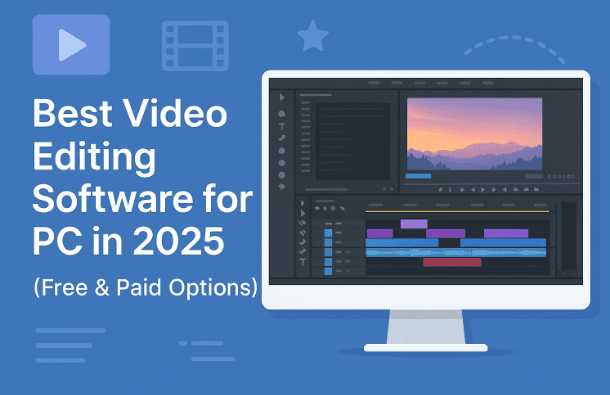
Choosing the right video editing software can be overwhelming — especially with so many options on the market today. Whether you’re just starting out or you’re an experienced editor looking for advanced features, the right software can make a big difference in your creative journey.
In this article, we’ll explore the top video editing tools for PC in 2025. Some of these are free, some are paid, and each caters to a different level of experience and editing need. I’ll explain what makes them great, their pros and cons, pricing, and where each one fits into your workflow.
So, if you’ve been wondering which software is best for you, let’s dive in and break it all down step by step.
📌 Why Choosing the Right Video Editor Matters
Before we jump into the tools, let’s take a moment to understand why selecting the right editor is important.
- For beginners, a tool that’s too complex can feel intimidating and slow you down.
- For professionals, a tool that’s too simple may limit creativity or prevent access to advanced workflows.
- For content creators, features like AI captions, background removal, and social media export options can save hours of work.
The software you choose should balance ease of use, flexibility, and cost based on your needs. With that in mind, let’s move on to the first option.
1️⃣ Clipchamp – The Built-In Windows Editor
Let’s start with Clipchamp, Microsoft’s official video editor that comes pre-installed with Windows 11 (and available via browser for other systems). Think of it as the modern evolution of Windows Movie Maker — but with a lot more power.
🌟 Why Choose Clipchamp?
Clipchamp is ideal for beginners who want something simple and clean without unnecessary complexity. You can import video footage, record directly into the app, or even capture your screen.
The interface is drag-and-drop friendly, making it easy to get started quickly. It also includes plenty of templates, transitions, and customizable options.
✨ Key Features
- Multiple video layers for more advanced editing.
- Support for widescreen, portrait, and square video formats.
- Direct screen and webcam recording.
- Cloud-based access (edit from a browser).
- No watermarks in the free plan (unless you use premium assets).
- Export up to 1080p on the free plan.
🤖 AI Features in Clipchamp
- Auto-compose: Quickly generates short-form videos.
- AI voiceovers: Use realistic voices without recording yourself.
- Silence removal: Automatically cuts awkward pauses.
- Speaker coach: Gives feedback on your presentation style.
- AI subtitle generator: Automatically creates captions.
- Noise removal and background removal: Enhances audio and video quality.
💵 Pricing
- Free version: Includes exports up to 1080p with most features unlocked.
- Paid plan: Starts at $11.99/month or $119.99/year, unlocking 4K exports and premium assets.
2️⃣ CapCut – Powerful and Beginner-Friendly
Now let’s move to CapCut, one of the most popular video editors today. Initially known as a mobile app, CapCut has expanded into a full-featured desktop editor for both Windows and Mac, while still keeping Android and iOS versions.
🌟 Why Choose CapCut?
CapCut is perfect for creators who want a mix of simplicity and power. It offers cross-platform editing, meaning you can start on your phone and finish on your PC using cloud sync.






Compared to Clipchamp, CapCut has far more built-in effects, templates, and AI-powered tools.
✨ Key Features
- Multi-device support with seamless project transfer.
- Extensive library of templates, effects, and transitions.
- Built-in captions and subtitles.
- Background removal and chroma key tools.
- AI avatars and AI-generated voices.
- Color correction and grading tools for intermediate users.
🤖 AI Features in CapCut
- Text-based editing: Transcribes video and allows editing through text.
- Auto filler word removal: Cuts out “um,” “uh,” and silences.
- AI captions: Quick and accurate subtitles.
- AI avatars: Create animated virtual presenters.
💵 Pricing
This is where things get tricky. CapCut’s pricing varies:
- Some users report a Pro plan starting at $7.99/month, while others see up to $19.99/month depending on device and region.
- Free version still works, but may now include watermarks or export limits.
3️⃣ Descript – Edit Video Like a Document
If you’ve ever wished video editing could feel as simple as editing a Word or Google Doc, Descript is the answer. It’s a unique tool that flips traditional editing on its head.
🌟 Why Choose Descript?
Instead of cutting clips on a timeline, you can edit by editing text. Descript automatically transcribes your video and lets you delete mistakes by simply removing words from the script.
This is an amazing option for educators, podcasters, YouTubers, and businesses who work with a lot of talking-head or scripted videos.
✨ Key Features
- Automatic transcription on import.
- Text-based editing (delete words to cut video).
- Audio cleanup tools to remove noise.
- Easy filler word removal (“um,” “like,” etc.).
- Screen recording and podcast recording.
- Integration with Final Cut, Premiere, and DaVinci Resolve.
🤖 AI Features in Descript
- Remove mistakes and retakes with one click.
- Overdub voice cloning (create a digital version of your voice).
- Eye contact correction (fixes off-camera reading).
- Automatic titles, descriptions, and timestamps for content release.
💵 Pricing
- Free plan: Limited editing and watermark on exports.
- Creator plan: $12/month (1080p exports, basic AI tools).
- Pro plan: $24/month (4K exports, advanced AI tools).
- Business plan: For teams needing collaboration features.
4️⃣ DaVinci Resolve – Professional-Grade Editing
Finally, let’s talk about DaVinci Resolve. Unlike the other tools, this is true Hollywood-level software used for films, TV shows, and commercials. What makes it exciting is that its free version is incredibly powerful.
🌟 Why Choose DaVinci Resolve?
DaVinci Resolve isn’t just a video editor. It’s a complete post-production suite, with dedicated sections for editing, color correction, audio, effects, and even collaboration.
It’s not for beginners — the learning curve can be steep — but if you’re ready to push your editing skills to a professional level, this is the best free option out there.
✨ Key Features
- Non-linear editing timeline (like Premiere Pro).
- Industry-leading color correction and grading tools.
- Fusion for motion graphics (like After Effects).
- Fairlight for professional audio editing.
- Collaboration tools for team projects.
- Cloud-based workflows for remote editing.
🤖 AI Features in DaVinci Resolve (Studio Version)
- Text-based editing and filler word removal.
- Background replacement and relighting.
- Smart reframing for social media.
- AI-driven noise reduction and upscaling.
💵 Pricing
- Free version: Includes nearly all professional tools.
- Studio version: $299 one-time purchase (adds advanced AI tools and hardware integration).
🆚 Comparison Table
| Software | Best For | Free Version? | AI Features | Difficulty Level | Paid Price Range |
|---|---|---|---|---|---|
| Clipchamp | Beginners, simple edits | Yes (1080p) | Yes | Easy | $11.99/mo |
| CapCut | Creators, social media | Yes (limited) | Yes | Easy–Medium | $7.99–$19.99/mo |
| Descript | Podcasters, YouTubers | Yes (limited) | Yes | Easy–Medium | $12–$24/mo |
| DaVinci Resolve | Professionals | Yes (powerful) | Yes (Studio) | Hard (Pro Level) | $299 one-time |
❓ Frequently Asked Questions
Q1: Which video editor is best for beginners?
Clipchamp is the easiest to use, while CapCut is slightly more advanced but still beginner-friendly.
Q2: What’s the best free professional tool?
DaVinci Resolve’s free version is unbeatable if you’re serious about editing.
Q3: Can I edit videos like a podcast script?
Yes, Descript is designed exactly for that. It’s the best option for text-based editing.
Q4: Is CapCut still free?
Yes, but the free version now has restrictions. Depending on your device or region, you may face watermarks or limited exports.
Q5: Do I need a powerful PC?
- Clipchamp and CapCut: Run fine on standard laptops.
- Descript: Works on most modern PCs.
- DaVinci Resolve: Requires a powerful system, especially for 4K editing.
⚠️ Disclaimer
The information in this article is accurate as of 2025. Features, pricing, and free plan limitations may change, as software companies frequently update their models. Always check the official website for the latest details.
✅ Final Thoughts
When it comes to video editing software for PC in 2025, you have plenty of great options:
- Clipchamp: Perfect for beginners who want something simple.
- CapCut: Great for creators and social media editors.
- Descript: Excellent for those who record podcasts, tutorials, or talking-head videos.
- DaVinci Resolve: The best free professional-grade option for advanced users.
No matter which one you choose, the important thing is to start creating. Over time, you’ll naturally learn what tools and features matter most to you.
Tags: video editing software for pc, best free video editors, clipchamp, capcut, descript, davinci resolve, ai video editing tools, windows video editing
Hashtags: #VideoEditing #Clipchamp #CapCut #Descript #DaVinciResolve #WindowsEditing #ContentCreation