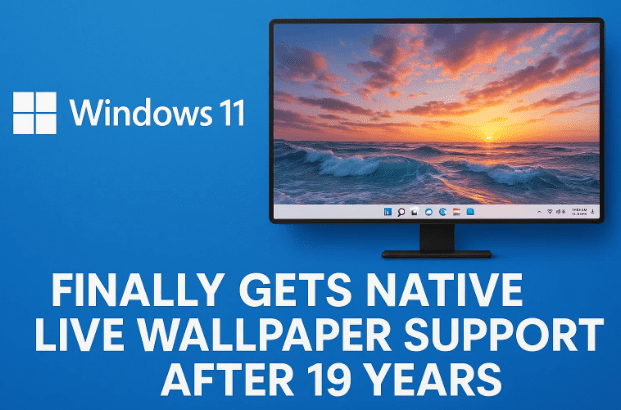
For nearly two decades, Windows users have been relying on third-party apps like Wallpaper Engine or Lively Wallpaper to bring their desktops to life with animated and video backgrounds. Now, after 19 years, Microsoft has finally brought native live wallpaper support to Windows 11.
If you’ve been around long enough, you might remember the short-lived DreamScene feature in Windows Vista back in 2006–2007. It allowed users to set videos as their desktop background, but the feature was eventually discontinued because it consumed too many system resources at the time. With modern hardware and a much more optimized Windows kernel, Microsoft has reintroduced the idea—this time in a lightweight, practical, and polished way.
In this article, we’ll dive deep into how you can enable and use Windows 11 live wallpaper right now, what formats are supported, how this compares to third-party apps, and whether it impacts performance.
1️⃣ Why This Feature Matters
For years, users who wanted animated or live wallpapers had to rely on external software. The most popular one, Wallpaper Engine (Steam), works great but constantly runs in the background, eating system resources. On low-end PCs, this could mean less available RAM or reduced gaming performance.
With Microsoft adding native support in Windows 11, you no longer need to depend on heavy third-party tools. The feature integrates directly into Windows Settings, which means:
- Lower background resource usage
- Fewer apps running at startup
- Better stability and security (since it’s a built-in feature)
2️⃣ Windows DreamScene: A Brief History
Before we go forward, let’s take a quick look back.
- 2006–2007 (Vista Era): Microsoft released DreamScene as part of Vista Ultimate Extras. It allowed looping WMV videos as wallpapers.
- Why It Failed: At the time, hardware resources were limited. Playing videos in the background slowed down PCs significantly.
- After Vista: DreamScene was abandoned in later versions of Windows, and users had to look for third-party apps.
Now in 2025, with modern CPUs and GPUs, Microsoft feels confident enough to bring it back—only this time it’s optimized and runs smoothly on Windows 11.
3️⃣ Availability of Live Wallpaper in Windows 11
As of now, the feature is available in the Windows Insider Dev Channel builds. That means it isn’t yet fully released to the public, but you can try it early.
- Current Status: Hidden experimental feature
- Requirement: Insider Preview (Dev Channel) build
- Tool Needed: ViveTool (an open-source utility from GitHub used to enable hidden Windows features)
👉 Official ViveTool GitHub link: https://github.com/thebookisclosed/ViVe
4️⃣ Step-by-Step Guide: Enabling Live Wallpaper
Now let’s move to the part you’re waiting for—how to actually turn this on. Don’t worry, I’ll explain every step clearly.
🔹 Step 1: Download ViveTool
- Go to the ViveTool GitHub releases page.
- Download the latest ZIP file.
- Extract the contents to a folder on your PC (e.g.,
C:\ViveTool).
🔹 Step 2: Run Commands in Command Prompt
Now that you have the tool, let’s enable the hidden feature.




- Press Win + S, type cmd, right-click Command Prompt, and select Run as Administrator.
- Navigate to the ViveTool folder. If your extracted path was
C:\ViveTool, type:cd C:\ViveTool - Enter the command to enable the live wallpaper feature:
vivetool /enable /id:<FeatureID>(Replace<FeatureID>with the correct ID from the Insider changelogs. If not provided, check the GitHub issues section where users often share working IDs.)
🔹 Step 3: Restart Windows Explorer
After enabling the feature:
- Open Task Manager (
Ctrl + Shift + Esc). - Scroll down to Windows Explorer.
- Right-click and select Restart.
This reloads the desktop shell with the new feature applied.
🔹 Step 4: Set a Video as Wallpaper
- Right-click desktop → choose Personalization.
- Go to Background.
- Instead of just images, you’ll now see video files supported.
- Click Browse → select a video file (MP4, WMV, MKV, etc.).
- That video will now loop as your desktop wallpaper.
That’s it—you’ve successfully enabled native Windows 11 live wallpapers!
5️⃣ Supported Video Formats
According to tests so far, these formats are supported:
- MP4 (most common)
- WMV (Windows Media Video, same as DreamScene)
- MKV (Matroska Video)
This covers most use cases. If you already have short looping videos, they should work without conversion.
6️⃣ Performance Impact Compared to Third-Party Apps
One of the biggest concerns is whether this will slow down your PC. Let’s compare:
| Feature/Impact | Native Windows Live Wallpaper | Wallpaper Engine (3rd Party) |
|---|---|---|
| RAM Usage | Low (Windows-optimized) | Medium–High (runs in background) |
| CPU/GPU Load | Light (GPU accelerated) | Moderate (depends on wallpaper) |
| Battery Usage (Laptops) | Lower | Higher |
| Stability | High (built-in) | Can sometimes conflict with games |
💡 In short: Windows’ native support uses fewer resources compared to Wallpaper Engine or other apps. It’s more efficient because it’s integrated into the OS.
7️⃣ Customization Ideas
Now that you can set videos as wallpapers, here are some fun ideas:
- Looped Nature Clips → Waterfalls, ocean waves, clouds drifting
- Cinematic Backgrounds → Short movie scenes or abstract motion graphics
- Personal Creations → Record a timelapse and use it as wallpaper
- Gaming Clips → Favorite in-game cutscene looping silently in background
Remember to choose short, loop-friendly clips to avoid distractions.
8️⃣ Practical Use Cases
While live wallpapers are mainly aesthetic, they can also be practical:
- Presentations → Use a dynamic background while screen-sharing
- Showcasing Creativity → Designers and video editors can display their work
- Relaxation → Set calming videos like rain or fireplace loops
- Minimal Productivity Boost → Motivational video quotes in the background
🔍 9. FAQs
Q1. Can I use this on stable Windows 11 builds?
👉 Not yet. It’s currently only in Insider Dev Channel builds.
Q2. Does it drain battery on laptops?
👉 Slightly more than static wallpapers, but much less compared to Wallpaper Engine.
Q3. Will it support audio from the video?
👉 No. The wallpaper plays silently, just like DreamScene did.
Q4. Can I set GIFs as wallpapers?
👉 Not directly. You’ll need to convert GIFs to MP4 or WMV first.
Q5. Is there any risk in enabling hidden features with ViveTool?
👉 ViveTool itself is safe (it’s open-source and widely used), but enabling hidden features may sometimes cause bugs since they aren’t officially released yet.
⚠️ Disclaimer
This article is for informational and educational purposes only. The live wallpaper feature is still experimental and only available in Windows Insider builds. Enabling it with ViveTool may cause minor issues or instability. Always back up your system before testing hidden features. Download ViveTool only from its official GitHub page to avoid malware.
📑 Tags
windows 11 live wallpaper, enable live wallpaper windows 11, microsoft dreamscene windows, vivetool windows 11, mp4 wallpaper windows, mkv wallpaper windows, set video as wallpaper windows, wallpaper engine alternative, windows insider dev features, animated desktop backgrounds
📢 Hashtags
#Windows11 #LiveWallpaper #DreamScene #Microsoft #WallpaperEngine #TechTips #WindowsInsider #Customization #DesktopBackground #Productivity








