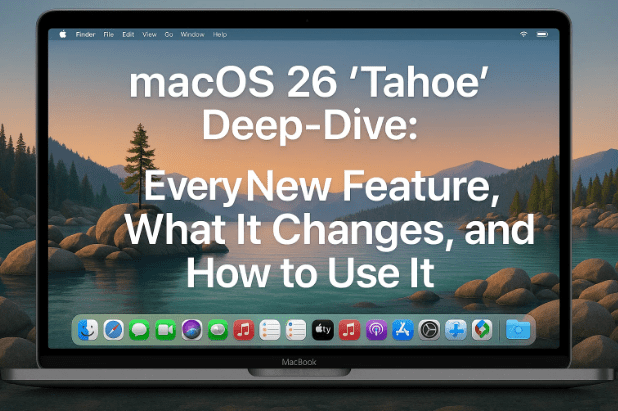
If you’ve been following Apple’s desktop OS evolution, you know the big updates tend to arrive with a fresh coat of paint and a handful of quiet power-user gems that reshape everyday workflows. macOS 26 “Tahoe” is exactly that kind of release. It introduces a new “Liquid Glass” design language, rethinks how the menu bar and Control Center work, adds customization that finally rivals iOS, and sprinkles in practical apps (hello, Phone, Games, Magnifier, and Journal) that make the Mac feel more cohesive with the rest of Apple’s ecosystem.
In this long, practical guide, we won’t just list features—you’ll get context, step-by-step instructions, tips, trade-offs, and a few friendly nudges where Apple’s defaults might not be the best for you. By the end, you’ll know what’s new, how to try it, and when to tweak it.
Quick links for official resources:
- macOS overview and downloads: apple.com/macos
- If you consider third-party cleanup utilities mentioned later, review the vendor site first: macpaw.com/cleanmymac (more on pros/cons and safer built-in options below)
Table of Contents
- Liquid Glass: What It Is, Where You’ll See It, and What You Can Control
- Icons, Cursors, and Visual Polish: A Quick Tour (with Practical Notes)
- Sidebars Reimagined: Hover, Refraction, and Real Context
- From Launchpad to “Apps” (and Spotlight): Search, Filters, Actions, and Clipboard
- Control Center & the Menu Bar: New Controls, Sizes, and Order
- Personalization Power-Ups: Folder Colors, Icon/Widget Styles, and Per-Folder Symbols
- Wallpaper, Screensavers, and a Smarter Volume HUD
- Storage Housekeeping on Tahoe: Built-in Tools vs Third-Party Cleaners
- Notes, Preview, Safari & Shortcuts: Small Updates with Big Daily Impact
- New & Upgraded Apps: iPhone Mirroring, Phone, Journal, Games, Magnifier
- Messages, Clock, Motion Cues & Accessibility Reader: Everyday Quality-of-Life
- FAQ: Common Questions About Tahoe’s Changes
1) Liquid Glass: What It Is, Where You’ll See It, and What You Can Control
Let’s start with the big visual story. Liquid Glass is Apple’s new design language for Tahoe. It pushes rounder corners, adds subtle “glass” refraction and tinting, and lets interface elements—like sliders and toggles—briefly morph into transparent, glass-like controls while you interact. You’ll notice it in:
- Dock, icons, and widgets: Softer edges, faint glimmers, consistent depth.
- Menu bar: Fully transparent by default (you can change that in Settings).
- Windows and controls: Sidebars and buttons feel like they float, with layered depth.
Why it matters: It’s not just pretty. The refraction and transparency cues subtly keep you oriented. Instead of opaque slabs hiding context, you’ll glimpse your content through sidebars and controls—handy when you’re editing media, designing, or comparing data.
Try this first:
- Go to System Settings → Appearance and toggle transparency, accent color, and related options.
- In apps that support it (Finder, Photos, etc.), watch how the sidebar and controls “hover” and how selections animate.
Heads-up: Some Apple apps (e.g., Keynote at launch) may not yet adopt the full Liquid Glass behaviors. Expect Apple to continue updating first-party apps over time.
So far so good—now let’s zoom in on the smaller things that add up every day.
2) Icons, Cursors, and Visual Polish: A Quick Tour (with Practical Notes)
Tahoe refreshes a long list of system icons and cursors. Highlights:
- System icons refreshed: Preview, TextEdit, Stickies, Photo Booth, Migration Assistant, Disk Utility, Digital Color Meter, Contacts, Clock, Calendar, Automator, Chess, and more receive modernized, glass-friendly art. Even Macintosh HD looks more like a current SSD than a platter drive.
- Cursors simplified & rounded: The pointer is rounder; text insertion (“I-beam”), crosshairs, and the hand pointer get subtle rewrites. The hand is less “glove-y,” more universal (yes, similar to Windows’ hand).
- Resize, move, zoom cursors: Updated to match Liquid Glass.
Practical tip: Don’t underestimate cursor clarity. If you work in cluttered documents or busy timelines, the redesigned cursors are easier to parse at a glance, which reduces mis-clicks over long sessions.
3) Sidebars Reimagined: Hover, Refraction, and Real Context
In macOS Sequoia, sidebars had transparency, but they reacted to whatever was behind the window—often unrelated to the task at hand. In Tahoe, sidebars “hover” above your content in the active window, applying a refraction effect. That means when you zoom into a photo or scroll a document, the sidebar gives you subtle context about where you are.





- New “Hide Sidebar” button appears across the system.
- Minimum window sizes won’t auto-collapse sidebars anymore—handy for small screens or tight tiling layouts.
When it helps most: Media editing, comparing datasets, and any workflow where you’re constantly navigating long lists (mailboxes, project folders, album libraries) while monitoring content position.
4) From Launchpad to “Apps” (and Spotlight): Search, Filters, Actions, and Clipboard
Launchpad has been retired in name and spirit. In Tahoe, you’ll see a new “Apps” experience that blends app launching with system search, adjacent to Spotlight.
Two entry points, two vibes:
- Apps (new): Combines a search bar with a full, scrollable list of installed apps. It’s like a Spotlight view with a persistent Apps index.
- Spotlight (classic): Still dedicated to universal search, but gains filters and Actions—plus a Clipboard history.
Spotlight power-ups you’ll actually use:
- Default filters under the search field (e.g., Pages files only).
- Quick toggles for searching just Applications or Files.
- “Actions” panel for instant commands (create a new note, send an email, open a book, generate a random number).
- Custom action shortcuts: Type your own mnemonics (e.g.,
NNfor “new note”), then press Enter to execute. - Clipboard history (last ~8 hours): See everything you copied, with timestamps, and drag-drop directly from Clipboard into any app.
If you mirror an iPhone: Spotlight can include iPhone files in results—surprisingly useful when you parked a document on your phone five minutes ago and forgot where.
That’s a lot already, but Control Center and the menu bar got an even bigger rethink. Let’s move to that next.
5) Control Center & the Menu Bar: New Controls, Sizes, and Order
Tahoe consolidates what used to be “Control Center” settings into a broader System Settings → Menu Bar area—because the menu bar and Control Center now act like one customizable canvas.
What’s new and better:
- Choose which controls appear in the menu bar vs. Control Center.
- Block third-party items from the menu bar entirely (a first).
- Add Controls gallery: Browse all available controls (including third-party and iPhone-sourced items) and drag them into place.
- Resize and reorder: Right-click a control to switch sizes (Small / Medium / Large) and drag to rearrange.
Pro tip: Promote the sliders you touch daily (Focus, audio output, mic modes) to Large for easy clicking; demote rarely used toggles to Small or keep them inside Control Center only.
6) Personalization Power-Ups: Folder Colors, Icon/Widget Styles, and Per-Folder Symbols
If you love desktop organization, Tahoe finally throws you a bouquet.
Folder color (system-wide)
- System Settings → Appearance → Folder color
- Choose Graphite, Purple, Orange, or pick any hue with the color slider/picker (you can even sample your wallpaper).
Icon and widget style
- Default Dark (always dark or only at night), Clear (light/clear variants), or Tinted (matches your chosen folder color).
- The Tinted option ties icons and widgets to your theme color—great for coherent setups.
Per-folder symbols & colors
- Right-click a folder → Customize Folder.
- Add a symbol (e.g., camera for photos, briefcase for work) and optionally change that folder’s color.
- Drop animations are cuter now: icons visibly “open” when you drop files onto them.
Why it matters: Visual encoding speeds recognition. When every project folder looks distinct (color + symbol), you’ll open the right one faster—especially under time pressure.
7) Wallpaper, Screensavers, and a Smarter Volume HUD
Small changes, big smiles:
- Screensaver settings now sit at the top of the Wallpaper section—quicker to find.
- You can customize the Lock Screen clock (font and weight) to better suit your wallpaper.
- Volume HUD moves from the middle of the screen to the top-right, and you can grab its slider with your cursor while the HUD is visible.
Why this helps: The old center-screen volume HUD obscured content—annoying during calls, fullscreen games, or edits. This new behavior is cleaner and more interactive.
8) Storage Housekeeping on Tahoe
Apple still nudges users to iCloud when local storage runs tight—useful, but it can lead to subscriptions creeping up. Tahoe itself does not add a one-click junk scanner. You have options:
- About This Mac → Storage → Manage: Review Large Files, Downloads, Unsupported Apps, and Recommendations.
- Mail / Messages: Periodically clear big attachments (search by attachment size).
- Photos: Consider Optimize Mac Storage if you’re also backing up originals elsewhere.
- GarageBand / iMovie: Remove sound libraries or render caches you no longer need.
- Developer tools: Xcode simulators and DerivedData can balloon—clear regularly if you build iOS apps.
9) Notes, Preview, Safari & Shortcuts: Small Updates with Big Daily Impact
Notes: Export to Markdown
Go to File → Export As → Markdown to share or archive notes in a portable format developers, writers, and static-site tools love.
Preview: Dark PDFs that actually look dark
While in Dark Mode, choose View → Use Dark Appearance for PDF to switch PDF backgrounds to a dark theme (auto-reverts in Light Mode). It’s easier on the eyes at night.
Safari: Compact + Standard, minus the toggle
Apple merged the old Standard/Compact tab modes:
- The tab bar adapts its color to the site’s dominant color (like prior Compact mode).
- The URL stays fixed at the top (like prior Standard mode).
- Don’t like color-matching? Safari → Settings → Appearance → Show color in tab bar → off.
Shortcuts: Real automations on the Mac
In Shortcuts → Automations, trigger flows by:
- Time of day
- Alarm stopped
- When specific email arrives
- When a message is received
- On Wi-Fi connection, and more
Tahoe finally makes Mac automations feel like first-class citizens—no scripting required.
10) New & Upgraded Apps: iPhone Mirroring, Phone, Journal, Games, Magnifier
iPhone Mirroring: Now with Live Activities in the menu bar
Live Activities from your iPhone can appear in the Mac’s menu bar. Click one to jump into iPhone Mirroring and interact instantly. It’s a subtle but powerful bridge for timers, deliveries, rides, and sports scores.
Phone (brand-new on Mac)
After a decade of piggybacking via FaceTime/Messages, Tahoe ships a dedicated Phone app:
- Call screening, hold assist, and live translation reach feature parity with iPhone.
- Dial pad, recents, and voicemail sync from iPhone.
- Incoming calls now use a larger panel with Contact Posters (not a tiny banner).
This lays groundwork for the oft-rumored cellular MacBooks—but it’s immediately useful today if you place calls from your Mac.
Journal (arrives on Mac)
Everything from the iPhone Journal app now syncs:
- Create entries, add Photos, capture audio, insert location, or snap with your Mac’s camera.
- Entries sync across Mac, iPhone, iPad.
Games (dedicated app)
Moving beyond the App Store’s Arcade tab, Games gives you:
- Continue Playing (like Apple TV’s Continue Watching)
- Social touches: see what friends play, compare leaderboards
- View your achievements and full games library across devices
Magnifier
A practical utility that instantly becomes indispensable:
- Click Show Detected Text, hold any printed page or distant sign to your Mac camera (or a connected iPhone camera), and Magnifier reads the text aloud.
- Great for tiny product labels, serial numbers, or documents without your glasses.
11) Messages, Clock, Motion Cues & Accessibility Reader: Everyday Quality-of-Life
Messages
- Conversation backgrounds with adjustable styles
- Polls, group chat indicators, and Apple Pay in groups
Small features, but they make group coordination less of a slog.
Clock
- Set custom snooze durations from 1 to 15 minutes (no more fixed 9-minute snoozes)
Vehicle Motion Cues
If you get motion-sick using your Mac in a car/plane:
- Settings → Accessibility → Motion → Vehicle motion cues
- Enable dots around the screen edge; adjust color, size, and density
They provide a stable frame of reference, which can ease motion nausea for some users.
Accessibility Reader (Read & Speak)
- Open text from any app in a distraction-free reader
- Customize typeface, size, and legibility settings
- Read aloud at speeds from 0.8× to 2×
Since macOS doesn’t offer Apple News audio on Mac, this is a clever substitute for “listen while you work” reading.
Name Recognition
The Mac can monitor ambient audio and notify you if someone nearby says your name—handy in shared spaces or when you’re heads-down with headphones.
12) FAQ: Common Questions About Tahoe’s Changes
Q1: I don’t like the menu bar being transparent. Can I revert it?
Yes. System Settings → Appearance lets you adjust transparency and related effects.
Q2: Not all Apple apps show Liquid Glass—broken?
Not broken, just staggered. Some first-party apps ship updates later. Core system UI supports Liquid Glass today.
Q3: Where did Launchpad go?
The Apps experience replaces it—search + app grid in one. Spotlight remains for universal search, now with filters, Actions, and Clipboard.
Q4: Can I stop third-party icons from crowding my menu bar?
Yes. System Settings → Menu Bar now lets you disallow third-party controls in the menu bar or tuck them into Control Center.
Q5: Best way to free space without paying for iCloud?
Start with Storage → Manage and manual cleanup (Downloads, Large Files, caches in pro apps). If you consider third-party cleaners, read permissions carefully and keep good backups.
Q6: Can I really trigger automations when an email arrives?
Yes—Shortcuts → Automations includes mail/message triggers, Wi-Fi join, time of day, and more.
Q7: Can I turn off Safari’s color-matching tab bar?
Absolutely: Safari → Settings → Appearance → Show color in tab bar → toggle off.
Q8: Does Phone on Mac mean cellular Macs are here?
Not yet. But the dedicated Phone app aligns features and UX across devices—and makes future cellular Macs more plausible.
13) Final Thoughts
macOS 26 Tahoe feels like Apple tidying the living room and adding smart storage in the back. The Liquid Glass visuals aren’t just shine—they’re subtle affordances that keep you oriented. The Menu Bar/Control Center overhaul finally treats your Mac like the customizable dashboard it always wanted to be. And the new/updated apps—Phone, Games, Journal, Magnifier—smooth long-standing seams between devices.
Is everything perfect? Not yet. Some apps trail the new look, the storage story still leans on iCloud nudges, and power users will keep asking for more granular UI switches. But as a daily driver, Tahoe’s changes stack up in your favor. After a week, you’ll wonder how you ever tolerated that giant volume HUD in the middle of your screen.
Try the bits that matter most to your day first: set your folder colors, pin your favorite controls to the menu bar (resize them!), give Spotlight’s Actions a mnemonic or two, and turn on the Clipboard history. So far we’ve done a solid tour—now make it yours.
⚠️ Disclaimer
Feature availability may vary by Mac model, region, and software build. Always back up your Mac (e.g., Time Machine) before major updates or when trying new automation/cleanup workflows. Third-party utilities can be helpful but should be installed from official sources, reviewed for permissions, and used conservatively.
Tags
macOS 26 Tahoe, Liquid Glass interface, macOS personalization, macOS Control Center, macOS Menu Bar, Spotlight Actions, Clipboard history Mac, iPhone Mirroring, Phone app on Mac, Journal app Mac, Games app Mac, Magnifier app Mac, Safari tab color, Notes Markdown export, Preview dark PDF, Vehicle Motion Cues, Accessibility Reader, macOS storage management
Hashtags
#macOS #macOSTahoe #Apple #MacTips #Productivity #Accessibility #Design #Spotlight #ControlCenter #iPhoneMirroring #AppleEcosystem







