In the previous article, we discussed how IP addresses enable devices to communicate with one another and with the wider internet. Today, we’ll take that understanding a step further by diving into one of the most important concepts in networking: the distinction between public IP addresses and private IP addresses.
Understanding IP Addresses: The Basics of How Devices Connect to the Internet
At first glance, IP addresses might seem straightforward — a simple number that uniquely identifies your device online. But in reality, things are a little more nuanced. Not all IP addresses are the same, and understanding the difference between public and private ones is essential for troubleshooting networks, setting up home routers, hosting services, and even understanding internet security.
This article will explore why we have two different types of IP addresses, how they’re assigned, and how they work together using a technology called Network Address Translation (NAT). Along the way, we’ll look at examples, common ranges, and future developments like IPv6.
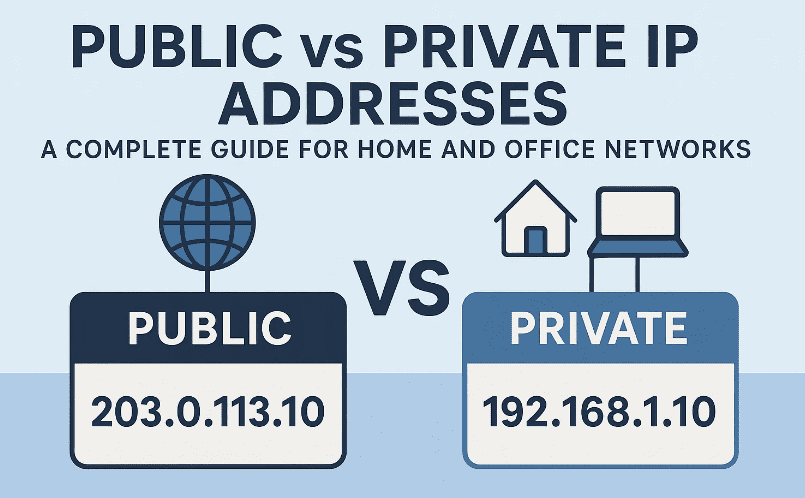
📖 Why Do We Need Private and Public IP Addresses?
Originally, the internet only used public IP addresses. The first widely adopted version of the Internet Protocol, called IPv4, was designed to support around 4.3 billion unique addresses. At the time of its invention, this seemed like more than enough.
But as computers, smartphones, smart TVs, IoT devices, and even appliances began connecting to the internet, the world quickly realized that 4.3 billion addresses would not be sufficient. To extend the lifespan of IPv4 and prevent exhaustion, engineers introduced private IP addressing.
Here’s why that was important:
- Public IP addresses are limited and must remain unique across the entire internet.
- Private IP addresses, on the other hand, can be reused within local networks (like your home Wi-Fi) without conflict, since they are not directly accessible from the wider internet.
- This setup allowed billions of devices to exist “behind” a smaller number of public IP addresses.
So, private IPs were not just a clever workaround — they became the backbone of modern networking.
🏠 What Are Private IP Addresses?
Let’s start with the basics.
A private IP address is an address reserved for use inside local networks (LANs). Devices in your home, school, or office use private IPs to talk to each other and to your router.
👉 The key detail: private IP addresses are not accessible directly from the public internet.








This means:
- You cannot type someone else’s private IP into a browser and access their computer.
- These addresses are for communication within the network only.
For example, if your laptop connects to Wi-Fi at home, your router will assign it a private IP address, something like:
192.168.0.50
This address only works inside your home. Another person in a different house might also have a laptop with the exact same address — and that’s completely fine, because private IPs don’t overlap across the public internet.
🔎 How to Identify Private IP Ranges
Private IP addresses follow specific ranges defined by RFC 1918. If an IP falls into one of these ranges, it’s private:
- 10.0.0.0 → 10.255.255.255
- 172.16.0.0 → 172.31.255.255
- 192.168.0.0 → 192.168.255.255
Most home routers default to the 192.168.x.x range. For example:
- Routers often use 192.168.0.1 or 192.168.1.1 as their own IP.
- Devices like smartphones, laptops, and smart TVs are assigned addresses such as 192.168.0.50 or 192.168.1.23.
That’s why if you check your router right now, chances are you’ll see an address beginning with 192.168.
🔧 How Are Private IPs Assigned?
Most devices get their private IP automatically through a service called DHCP (Dynamic Host Configuration Protocol), which runs on your router.
- When a device connects, the router assigns it the next available IP in its pool.
- You can also manually set (or “statically assign”) a private IP if needed, for example when configuring printers or servers.
Here’s a quick example:
- Your laptop connects to Wi-Fi.
- The router assigns it 192.168.0.50.
- Your smartphone connects next and gets 192.168.0.51.
Both devices can talk to each other inside your home network without using the internet.
🌍 What Are Public IP Addresses?
If private IPs are used inside local networks, public IP addresses are what allow your network to communicate with the outside world.
A public IP address is unique across the internet and is assigned to you by your Internet Service Provider (ISP).
Key points about public IP addresses:
- They can be accessed from anywhere in the world (assuming no firewalls or restrictions).
- Each public IP is unique — no two websites or homes can share the same one at the same time.
- They’re necessary for services like websites, online gaming, and email servers.
🔎 How Are Public IPs Assigned?
- When you set up an internet connection at home, your ISP assigns you one public IP address.
- All of your devices (laptops, phones, smart TVs) share this single public IP when communicating with the internet.
- If you register a website, your domain registrar assigns a public IP address to the server hosting your site.
For example:
- CNN.com has a public IP address such as 151.101.3.5.
- When you type cnn.com into your browser, your request is routed through your ISP using your home’s public IP.
📏 Public vs Private: Format and Ranges
The simplest way to identify whether an IP is public or private is by checking the ranges we listed earlier.
- If the IP falls into 10.x.x.x, 172.16.x.x – 172.31.x.x, or 192.168.x.x, it’s private.
- Anything else is a public IP.
🔗 How Do Private and Public IPs Work Together?
Now comes the interesting part: how do private and public addresses coexist?
Here’s a real-world example:
- Your laptop has a private IP (192.168.0.3).
- Your router has two IPs:
- A private one (192.168.0.1) for internal communication.
- A public one (say 72.14.201.15) assigned by your ISP.
- When you type cnn.com in your browser, your request first goes to the router.
- The router then uses its public IP to send the request to CNN’s public IP (151.101.3.5).
- CNN responds to your router’s public IP, which then forwards the data back to your laptop’s private IP.
This translation between private and public addresses is handled by NAT (Network Address Translation).
Without NAT and private IP addresses, every device would need its own unique public IP — meaning we would have run out of IPv4 addresses decades ago.
🖥️ Example: A Home Network with 100 Devices
Let’s imagine you have:
- 20 smart bulbs
- 10 laptops
- 25 smartphones
- 15 tablets
- 20 smart TVs and appliances
- 10 IoT devices like cameras
That’s 100 devices.
Without private IPs, all of them would require unique public IP addresses, consuming 100 slots out of the limited 4.3 billion IPv4 pool. Multiply that by millions of households, and IPv4 exhaustion would have happened almost instantly.
Thanks to private IPs and NAT, all 100 devices can share just one public IP assigned to your home by your ISP.
🚀 The Future: IPv6
Even with NAT and private addressing, IPv4 is not enough to meet global demand. That’s why engineers developed IPv6.
- IPv6 uses 128-bit addresses, compared to IPv4’s 32-bit.
- This expands the number of available addresses to an almost unimaginable scale: 340 undecillion (that’s 340 trillion trillion trillion).
- With IPv6, every device on earth could have its own unique public IP without exhaustion.
IPv6 adoption is growing, and many ISPs already provide both IPv4 and IPv6 addresses in a system called dual-stack networking.
❓ FAQ
Q1: How can I find my private IP address on my device?
- On Windows: open Command Prompt and type
ipconfig. - On macOS: go to System Settings → Network → Wi-Fi → Details.
- On iPhone/iPad: Settings → Wi-Fi → (tap the “i” next to your network).
Q2: How can I check my public IP address?
The easiest way is to search “What is my IP” on Google, or visit a site like whatismyip.com.
Q3: Can I change my public IP address?
Usually yes. Restarting your router may assign a new one, but this depends on whether your ISP uses static or dynamic IP assignment.
Q4: Why do gamers care about public IP addresses?
Certain games require “port forwarding” so that incoming connections can reach your console or PC. This requires knowledge of both your public IP (for external access) and your private IP (for device targeting).
Q5: Do I need IPv6 at home?
Not necessarily, but as more services move to IPv6, enabling it ensures smoother connectivity. Most modern routers and ISPs support IPv6.
⚠️ Disclaimer
The explanations in this article are simplified for clarity. Real-world networking can involve additional layers such as firewalls, proxies, dynamic IP leasing policies, and advanced IPv6 setups. Always consult your ISP or IT administrator before making permanent changes to your home or office network.
📑 Tags
private ip addresses, public ip addresses, ipv4 vs ipv6, home networking explained, router ip address, network address translation, isp public ip, ip ranges private vs public, internet basics, networking tutorial
📢 Hashtags
#Networking #InternetBasics #IPAddress #IPv4 #IPv6 #HomeNetwork #PublicIP #PrivateIP #Router #TechTutorial







