Microsoft continues to refine and expand its Edge browser with consistent updates that balance security, performance, and AI innovation. The latest version, Microsoft Edge 142.0.35953, rolled out quietly over the weekend — but it brings several meaningful changes worth discussing.
In this article, we’ll go through everything that’s new in Edge 142 — from the critical security patches and Chromium updates to fresh AI-powered scam protection, improved tab management, and a beautiful Copilot-themed new tab design.
If you use Microsoft Edge as your daily browser, or you’re thinking about switching from Chrome or Firefox, this is an important update to understand.
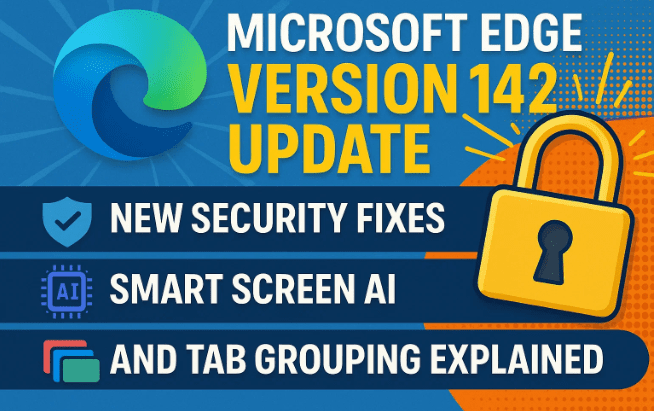
1️⃣ Version Overview — What’s New in Edge 142.0.35953
Microsoft Edge, built on the Chromium engine, automatically updates itself in the background. If you’ve opened the browser recently, you may already be running this latest build.
To confirm, go to:
Settings → About Microsoft Edge, and check the version number.
You should see:
Version 142.0.35953 (Official Build)
This update went live late last week and includes both security fixes and feature enhancements. Before we dive into the fancy new options, let’s first look at why this release is so critical from a security perspective.
2️⃣ Security Fixes — Why This Update Is Important
Let’s start with the most crucial part — the security improvements.
This update brings:
- One Edge-specific security fix addressing a remote code execution vulnerability, and
- 20 Chromium security fixes inherited from the open-source Chromium project that powers Edge.
Now, out of those 20 Chromium fixes:
- 7 are rated high severity,
- The rest include a mix of medium and low-severity issues.
These high-severity vulnerabilities were mainly related to type confusion in V8 and inappropriate implementations — both of which are commonly exploited vectors in Chromium-based browsers.



So even if you’re not too excited about the feature changes, it’s strongly advised to ensure your browser has auto-updated to version 142.0.35953 — this patch closes some potentially dangerous security loopholes.
3️⃣ Fixing the Headless Mode Bug — Print to PDF and Screenshot Restored
Now that the serious stuff is out of the way, let’s move on to the fixes that directly improve usability.
Microsoft has finally fixed a long-standing bug in headless mode, which caused certain automation features like “Print to PDF” and screenshot capture to fail or behave inconsistently.
If you’ve ever tried using Edge in headless mode (often used by developers or automation scripts) and found these features broken, you’ll be glad to know this version restores full functionality.
In short:
✅ “Print to PDF” now works normally.
✅ Screenshots in headless browser mode no longer fail.
These improvements make Edge more reliable for background processes and script-based automation — something power users and enterprise developers will appreciate.
4️⃣ Introducing the New “Scareware Blocker” — AI-Powered Scam Protection
Let’s move to one of the more interesting additions — Microsoft’s new AI-powered security sensor built directly into Edge’s SmartScreen protection system.
Under Settings → Privacy, Search and Services → Security, you’ll now find a new option labeled:
Share detected scam sites with Microsoft Defender SmartScreen
This setting activates Microsoft’s Scareware Blocker, which works as a scam detection sensor.
How It Works
The idea is clever: instead of sending screenshots or browsing data to Microsoft, this new sensor uses local AI models to detect suspicious patterns (like fake pop-ups or phishing alerts) and notifies SmartScreen instantly.
This allows faster detection of potential tech scams — without needing to share personal browsing data.
However, by default, this setting is turned off for privacy reasons. Microsoft has stated that in future builds, it will be automatically enabled for users with SmartScreen turned on.
So far, we’ve seen good progress — Edge is quietly turning into a self-defending browser, blending local AI models with cloud-based protection.
5️⃣ Easier Tab Management — Drag to Group Tabs
Moving on to something more visual, Microsoft Edge now introduces drag-to-group tabs, a small but highly convenient improvement for those who love organized browsing.
Previously, grouping tabs required right-clicking and selecting “Add to group.” Now, you can simply drag one tab over another to instantly create a tab group.
How It Works
- Click and drag a browser tab.
- Hover it over another tab.
- Edge automatically creates a group with a color label.
You can rename, recolor, or collapse tab groups as before.
If you find this automatic grouping distracting, you can disable it by heading to:
Settings → Appearance → Tabs → Drag to Group Tabs (toggle off).
This feature is on by default, but Microsoft gives users full control to turn it off.
So far, we’ve done a good job exploring the new smart protections and tab controls — now let’s take a look at how Microsoft is handling multiple profiles and form autofill improvements.
6️⃣ Smarter Profile Management — Handling External Links
Many users juggle multiple profiles in Edge — one for work, one for personal use, and maybe another for testing.
With this update, Microsoft has improved how external links (those opened from outside the browser, such as from email or chat apps) behave when multiple profiles are available.
What’s New
The new feature is listed as:
Open external links in another profile when recommended by external apps.
Essentially, when you click an external link from another app (like Outlook or Teams), Edge now intelligently chooses the most relevant profile to open it in — for instance, work links open in your work profile automatically.
This saves a lot of hassle, especially for users who often deal with business and personal browsing within the same browser.
7️⃣ Improved Autofill Prompts — Save Only When You Want
If you frequently fill out address forms online, Edge’s autofill suggestion system just got smarter.
Previously, Edge would sometimes automatically save address data without clear confirmation. Now, the browser prompts you before saving any new address.
This change ensures your personal information — like name, address, or postal code — is only stored intentionally.
Microsoft explains that this reduces unwanted autofill suggestions and makes saved data more accurate.
Do note that this feature is still in a controlled rollout — meaning it may not appear immediately for all users. If you don’t see it yet, check back in the coming weeks as it continues to roll out globally.
8️⃣ Subtle UI Change — Copilot Mode Background
Now, let’s move to something aesthetic but interesting.
If you enable Copilot Mode under
Settings → AI Innovations → Copilot,
you’ll notice that the new tab page gets a visual upgrade.
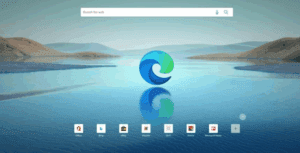
Instead of the standard black or dark gray background, you’ll now see a floral-themed Copilot wallpaper, inspired by the Copilot app’s design language. It uses a soft blue wave pattern that resembles a silk-like gradient — giving the browser a clean and modern AI aesthetic.
While this doesn’t change functionality, it does signal that Microsoft is visually unifying Edge with other Copilot-enabled tools like Windows 11 Copilot and Microsoft 365 AI integrations.
9️⃣ Under-the-Hood Changes for Enterprises
For enterprise and organization-level deployments, Microsoft Edge 142 includes several behind-the-scenes improvements not visible to regular users.
These include:
- Better compatibility for Edge for Business deployments.
- Improved management for enterprise policies via group policy templates.
- More reliable performance when syncing work profiles across managed devices.
While these aren’t headline-grabbing features, they show Microsoft’s commitment to refining the business and IT management side of the browser — a big part of why Edge has become a strong alternative to Chrome in workplaces.
10️⃣ Why These Features Matter — A Human Take
At first glance, updates like “drag to group tabs” or “address autofill prompts” might feel minor. But together, they reveal a pattern: Microsoft is slowly turning Edge into a balanced mix of security, control, and AI assistance.
Here’s why it’s significant:
- For security-focused users: The Scareware Blocker and SmartScreen AI make browsing safer without compromising privacy.
- For productivity-minded users: Tab grouping and profile-based link management help keep workflows tidy.
- For aesthetics: The new Copilot background and visual polish make Edge feel modern and cohesive with Windows 11’s AI direction.
Edge is no longer just a Chrome clone — it’s shaping its own personality, with features designed to fit seamlessly into Microsoft’s broader ecosystem.
💬 Frequently Asked Questions (FAQ)
Q1. How can I check if my Microsoft Edge is updated to version 142?
Go to Settings → About Microsoft Edge. The browser will automatically check for updates and install them if needed.
Q2. What does “Scareware Blocker” actually do?
It detects potential scam websites and warns you in real time, using AI-based behavior analysis instead of sending screenshots or browsing data to Microsoft.
Q3. How do I turn off “Drag to Group Tabs”?
Go to Settings → Appearance → Tabs, and toggle off Drag to Group Tabs.
Q4. Why don’t I see the new autofill prompt feature yet?
It’s part of a controlled rollout. Microsoft releases such features gradually, so it may appear in the coming weeks.
Q5. Is the Copilot background available for everyone?
Yes, but only when Copilot Mode is enabled in AI Innovations settings.
⚠️ Disclaimer
This article is based on official release notes and independent observations from Microsoft Edge version 142.0.35953. Some features may appear gradually due to region-based rollout or controlled testing. Always ensure your browser is up to date for the latest security patches and feature improvements.
For official reference, visit: Microsoft Edge Insider
🧩 Final Thoughts
With version 142, Microsoft Edge continues its quiet but steady transformation. The blend of AI-powered protection, better usability, and small design refinements makes this update one of the more meaningful ones in recent months.
While Chrome still dominates market share, Edge’s balance between performance, privacy, and intelligence is starting to show why Microsoft is betting heavily on its browser.
So, if you haven’t yet explored these new settings, take a few minutes to dive into Edge’s updated menus — you might be surprised at how much control and polish has been added.
#MicrosoftEdge #EdgeUpdate #Windows11 #SmartScreen #Copilot #BrowserSecurity #EdgeBrowser #Microsoft #AIinEdge #dtptips