Have you ever wished you could clone a website — both its front end and back end — but got lost in a maze of confusing tutorials, half-working scripts, or overly technical instructions? You’re not alone.
Many guides suggest copying elements manually from “Inspect” mode, endless prompting of AI, or using tools that are simply too complicated for beginners. That approach wastes time, often leads to broken layouts, and rarely gives you a working result.
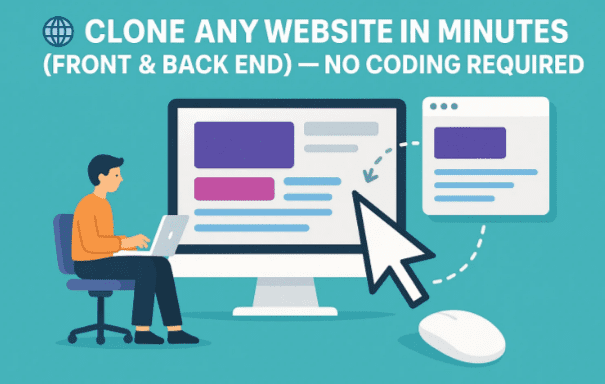
In this article, I’ll show you a clear, step-by-step method to clone literally any website in just a few minutes. You don’t need to be a programmer, and you won’t need to touch complicated server setups. Using just three tools in three steps, you’ll have a fully working clone of your chosen website — live on the internet.
Let’s dive in.
1. Why Clone a Website? (Legitimate Use Cases)
Before we begin, let’s set expectations. Cloning a website is not about stealing someone else’s work. Instead, it can be a powerful learning tool when used responsibly.
Here are some valid reasons you might want to clone a website:
- Learning Web Development – reverse-engineering how a site is structured.
- Portfolio Building – creating your own version of a template site.
- Testing Layouts – experimenting with design changes in a safe copy.
- Backup Purposes – keeping a local copy of your own website.
- Inspiration – understanding how animations, styles, and features work.
⚠️ Disclaimer: Always respect copyright and intellectual property rights. Use this method for personal learning, prototyping, or working with websites you own or have permission to clone. Never use it to duplicate commercial sites for unethical purposes.
2. Tools You’ll Need for This Method
This method is refreshingly simple because it uses just three tools. Let’s introduce them first so you know what’s coming:
- Save All Resources (Chrome Extension) – Captures and downloads all files (HTML, CSS, JavaScript, images, fonts) from any website into a neatly organized folder.
- Trey AI – An AI-based tool that analyzes the downloaded files, fixes broken code, and rebuilds the website to work locally.
- Netlify – A free hosting platform where you can drag-and-drop your project folder to instantly get a live URL.
Think of it like this:
- Save All Resources gives you the raw materials.
- Trey AI acts as the assembler and fixer.
- Netlify is your deployment engine.
With these three combined, you can go from browsing a site to having your own live version in under an hour.
3. Step 1 – Download All Website Resources with Save All Resources Extension
The first step is all about extracting the files from the website you want to clone. Normally, doing this manually is messy and incomplete. That’s where the Save All Resources Chrome extension shines.







Why use Save All Resources?
Because it doesn’t just download the visible HTML — it goes deeper, fetching all linked CSS stylesheets, JavaScript files, frameworks like Bootstrap, fonts, and even media resources. This ensures you get a working copy rather than a broken skeleton.
Step-by-Step Instructions
- Open Google Chrome (this works best in Chrome or a Chromium-based browser).
- Go to the Save All Resources extension page.
- Click Add to Chrome and complete installation.
- Navigate to the website you want to clone.
- Right-click anywhere on the page and choose Inspect.
- In the DevTools window, look for the Resources Saver tab added by the extension.
- Click Save All Resources.
- Choose a destination folder on your computer.
The extension will create a neatly organized folder containing:
index.html(the main page code)/cssfolder (all stylesheets)/jsfolder (all scripts)/imagesfolder (media assets)- Any backend-linked resource files (where applicable)
At this point, you now have all the raw building blocks of the website.
4. Step 2 – Assemble and Fix the Website with Trey AI
If you’ve ever tried opening downloaded website files directly in your browser, you know the problem: things rarely look like the original. Links break, scripts fail, and layouts get messy.
This is where Trey AI comes in. It uses AI agents to intelligently rebuild and connect your files, repairing broken links and ensuring everything works as intended.
Why Trey AI?
- It understands the relationship between files.
- It fixes missing imports or incorrect paths.
- It can debug live previews and adjust automatically.
- It accepts screenshots as hints if certain areas don’t render properly.
Step-by-Step Instructions
- Install and open Trey AI.
- In the dashboard, go to Files > Open Folder.
- Select the folder you downloaded in Step 1.
- Click Add Agents > Builder.
- Copy and paste a clear prompt, e.g.,
“Rebuild this project so it matches the original website.” - Let Trey AI process your files. It will:
- Scan all code.
- Re-link CSS/JS paths.
- Fix errors in real time.
- Generate a preview.
If the preview isn’t identical to the original site:
- Re-prompt with specific instructions (e.g., “The header menu isn’t aligned”).
- Upload a screenshot of the original for comparison.
When you’re satisfied with the preview, press Ctrl + S (or Cmd + S on Mac) to save the fixed project.
You now have a fully functional clone of the original website.
5. Step 3 – Deploy Your Website Online with Netlify
Now that your clone is ready, the last step is to put it online. Traditionally, this requires configuring servers, domains, FTP uploads, and hours of setup. Thankfully, Netlify simplifies this into a drag-and-drop process.
Why Netlify?
- Free plan with instant deployments.
- Supports static sites perfectly.
- Provides a free subdomain (
yoursite.netlify.app). - No server setup required.
Step-by-Step Instructions
- Go to Netlify and sign up (Google or GitHub login works).
- Once logged in, look for the Deploy a Site option.
- Drag and drop the folder generated by Trey AI into the upload area.
- Netlify will auto-detect the project and deploy it.
- Within seconds, you’ll get a unique live URL like:
https://yourproject.netlify.app
Customizing Your Project URL
- In the Netlify dashboard, click on your deployed project.
- Go to Project Settings > Change Site Name.
- Enter a custom name (e.g.,
my-portfolio-clone).
Your new live URL will look like:https://my-portfolio-clone.netlify.app
Congratulations 🎉 — your cloned website is now live on the internet!
6. Extra Tips for Better Results
So far we’ve done a great job, but let’s push further with some practical advice:
- Use Lightweight Sites First – Start by cloning small portfolio or blog sites before tackling massive e-commerce platforms.
- Check File Sizes – Large video or image assets may slow downloads; optimize them if needed.
- Test Responsiveness – Open the clone on mobile to see if layouts adapt correctly.
- Add Your Branding – Modify the CSS to insert your colors, logo, or fonts.
- Secure It – If planning to keep the site public, ensure forms or backend APIs don’t expose private data.
7. What This Method Can’t Do (Important Limitations)
While this method is powerful, there are limits:
- ❌ Dynamic Content – Sites that rely on databases (like WordPress with live posts) won’t clone perfectly.
- ❌ User Accounts/Logins – You can’t replicate working authentication systems this way.
- ❌ Licensed Assets – Images, videos, or fonts may be copyrighted.
- ❌ Complex Backends – Full e-commerce systems or dashboards often need server logic that this method doesn’t replicate.
Remember: this is best suited for static websites (portfolios, landing pages, blogs, templates).
8. Frequently Asked Questions
Q1: Is cloning a website legal?
It depends. Cloning your own site, educational templates, or open-source projects is fine. Cloning commercial websites without permission is not.
Q2: Can this method copy animations and styles?
Yes. Since CSS and JavaScript are included, animations, transitions, and styles will work as long as resources are correctly downloaded.
Q3: What about forms or contact pages?
Static forms won’t work unless you connect them to a backend or a service like Formspree.
Q4: Can I use this method for WordPress websites?
You can copy the front-end look, but not the WordPress CMS backend.
Q5: Does this work on any device?
Yes, as long as you can install Chrome extensions, use Trey AI, and upload to Netlify.
9. Final Thoughts and Best Practices
Cloning a website doesn’t have to be a painful or overly technical process. With the right tools, you can go from browsing a site to hosting your own working version in just three steps:
- Extract resources with Save All Resources
- Rebuild and fix with Trey AI
- Deploy online with Netlify
This workflow saves you time, avoids manual errors, and gives you a functional copy you can study, customize, and learn from.
But remember — cloning is a responsibility. Always respect copyright laws, use this knowledge ethically, and treat cloned sites as a learning resource or personal prototype, not a shortcut to stealing others’ work.
By using these methods wisely, you’ll gain deep insights into how modern websites are built, and you’ll have the confidence to create or adapt projects on your own.
Disclaimer
This article is intended for educational and personal use. Always ensure you have permission to copy or clone a website. Do not use this method to duplicate commercial or copyrighted sites without authorization. The tools mentioned here are third-party solutions, and features may change over time — check their official websites for the latest updates.
Tags
website cloning, clone website front end, clone website backend, save all resources chrome extension, trey ai website builder, netlify hosting, web development learning, clone static website
Hashtags
#WebsiteCloning #WebDevelopment #Netlify #TreyAI #SaveAllResources #Frontend #Backend







