Artificial intelligence has quietly turned Microsoft Word into a creative, research, and formatting powerhouse. With the right AI add-ins, you can brainstorm and draft faster, rephrase and translate without leaving your document, drop in licensed images in seconds, and even handwrite or speak math that turns into clean, typeset equations.
In this in-depth guide, we’ll walk through everything you need to know: how to find and install Word add-ins, how to sign in so they actually work, what each add-in does, and the exact steps to use them for real-world tasks. We’ll also cover troubleshooting, pricing trials and quotas, and ethical usage. By the end, you’ll have a dependable, practical workflow you can use daily.
As we go, I’ll start each section with a short intro so the “why” is crystal clear—then we’ll move to straight-to-the-point steps you can follow. Let’s dive in.
📚 Table of Contents
- Why AI Add-ins Are a Game-Changer in Word
- Before You Start: Sign in to Your Microsoft Account
- Finding and Installing Add-ins (Two Easy Ways)
- ChatGPT-Powered Writing in Word (Draft, Rewrite, Summarize)
- Licensed Images Inside Word with Pickit (No Watermarks)
- Equations the Easy Way with MathType (Type, Handwrite, Convert)
- Managing Add-ins, Permissions, and Updates
- Trials, Quotas, and Responsible Use (Important)
- Ten Practical AI Workflows You Can Use Today
- Troubleshooting: Sign-In Glitches, Hidden Add-ins, Missing Buttons
- FAQs: Common Questions and Clear Answers
- Disclaimer, Security Notes, and Official Links
1) Why AI Add-ins Are a Game-Changer in Word
If you’ve ever stared at a blank page or spent too long hunting stock photos and formatting equations, you already know the pain AI can remove. Add-ins bring targeted superpowers right into Word’s sidebar: language generation, tone control, summarization, image search with licensing, and equation authoring. The key is convenience—no copy-paste to the browser, no context switching—and the features keep improving.
Think of add-ins as modular upgrades: install only what you need, keep them updated, and your Word turns into an editor, assistant, media library, and math studio rolled into one.
2) Before You Start: Sign in to Your Microsoft Account
Most Word add-ins require you to be signed into Word with your Microsoft account; otherwise installation, licensing, or API calls may fail. If you’re on a work or school account, your admin may control what you can install.
Steps to verify you’re signed in:
- Open Word (desktop).
- Go to File → Account and confirm your User Information shows your email.
- If you see Sign in, click it and complete the login.
- If add-ins misbehave, try signing out and back in—this often refreshes tokens and fixes store errors. (Microsoft notes these pathways in their support docs for viewing and installing add-ins.
Tip: Company devices can have admin deployment of add-ins (centralized install). If you can’t install something yourself, check with IT. (Admin deployment is supported by vendors like Pickit and documented on their site.
3) Finding and Installing Add-ins (Two Easy Ways)
Before we install any specific AI add-in, let’s get comfortable with the store. There are two reliable ways to add new tools to Word:
Option A: From within Word
This is the smooth, in-app route.
- In Word, go to Home → Add-ins (or Insert → Get Add-ins, depending on your ribbon).
- Use More Add-ins to open the full store dialog.
- Search for the add-in name (e.g., “ChatGPT for MS Word”, “Pickit”, “MathType”).
- Click Add.
(Microsoft outlines both Home→Add-ins and File→Get Add-ins paths in official guidance.
Option B: From Microsoft AppSource (the web store)
This is helpful if you’re browsing on the web or sharing a link with teammates.




- Open the Word section of Microsoft AppSource.
- Search for your add-in and click Get it now.
(AppSource hosts the Word marketplace catalog.
When you return to Word, the add-in usually appears on the Home tab or under My Add-ins. If it doesn’t, see the troubleshooting section below for retrieving “hidden” add-ins. (Microsoft provides steps to find hidden or expired add-ins.
4) ChatGPT-Powered Writing in Word (Draft, Rewrite, Summarize)
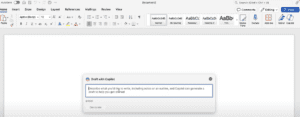
Before we jump into steps, it helps to know what a ChatGPT-style add-in can do inside Word. These tools live in a sidebar and can draft sections, rewrite for tone, summarize long passages, translate, and fix grammar—all without leaving your document. You can build outlines, convert bullet lists to paragraphs, or turn a rough note into a polished section.
Several publishers offer ChatGPT-powered Word add-ins on AppSource. One example is ChatGPT for MS Word by Apps Do Wonders. It integrates directly into the ribbon and supports rewriting, tone refinement, and translation from inside Word. (See the AppSource listing for capabilities and ratings.
Install (in brief)
- Home → Add-ins → More Add-ins → search “ChatGPT for MS Word” → Add. (You can also install through AppSource.
First-time setup and usage
- Open Word and a document where you want to work.
- Select Home → ChatGPT (the exact button label may vary by publisher).
- In the task pane, sign in or connect your account if prompted.
- Choose an action: Draft, Rewrite, Summarize, Translate, Adjust Tone.
- Highlight the text you want to transform (for rewrite/summarize) or place the cursor where new content should go (for drafting).
- Click Generate (or the equivalent action).
- Review the output carefully and Insert into the document.
Tip: If you get a store error when clicking Add, try signing out of Word and signing back in, then repeat the add-in installation. This often clears token issues. (This kind of sign-in refresh commonly resolves AppSource add-in retrieval problems, per Microsoft support paths.
When to use it
- Rapid first drafts for reports, intros, recaps, and cover letters.
- Polishing tone (formal, energetic, concise) for clients or students.
- Summarizing long reference material before you edit it down.
Good practice
- Keep source notes. If AI drafts a paragraph, add a comment with your sources or link them inline.
- Run a quick fact check—especially for stats, dates, and product claims.
5) Licensed Images Inside Word with Pickit (No Watermarks)
We’ve all done it: search the web, copy an image, find a watermark, or worry about licensing. Pickit solves that by putting a curated, licensed library of photos, icons, and illustrations inside Word’s sidebar. You search within Word, preview, and insert images legally—no separate downloads or watermarks. (Pickit’s store page and docs explain the in-Office library approach.
Install
- Home → Add-ins → More Add-ins → search Pickit → Add. (You can also add from the AppSource listing.
Use Pickit in a document
- Open Pickit from the Home tab (or My Add-ins).
- Search for a term (e.g., “workspace”, “parchment paper”, “abstract shapes”).
- Filter by category or style (icons vs. photos) if needed.
- Click an image → Insert to place it in your document.
- Use Picture Format tools (crop, alt text, wrap text) for accessibility and layout.
Why this matters
- Saves time you’d spend on stock sites.
- Avoids watermark problems and unclear licenses.
- Helps maintain a consistent visual style across your team.
Admin note: Pickit supports centralized deployment for organizations, so IT can roll it out to everyone.
6) Equations the Easy Way with MathType (Type, Handwrite, Convert)
Whether you’re a teacher building worksheets or a student writing a paper, equations in Word can be fiddly. MathType brings a focused equation editor right into Word and PowerPoint, with typing palettes, handwriting, and chemistry notation (ChemType). It’s designed to make math entry as natural as writing text. (See the MathType add-in pages for overview and quick-start.
Install
- Home → Add-ins → More Add-ins → search MathType → Add. (Or install from AppSource.
Create your first equation
- Open MathType from the ribbon (button label may be MathType or Equation).
- Choose MathType (or ChemType) in the task pane.
- Type using templates and symbols, or switch to Handwrite and draw with your mouse/stylus.
- Click Insert to place the equation in your document.
- To edit, double-click the equation and update it in MathType.
Formatting tips
- Switch Word to Light Mode if your dark theme makes equation contrast low when printing; equations will print with the document’s page background, but previewing in light mode helps you judge legibility.
- Use Alt Text for accessibility if equations convey essential information.
7) Managing Add-ins, Permissions, and Updates
As your toolbox grows, it’s smart to keep it tidy. Word and AppSource give you controls to view installed add-ins, remove what you don’t use, and retrieve hidden ones (for instance, if a trial expired and you later re-enabled access). (Microsoft support documents outline Manage/Add, visibility, and hidden retrieval.
Quick management checklist
- Home → Add-ins → My Add-ins to see what’s installed.
- Use Manage My Add-ins to remove, reveal hidden, or check licensing status.
- Keep Word updated (Microsoft 365 updates also fix add-in bugs).
- If an add-in requests extra permissions (e.g., read document, connect to the internet), review and accept only what you need.
8) Trials, Quotas, and Responsible Use (Important)
Many AI add-ins include trial credits (e.g., “X AI calls left”). When they run out, you’ll need a paid plan or a different tool. Respect the tool’s terms of service—don’t try to bypass trials by cycling accounts. It’s not only against policy; it often breaks your workflow and loses your saved settings and history.
Heads-up: Microsoft experiments can affect which features are available on free tiers and where they store files (for example, in limited ad-supported pilots for Office on Windows, some features and local storage options have been restricted). This landscape changes; check official notes if something seems disabled in your environment.
Best practices
- If you rely on an add-in professionally, consider a paid plan for reliability.
- Build a fallback workflow (e.g., a second summarizer or image source) in case a service throttles.
- Never insert sensitive data into third-party tools without confirming privacy terms.
9) Ten Practical AI Workflows You Can Use Today
Let’s put the tools together. Below are real, repeatable workflows. After each short setup, we’ll move to quick steps so you can implement them immediately.
Workflow 1: Brainstorm and Outline a Report (ChatGPT-style add-in)
Sometimes staring at a blank page is the biggest blocker. Use AI to suggest headings and structure, then fill in details.
- Open the ChatGPT add-in pane.
- Prompt: “Create a 5-section outline for a report about remote onboarding challenges and solutions.”
- Insert the outline, review, and tweak wording.
- For each section, ask for 3 talking points and draft 2–3 sentences—insert, then edit.
Workflow 2: Rewrite for Tone (Formal, Friendly, Energetic)
You wrote the content, but the tone feels off. AI can help nudge it into the right voice.
- Select a paragraph.
- In the add-in, choose Rewrite → Tone (e.g., “Energetic, concise”).
- Insert and compare side by side; keep your original in a comment for reference.
Workflow 3: Instant Executive Summary
Long content needs a bullet summary for leaders.
- Select the entire section.
- Choose Summarize → Bulleted.
- Keep 4–6 bullets; convert to Action Items if needed.
Workflow 4: Translate a Section (with Caution)
AI translations are fast, but verify industry terms.
- Highlight text → Translate → choose language.
- Insert, then scan for jargon and proper names.
Workflow 5: Legal Images in Seconds (Pickit)
No time for stock sites? Insert right from Word.
- Open Pickit → search term (e.g., “workspace”).
- Choose a photo → Insert.
- Crop, compress (Picture Format → Compress Pictures), and add Alt Text for accessibility.
Workflow 6: Educational Handouts with Equations (MathType)
Turn sketches into clean math without fighting Word’s default ribbon.
- Open MathType → Handwrite your equation or select from templates.
- Insert and align with paragraph text.
- Use ChemType for chemistry notation if needed.
Workflow 7: Meeting Notes → Action Plan
Turn raw notes into clear tasks.
- Paste notes into the document.
- Ask ChatGPT add-in: “Convert these notes into tasks with owners and deadlines.”
- Tidy and assign.
Workflow 8: Style Guide Enforcement
Keep consistency across a team.
- Provide a sample paragraph showing desired voice.
- Command: “Rewrite the selected section to match the style sample.”
- Insert and verify terminology.
Workflow 9: Research Digest
You’ve collected a wall of quotes. Summarize, then organize.
- Paste quotes into Word.
- Summarize by theme using the add-in.
- Split into headings and add references manually.
Workflow 10: Proposal Image Pack
Build a mini image library within your doc.
- Use Pickit to insert 4–6 relevant visuals.
- Caption each and compress.
- Save as PDF for distribution.
10) Troubleshooting: Sign-In Glitches, Hidden Add-ins, Missing Buttons
Even with good tools, hiccups happen. Here’s a compact playbook.
Issue: I click “Add” in the store and get an error.
- Sign out of Word → close Word → reopen → sign in → try again.
- Install via AppSource in a browser, then return to Word.
Issue: The add-in says I’m out of credits.
- Check the plan inside the add-in. Many AI tools enforce trial quotas.
- Consider purchasing, or switch to another add-in temporarily.
Issue: I installed it, but I don’t see it.
- Go to Home → Add-ins → My Add-ins → Manage My Add-ins and check Hidden. Click Retrieve if needed.
Issue: A work PC blocks my add-in.
- Ask IT if centralized deployment is required. (Many orgs push add-ins from admin center.)
Issue: The button moved after an update.
- Look under Home, Insert, or My Add-ins. Some publishers shift ribbon locations with updates.
11) FAQs: Common Questions and Clear Answers
Q1) Do I need a Microsoft account to use add-ins?
Yes—sign in inside Word. Add-ins are tied to your account for installation, licensing, and permissions. (Microsoft outlines the built-in paths for viewing/installing.
Q2) Are ChatGPT-style add-ins official from OpenAI?
Add-ins are published by various third-party vendors (for example, Apps Do Wonders publishes “ChatGPT for MS Word”). Check the publisher and ratings on AppSource before installing.
Q3) Can I insert stock images without watermarks, legally?
Yes, with services like Pickit that include licensing and a vetted library. Insert directly from the add-in.
Q4) What’s the easiest way to enter complex equations?
Use MathType—type with palettes or handwrite and convert, then insert.
Q5) Where is the official store for Word add-ins?
Microsoft AppSource (web) and the in-app store under Home → Add-ins or Insert → Get Add-ins.
Q6) My add-in disappeared after a trial ended. Can I get it back?
Yes—go to Manage My Add-ins and check the Hidden list, then click Retrieve.
Q7) Can I build my own add-in?
Yes. Microsoft’s Office Add-ins platform uses web tech (HTML/JS) and runs cross-platform. Publishing to AppSource is documented for developers.
12) Disclaimer, Security Notes, and Official Links
Disclaimer: This article explains third-party add-ins available at the time of writing and how to use them responsibly. Features, trials, and pricing may change. Always review each add-in’s privacy policy, permissions, and terms before using it with sensitive data.
Security tips:
- Avoid sharing confidential or regulated information with AI services unless your organization has approved the vendor and data handling.
- Favor vendors that provide clear data-use disclosures and admin controls.
- Keep a local copy of critical documents and back up regularly.
Official links (for safe installs and docs):
- Microsoft AppSource — Word Add-ins marketplace. (Appsource – Business Apps)
- Microsoft Support — Install/manage Office add-ins (File→Get Add-ins, Home→Add-ins). (Microsoft Support)
- ChatGPT for MS Word (Apps Do Wonders) — capabilities & listing. (Appsource – Business Apps)
- Pickit — AppSource listing & vendor site. (Appsource – Business Apps)
- MathType — AppSource listing & quick-start docs. (Appsource – Business Apps)
- Microsoft Learn — Office Add-ins platform overview (for developers). (Microsoft Learn)
13) The “Top 10” Microsoft Word AI Add-ins (2025 Snapshot)
To wrap up, here’s a compact list you can install today. I’ve prioritized reliable, well-documented tools that map closely to the workflows above:
- ChatGPT for MS Word (Apps Do Wonders) — rewriting, tone, summarize, translate. (Appsource – Business Apps)
- Pickit — licensed photos, icons, and illustrations directly in Word. (Appsource – Business Apps)
- MathType — fast equation entry (typing, palettes, handwriting). (Appsource – Business Apps)
- Adobe Acrobat for Word — enterprise-grade PDF tasks from inside Word. (Example listing category page shows Adobe’s add-in across Office apps.) (Appsource – Business Apps)
- DeepL (where available via Office ecosystem) — high-quality translation (often Outlook-first; check availability in your tenant). (Appsource – Business Apps)
- Microsoft Editor (built-in) — grammar, clarity, and concision (ships with Microsoft 365; supplement AI add-ins).
- Stock Media/Icons alternatives via AppSource — explore curated icon packs for design-heavy docs. (Appsource – Business Apps)
- Meeting/Notes summarizers — several vendors provide meeting-to-summary add-ins; pick one supported by your org. (Appsource – Business Apps)
- Citations & Research helpers — add-ins exist for reference managers and research lookups (availability varies by region/tenant). (Appsource – Business Apps)
- Template and formatting automation — search AppSource for template automation tools that plug into your house styles. (Appsource – Business Apps)
Note: Availability and features can differ by region, license, and admin policy. Always confirm via the AppSource listing and your organization’s deployment rules.
14) Final Thoughts
We’ve covered a lot—from sign-in and installation to hands-on workflows for writing, imagery, and equations. If you do just three things after reading this:
- Install one writing AI add-in, one image library (Pickit), and MathType.
- Practice two workflows this week (e.g., Rewrite for tone + Insert licensed image).
- Review your add-in permissions and create a privacy-safe routine for sensitive docs.
With those steps, Word becomes your AI-enabled workspace—faster, clearer, and more visual, without endless tab-hopping.
Tags
Microsoft Word, AI add-ins, AppSource, ChatGPT for Word, Pickit, MathType, document workflow, writing tools, licensed images, equations, Office 365, productivity
Hashtags
#MicrosoftWord #AI #AddIns #Productivity #WritingTools #Pickit #MathType #AppSource #Office365 #Workflows
