If you’ve ever wished Windows 11 felt more like your desktop—clean, animated dock, minimal top bar, beautiful widgets, and a layout that actually matches how you work—Seelen UI is the toolkit you’ve been waiting for. It’s a free, open-source customization suite that adds a dock, top toolbar, widgets, themes, icon packs, wallpapers, a tiling window manager, and plug-ins to Windows 10/11—all in one place. You can install it from the Microsoft Store or grab the MSIX/EXE build from the official site or GitHub.
Unlike scattered mods and scripts, Seelen UI arrives as a cohesive “desktop environment” layer (in the spirit of Linux DEs like GNOME or KDE), giving you a unified dock + toolbar + launcher + window manager experience on Windows. It’s fast, tasteful, and deeply customizable. Recent coverage even calls it “the closest we have to a custom desktop environment on Windows.”
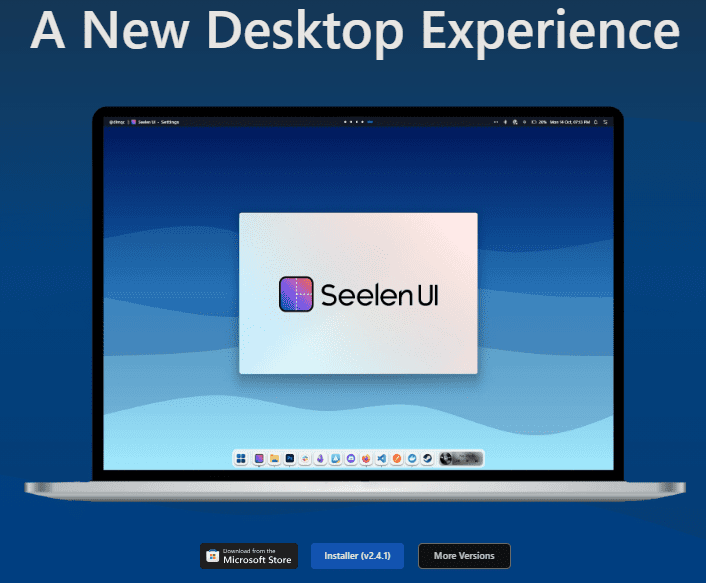
Below, I’ll walk you through everything: what it is, how to install it safely, how to enable the Mac-style dock with wave animation, set up the top bar with colored modules, add plug-ins and themes, use the tiling window manager, and fine-tune details like the grid system tray, transparency, and media controls. I’ll also include rollback steps, a beginner-friendly checklist, FAQs, and a practical comparison table.
1) What Is Seelen UI (and Why It’s Different)
Seelen UI is an all-in-one desktop customization layer for Windows. Think of it as a modular dock + toolbar + widgets + launcher + tiling window manager—with an integrated themes/plug-ins ecosystem. Instead of juggling five different tools, you install Seelen UI and then turn modules on/off as needed. It’s open-source and actively developed.
Highlights at a glance
- Dock that can fully replace the taskbar (with optional wave animation & glass styles).
- Fancy Toolbar (top bar) with modules for clock, Bluetooth, media, weather, etc., and per-module colors via themes.
- Widgets and plug-in system for extending features.
- Window Manager with tiling mode for power users.
- A Resources hub with official themes, icon packs, wallpapers, sound packs, and more.
Why people love it:
- Cohesive design instead of a patchwork of tweaks.
- Easy discovery of themes/plug-ins via the built-in Resources hub.
- Store installation (clean updates) or portable MSIX/EXE (manual control).
On dtptips.com we have also mentioned many Windows tweakers which I think you should have a look and choose which will be best for you:
- 🎨 WinAero Tweaker: The Complete Guide to Unlocking Hidden Windows Features
- Customize Windows 11 Taskbar, Start Menu, and More with Windhawk
- Atlas OS: The Advanced Windows 11 Optimizer You Need to Know
- RyTuneX: The Ultimate Windows Optimizer Tool You Must Try
- Windows being Slow and Slower: Best Windows Optimizers You Actually Need in 2025
- or you can check the complete list of such articles!
2) Install & First-Run: Store vs. MSIX/EXE
Before we dive into customization, let’s set it up cleanly. A smooth start saves headaches later.
A. Choose your install path
- Microsoft Store (recommended for most users):
Open the Store and search “Seelen UI”, then click Get. Store installs handle permissions and updates for you. - Official Site / GitHub (for power users):
Download the MSIX or EXE package from the official site or repository if you prefer portable/manual updates.
Tip: If you’re testing or want to keep things sandboxed, the MSIX route is tidy and easy to remove later.
B. First-run checklist
- Launch Seelen Settings from Start.
- Keep the defaults on first boot. Explore features one by one—dock first, then toolbar, then plug-ins.
- Create a System Restore Point (optional but wise) so you can roll back if needed.
So far so good—let’s do a quick tour so you know what’s what.
3) A Quick Tour: Dock, Toolbar, Widgets, & Window Manager
When Seelen UI starts, you’ll typically see:





- A Dock at the bottom (can auto-hide, replace the taskbar, or coexist).
- A Fancy Toolbar at the top with modules (clock, system indicators, etc.).
- Optional Widgets (media, weather, battery, Bluetooth, network).
- A Window Manager that can run in standard or tiling mode (snap layouts on steroids). (Seelen)
Each part is configurable:
- Enable/disable entire modules.
- Change positions (top/bottom/left/right for dock; height; spacing).
- Apply themes that change visuals—and often behavior—instantly.
Let’s move to the most popular element: the dock.
4) Resources: Themes, Plug-ins, Widgets, Icon Packs & More
Seelen UI includes a Resources section that links to an official gallery of:
- Themes (e.g., Wave Animation for Taskbar, Round/Immersive/Colorful Toolbar, Glass dock, Apple-style dock, Liquid Glass Dockbar).
- Widgets/Modules (e.g., Weather, Media).
- Tray styles (e.g., Grid tray—hover for label).
- Icon packs, wallpapers, sound packs.
Click Discover more resources in Seelen Settings → your browser opens the curated page. Click Download on a theme/plug-in; Seelen registers a custom protocol to import it directly. If prompted, allow Seelen UI to handle the link.
This ecosystem is what makes Seelen UI feel “alive.” You can keep a minimal, classy setup—or go bold with color, transparency, and motion.
5) Build Your Dream Dock (with Wave Animation)
The dock is where most people start. Aim for clean, high-frequency apps only; everything else can stay in Start or the launcher. Here’s a crisp, repeatable setup:
Step 1 — Enable the Dock
- In Seelen Settings, turn on Dock.
- Decide whether to hide the Windows taskbar. Seelen can fully replace it; if you’d rather keep it, set the dock to auto-hide.
Step 2 — Add Apps & Spacers
- Drag your most-used apps to the dock (Browser, File Explorer, Terminal, Notes, Editor).
- Use spacers or groups if your theme supports them (some themes include dock grouping styles).
Step 3 — Add the “Wave Animation”
- Go to Resources → Themes and install “Wave Animation for Taskbar/Dock.”
- Enable it in the theme list; hover the dock to see the bounce/zoom effect. It’s fluid and fun.
Step 4 — Choose a Dock Style
- Try (Almost) Liquid Glass Dockbar or Apple Dock for a glossy or Mac-like look.
- Prefer subtle? Smooth Dock or Transparent themes keep it elegant.
Step 5 — Tweak Behavior
- Auto-hide, magnification, centered vs. left alignment.
- Per-monitor docks if you use multiple displays (see multi-monitor notes below).
Let’s get that top bar to match.
6) Design a Smart Top Bar (Colored Modules, Media, Weather)
The Fancy Toolbar becomes your quick-info command center. You can keep it minimal or stack it with modules.
Step 1 — Enable the Toolbar
- In Seelen Settings → Fancy Toolbar, toggle On. Choose position (top is classic), height, and padding.
Step 2 — Pick a Theme
- Install a theme like Round Toolbar, Immersive Toolbar, or Colorful Toolbar from Resources.
- If you love playful, try Individually Color Each Toolbar Module—it turns each module into a neat “bubble” with its own color.
Step 3 — Add Modules
Open the modules list and enable what you need:
- Clock & Date (choose 12/24h, day/date format)
- System stats (CPU, RAM, battery)
- Bluetooth (quick connect)
- Network (Wi-Fi selector, status)
- Media (shows track + controls; works with your player)
- Weather (needs location permission)
Little touch that elevates the feel: combine transparent toolbar with a subtle wallpaper so modules “float” above the desktop. Many themes include a transparency option.
Step 4 — Optional: Application Launcher
Seelen UI includes a launcher, but if you’re already using PowerToys Run or another launcher, disable Seelen’s to avoid overlap. The point is harmony—only one launcher should own Alt+Space.
7) Tidy System Tray (Grid Style + Hover Labels)
The system tray can get messy—especially with modern apps. Seelen UI includes tray styles that make it clean and scannable.
- From Resources, install “Grid Style Tray — Hover for Label.”
- Enable it; your tray icons line up in a grid, and labels only show on hover—compact yet informative.
If a theme is overlapping with another tray style, disable the conflicting one. Keep just one tray style active at a time for a crisp look.
8) Use the Tiling Window Manager (Productivity Mode)
Seelen UI includes a tiling window manager that auto-arranges windows (great for coding, research, or vertical monitors). If you’ve ever used i3/bspwm on Linux, the idea will feel familiar—only gentler.
Why try tiling?
- No manual dragging—windows tile automatically.
- Keyboard-centric workflow boosts focus.
- Layouts switch per task (two-pane for writing, grid for dashboards).
How to enable
- In Seelen Settings → Window Manager, enable Tiling.
- Set mod keys (e.g., Alt/Win) for tile navigation, resizing, and swapping.
Quick starter moves
- Mod + Enter: Focus/launch configured app (varies by theme).
- Mod + Arrow keys: Move focus.
- Mod + Shift + Arrow: Move window.
- Mod + R: Resize mode (if supported by your config).
If tiling ever feels too rigid for a specific app (e.g., Photoshop), add it to the floating exceptions list so it opens as a normal window.
9) Multi-Monitor, Transparency, and Performance Tips
A polished setup isn’t just looks—it’s feel. Here’s how to keep Seelen UI smooth on daily use.
- Multi-monitor docks: Configure per-display docks (primary gets the “full” dock; secondary gets a minimal app strip).
- Transparency & blur: Many themes allow glass/blur. On low-end GPUs, choose lighter themes (e.g., Smooth Dock) to reduce composition overhead.
- Animation sanity: Wave animation is gorgeous. If you notice latency, reduce magnification or switch to a minimal dock theme.
- Conflicts: Avoid running multiple dock/taskbar tools simultaneously (TaskbarX, MyDockFinder, etc.). Let Seelen be the single source of truth.
- Updates: Store installs update gracefully. If you’re on MSIX/EXE, check the official site or GitHub for releases and changelogs.
10) Safety, Rollback, & “Back to Stock” in Minutes
Customizing the shell can be nerve-wracking the first time. The good news: Seelen UI is easy to undo.
- Turn modules off inside Seelen Settings (Dock, Toolbar, Widgets, Tiling).
- Exit Seelen UI and re-enable the Windows taskbar if you hid it.
- Uninstall from the Store or via Apps & Features if you used MSIX/EXE.
- (Optional) Restore Point: If you created one before starting, you can roll back Windows-level changes in a couple of clicks.
Because Seelen focuses on user-level UI, removal doesn’t involve deep system surgery.
11) Quick Comparison Table: What Seelen UI Replaces
| Need | Traditional Windows | With Seelen UI |
|---|---|---|
| Dock / App launcher | Taskbar (limited dock behavior) | Custom Dock with wave animation, glass styles, magnification, grouping |
| Top bar / Menu bar | None by default | Fancy Toolbar with modules (clock, media, Bluetooth, weather), per-module colors |
| Widgets & modules | Widgets panel (left) | Inline toolbar widgets, dock integrations, plug-ins |
| System tray organization | Overflow flyout | Grid tray with hover labels—clean & scannable |
| Window tiling | Snap layouts | Tiling Window Manager with keyboard navigation & layouts |
| Themes | Light/Dark + accent | Theme gallery: Round/Immersive/Colorful toolbars, Apple dock, Liquid Glass, Transparency, Smooth Dock |
| Install & updates | OS-built | Microsoft Store (easy updates) or MSIX/EXE (portable/manual) |
12) FAQs
Q1. Is Seelen UI free and open-source?
Yes. It’s free and the code is public on GitHub, with official site and Store listing available.
Q2. Will it slow down my PC?
In normal use, no. Themes with glass/blur and heavy animations can add overhead on very low-end GPUs; switch to lighter themes if needed.
Q3. Can it replace the Windows taskbar entirely?
Yes—the dock can fully take over. Or you can keep the taskbar and let the dock auto-hide. Your choice.
Q4. Where do the plug-ins and themes come from?
From the official Seelen Resources gallery—safe and curated. Downloading integrates directly with the app via a registered protocol handler.
Q5. Does it support multi-monitor setups?
Yes. You can configure docks and toolbars per display. (Theme behavior may vary; stick to resource themes that mention multi-monitor friendliness.)
Q6. Is it really like a Linux desktop environment?
Conceptually yes—Seelen UI bundles shell elements (dock, top bar, launcher) and a tiling window manager into a unified UX. Of course, it sits atop Windows, not replacing the OS shell entirely.
Q7. Can I import my own icons, wallpapers, and sounds?
Yes—Seelen supports icon packs, wallpapers, and sound packs through its Resources hub.
Q8. Where do I get official downloads?
- Official site: seelen.io
- Microsoft Store: Seelen UI page
- GitHub: eythaann/Seelen-UI repository
(All linked below.)
13) Disclaimer
Seelen UI customizes shell-level behavior (dock, toolbar, window management) without altering core Windows system files. It is safe to install/uninstall via the Store or MSIX/EXE. Still, as with any shell customization:
- Install from official sources only (links below).
- Avoid running multiple dock/taskbar tools at the same time (conflicts can cause flicker or duplicate UI).
- If you’re heavily modifying layouts, consider a Restore Point first—purely optional but comforting.
14) Final Thoughts
Seelen UI hits a sweet spot: it’s simple enough for anyone to install and use, yet deep enough that power users can spend hours perfecting a setup—elegant dock, smart top bar, modular widgets, tiling windows, and a theming engine that keeps evolving. If your goal is to completely change the look and feel of Windows 11 without cobbling together half a dozen utilities, this is one of the cleanest paths you can take right now.
Start small—enable the dock, pick one toolbar theme, add just the modules you will actually use. Once you’ve lived with it for a day, layer in the wave animation, tray grid, and tiling mode. You’ll end up with a desktop that’s fast, focused, and unmistakably yours.
Tags
Seelen UI, Windows 11 customization, Windows 10 customization, Windows dock, Fancy Toolbar, Tiling window manager, Seelen themes, Windows widgets, grid system tray, wave animation, open-source desktop environment, Microsoft Store apps
Hashtags
#Windows11 #Windows10 #SeelenUI #Customization #Dock #Toolbar #Widgets #TilingWM #OpenSource #Productivity








