Windows 11 is a powerful operating system, but let’s be honest — it often comes bloated with background services, apps you don’t need, and features that eat away at your CPU, RAM, and disk space. While regular tweaks or “optimizer apps” can help a little, they rarely go deep enough to make a noticeable difference.
This is where Atlas OS comes in. Unlike traditional system cleaners, Atlas OS is an advanced, open-source Windows optimizer designed to strip Windows down to its essentials while keeping performance, privacy, and usability at the forefront.
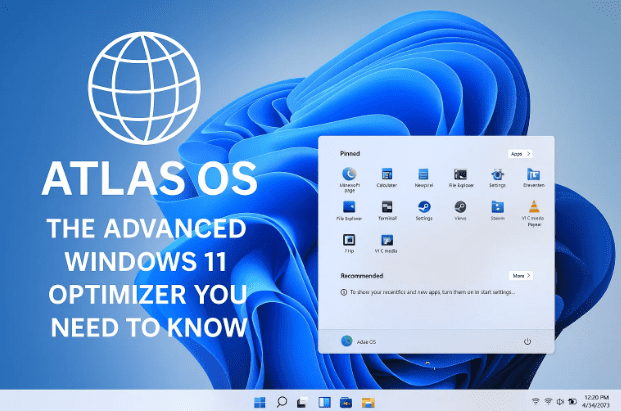
In this guide, we’ll explore what Atlas OS really is, how to install and use it properly, and what kind of performance gains you can expect. Along the way, we’ll highlight important warnings and best practices so you don’t run into issues.
📑 Table of Contents
- 1. What is Atlas OS?
- 2. Why Use Atlas OS Instead of Normal Optimizers?
- 3. Key Benefits of Atlas OS
- 4. Important Requirements Before You Start
- 5. Step 1: Downloading Atlas OS
- 6. Step 2: Preparing Your System
- 7. Step 3: Running the AME Wizard & Atlas Playbook
- 8. Step 4: Configuring Options
- 9. Step 5: Applying Optimizations
- 10. What Changes After Optimization?
- 11. Undoing or Adjusting Atlas OS Tweaks
- 12. FAQs
- 13. Final Thoughts
1. What is Atlas OS?
Atlas OS started as a custom Windows ISO — a modified version of Windows that came pre-optimized. But distributing custom ISOs is legally complicated and risky from a security standpoint.
To solve this, the Atlas team turned the project into an open-source optimizer application instead. Now, instead of downloading a pre-built Windows image, you install Windows normally and then apply Atlas OS optimizations through the Atlas Playbook and AME Wizard tools.
👉 Official Website: https://atlasos.net
2. Why Use Atlas OS Instead of Normal Optimizers?
Most “Windows optimizers” just clean up temporary files or disable a few startup programs. Atlas OS goes much deeper.
- It removes bloatware apps and background processes.
- It minimizes CPU and RAM usage by disabling unnecessary services.
- It reduces disk usage dramatically.
- It focuses on privacy, disabling telemetry and tracking features.
Essentially, Atlas OS is built for power users, gamers, and professionals who want maximum performance without distractions.
3. Key Benefits of Atlas OS
Before jumping into installation, let’s highlight what makes Atlas OS so popular:
- Huge Disk Space Savings – A fresh Windows 11 install can take 22–24 GB. With Atlas, that can shrink to 12–13 GB.
- Lower CPU Usage – From idle CPU usage of 70–80% on a bloated system down to 1–2% after optimization.
- Better Gaming Performance – Higher FPS due to reduced background tasks.
- Improved Responsiveness – Snappier feel with animations, widgets, and unnecessary effects disabled.
- Privacy Improvements – Telemetry, AI assistants like Copilot, and tracking services disabled by default.
- Open Source – The project is transparent and available on GitHub for anyone to inspect.
4. Important Requirements Before You Start
Here’s something critical that many users overlook:
- Fresh Install Only – Atlas OS should only be applied to a clean install of Windows. Do not use it on your existing Windows with lots of apps and data — it may break things.
- Backup First – If you plan to test on your main machine, backup important files.
- Test in Virtual Machine (Optional but Recommended) – Try it on a VM or secondary PC first to see how it behaves.
- Reinstallation Required to Remove Atlas OS – If you want to undo all changes later, you’ll need to reinstall Windows.
⚠️ Warning: Never run Atlas OS on your daily driver PC without testing first. If something goes wrong, troubleshooting may not be easy for beginners.



5. Step 1: Downloading Atlas OS
To get started:
- Go to the Atlas OS official website.
- Click Get Started → Installation Guide.
- Read the documentation carefully.
- Confirm you’re following the guide → download the two required files:
- Atlas Playbook
- AME Wizard
Both downloads will arrive as ZIP archives.
6. Step 2: Preparing Your System
Once downloads are complete:
- Extract both ZIP files.
- Run AME Wizard as administrator.
- Disable Windows Security (Defender) temporarily, as it can interfere with optimizations.
- Open Windows Security → turn off protections.
- Remember: you can re-enable Defender later.
💡 Tip: If you’re unsure about disabling security, test everything on a virtual machine first.
7. Step 3: Running the AME Wizard & Atlas Playbook
- Drag and drop the Atlas Playbook into the AME Wizard.
- Follow the prompts.
- If updates are available for AME Wizard, install them.
- The wizard will check how “fresh” your Windows installation is (e.g., 1.5 days old).
- Ideally, it should be less than a few days old with no apps installed.
- If it warns you, you can bypass, but issues may occur if your Windows isn’t clean.
8. Step 4: Configuring Options
Atlas OS gives you choices before applying optimization.
Here’s a breakdown:
- Windows Security (Defender)
- Option to disable permanently.
- Recommended only if you plan to use another antivirus.
- Windows Automatic Updates
- You can disable them (not recommended).
- Better to leave enabled but manage via Atlas folder later.
- Power Settings
- Disable hibernation, power saving, core isolation.
- On desktops: safe to disable all.
- On laptops: keep power saving enabled for battery life.
- App Removal
- Option to remove Microsoft Edge, Snipping Tool, and other default apps.
- If you rely on these, don’t remove them.
Once configured, click Next to apply.
9. Step 5: Applying Optimizations
At this point, Atlas OS begins its deep system optimization.
- It disables background services.
- It debloats Windows apps.
- It applies registry and system tweaks.
- It adjusts UI settings for performance.
This process may take 5–10 minutes depending on your system speed.
Once done, Windows will either:
- Restart automatically, or
- Ask you to reboot manually.
10. What Changes After Optimization?
When Windows restarts, you’ll immediately notice differences:
- Disk Usage → Dropped from ~24 GB to ~13 GB.
- CPU Idle Usage → Down to 1–2%.
- RAM Usage → Almost cut in half compared to stock Windows.
- UI Changes:
- Dark mode enabled.
- Taskbar and Start Menu position changed.
- Animations disabled for speed.
- Lock screen widgets removed.
- Performance Feel:
- System feels snappier and more responsive.
- Less lag when opening apps or switching windows.
11. Undoing or Adjusting Atlas OS Tweaks
Atlas OS also creates an Atlas Folder on your desktop after optimization.
Inside, you’ll find tools and links to:
- Reinstall or remove apps (e.g., Microsoft Edge).
- Enable or disable driver updates.
- Re-enable features like Widgets or Copilot if you miss them.
- Manage additional tweaks (AI features, system services, etc.).
So while you can’t “uninstall” Atlas OS entirely without reinstalling Windows, you do get flexibility to toggle some changes back. Do you know this is just one of the several ways which we can use to debloat windows like How to Use WinScript to Optimize and Debloat Windows 10 & 11 for Better Performance or Boost Windows 11 Performance with Windows 11 Debloater: The Ultimate Optimization Tool
You can also check all Windows 11 Debloat related posts here.
📊 Normal Windows 11 vs Atlas OS Optimization
To really understand the difference Atlas OS makes, let’s compare a clean installation of stock Windows 11 with the same installation after applying Atlas OS optimizations.
| Metric | Normal Windows 11 (Fresh Install) | Atlas OS Optimized Windows 11 |
|---|---|---|
| Disk Usage (C: Drive) | ~22–24 GB | ~12–13 GB (almost half) |
| CPU Idle Usage | 60–80% (even with nothing open) | 1–2% (almost idle) |
| RAM Idle Usage | ~2.5–3 GB | ~1.3–1.5 GB |
| Background Processes | 120+ | 60–70 (heavily reduced) |
| Animations & Widgets | Enabled by default | Disabled for performance |
| Windows Telemetry & Copilot | Active | Disabled |
| Gaming Performance (FPS) | Baseline (varies by system) | +10–20% improvement reported |
| System Responsiveness | Noticeable delays when multitasking | Very snappy, instant switching |
12. Frequently Asked Questions (FAQs)
Q1. Is Atlas OS safe to use?
Yes. It’s an open-source project hosted on GitHub. You can review the code yourself. However, always download from the official site.
Q2. Can I use it on my daily Windows installation?
Not recommended. Use it only on a fresh install of Windows.
Q3. What happens if something breaks?
You’ll need to reinstall Windows to fully undo Atlas OS.
Q4. Does this work on Windows 10 as well?
Atlas OS is mainly targeted at Windows 11, though some optimizations may work on 10. Check documentation for support.
Q5. Will this improve gaming performance?
Yes. By reducing background CPU and RAM usage, Atlas OS can improve FPS and overall smoothness in games.
13. Final Thoughts
Atlas OS isn’t your typical Windows “optimizer.” It’s a powerful tool for enthusiasts, gamers, and professionals who want to strip Windows down to its core and push performance to the maximum.
But remember:
- It requires a fresh install of Windows.
- It’s not ideal for beginners who can’t troubleshoot issues.
- To undo, you’ll need a clean reinstallation of Windows.
If you’re comfortable experimenting, Atlas OS can breathe new life into an old laptop, speed up your desktop, and give you a lean, performance-focused Windows 11 experience.
Disclaimer
Atlas OS is an open-source optimizer, not an official Microsoft product. Use at your own risk. Always test on a secondary system or virtual machine before applying on your main PC. The author of this article is not responsible for any data loss or issues caused by improper use.
Tags
atlas os, windows 11 optimization, debloat windows, windows performance tweak, open source windows optimizer, gaming optimization windows
Hashtags
#AtlasOS #Windows11 #PCOptimization #WindowsTweaks #DebloatWindows #OpenSource







