If you’re a gamer or even just a regular PC user, you’ve probably run into lag spikes, stuttering, or FPS drops on your Windows machine. This can happen even if you have powerful hardware. Games may freeze momentarily, applications may delay in responding, and overall system smoothness feels compromised.
One often-overlooked cause is something called the standby memory list—a memory management feature in Windows. Luckily, there’s a simple yet powerful free tool to fix it: Intelligent Standby List Cleaner (ISLC), developed by Wagnardsoft.
In this article, I’ll explain what ISLC is, why it helps, and how you can set it up step by step on Windows 10 and Windows 11 to reduce stuttering and improve performance.
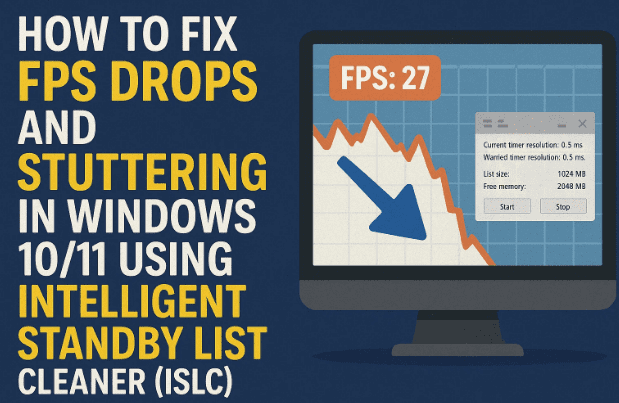
1. What Is Intelligent Standby List Cleaner (ISLC)?
ISLC is a lightweight Windows utility developed by Wagnardsoft. Its primary purpose is to monitor and clean up the standby memory list, which can otherwise cause latency and stuttering during heavy workloads such as gaming.
The standby list is essentially cached memory. Windows keeps it to speed up future tasks, but in some cases, especially in games, it causes unnecessary input lag and performance dips. ISLC automatically clears this memory when thresholds are reached, keeping your system responsive.
2. Why Do FPS Drops and Stuttering Happen on Windows?
To understand why ISLC helps, we need to explore why FPS drops occur:
- Standby Memory Buildup: Windows caches files and data in RAM even when they’re not immediately needed. This can hog resources during demanding tasks like gaming.
- Inefficient Garbage Collection: Windows doesn’t always clear standby memory quickly enough, leading to low free RAM even on systems with large amounts of memory.
- High Latency in Timer Resolution: Windows uses a system timer to manage processes. A high timer resolution (e.g., 1 ms) may not be optimal for gaming, causing micro-stutters.
- Background Processes: Other apps can also consume RAM and CPU cycles, compounding the issue.
ISLC addresses the first two problems directly and offers tweaks for timer resolution to handle the third.
3. How to Download and Install ISLC
Before configuring ISLC, you need to download it safely.
- Visit the official Wagnardsoft forum page: Download ISLC here.
- Scroll to find the latest release.
- Click Download ISLC and save the file.
- Navigate to your Downloads folder.
- Right-click the archive → select Run as Administrator.
- Extract the files to a preferred location.
Inside the folder, you’ll find the file:Intelligent standby list cleaner.exe
That’s the main application you’ll be using.
4. Step-by-Step Setup Guide for ISLC
Now that ISLC is installed, let’s configure it correctly.










- Run ISLC as Administrator
- Right-click on
Intelligent standby list cleaner.exe→ choose Run as admin. - The ISLC dashboard will appear.
- Right-click on
- Check System Memory
- ISLC automatically displays your total installed memory (RAM).
- Example: If you have 16 GB of RAM, it will show around 16,384 MB.
- Configure Free Memory Threshold
- Leave “List size is at least” at the default (1024 MB).
- Change “Free memory is lower than” to half of your total RAM.
- Example: If you have 16 GB, set this to 8192 MB.
We’ll explain how to calculate this properly in the next section.
5. How to Calculate the Correct Free Memory Value
This step is crucial. Setting the right threshold ensures ISLC works efficiently.
- Find Your Total Physical Memory
- Right-click the Taskbar → select Task Manager.
- Go to the Performance tab.
- On the left, click Memory.
- Click the three-dot menu → select Resource Monitor.
- At the bottom under Installed, note your total memory (in MB).
- Divide by 2
- Use a calculator.
- For 16 GB RAM → 16,384 ÷ 2 = 8192 MB.
- Enter This Value in ISLC
- Replace the default 1024 MB under Free memory is lower than with this calculated value.
6. Optimizing Timer Resolution Settings
ISLC also lets you optimize timer resolution, which can significantly improve system responsiveness.
- Current Timer Resolution: Typically 1.0 ms by default.
- Wanted Timer Resolution: Change this to 0.5 ms for smoother performance.
Then:
- Check Enable custom timer resolution.
- Optionally, check Use global timer resolution request (mainly for Windows 11). Test if it benefits your system—results vary by configuration.
7. Configuring Auto-Start and Monitoring Features
ISLC can run silently in the background. To make sure it always keeps your memory optimized:
- Enable Start ISLC minimized and auto start monitoring.
- Enable Launch ISLC on user logon.
This way, ISLC will launch automatically every time you start your PC, and you won’t need to configure it again.
8. Testing the Difference: Before vs After ISLC
After you set everything up:
- Click Purge Standby List once manually to clear memory.
- Click Start to enable automatic monitoring.
Now test your PC:
- Launch your favorite game and monitor FPS.
- You should notice fewer stutters, smoother frame pacing, and better responsiveness.
- On high-RAM systems, FPS may not skyrocket, but latency and stutter reduction are usually very noticeable.
9. Extra Tips for Gamers and Power Users
- Update Graphics Drivers: Ensure NVIDIA/AMD/Intel GPU drivers are up to date.
- Disable Background Apps: Use Task Manager to stop unnecessary programs.
- Enable Game Mode: Windows has a built-in Game Mode under Settings → Gaming.
- Check Storage Health: Sometimes stuttering is caused by a failing hard drive or an overloaded SSD.
- Keep Windows Updated: Bug fixes often improve memory handling.
Using ISLC along with these optimizations ensures the best performance.
10. Frequently Asked Questions
Q1. Is ISLC safe to use?
Yes. ISLC doesn’t alter system files; it only manages standby memory and timer resolution.
Q2. Do I need ISLC if I have 32 GB or more RAM?
Even high-memory systems can benefit, especially in games that leak memory or when multiple applications run in the background.
Q3. Can ISLC cause instability?
Not usually, but incorrect settings (e.g., setting free memory thresholds too low) may reduce performance. Stick to the recommended “half of total RAM” value.
Q4. Does ISLC improve FPS in all games?
Not always. It mainly reduces stuttering and latency, which indirectly improves smoothness. FPS gains vary by game and system.
Q5. Should I keep ISLC running all the time?
Yes. Enable auto-start so it works in the background without manual intervention.
11. Final Thoughts
Stuttering, FPS drops, and input delays can ruin your gaming experience on Windows 10 or 11—even on high-end PCs. The culprit is often standby memory mismanagement.
Intelligent Standby List Cleaner (ISLC) offers a simple yet effective solution. By monitoring RAM usage and clearing the standby list when necessary, it ensures your system always has enough free memory. Add in timer resolution tweaks, and you get smoother gaming, fewer lags, and more consistent performance.
If you’re serious about gaming—or just want a smoother Windows experience—setting up ISLC is highly recommended.
Disclaimer
This article is for informational purposes only. ISLC is a third-party tool. While it is widely used and considered safe, use it at your own discretion. Always download from the official source and avoid modifying advanced settings you don’t understand.
Tags
Windows 10, Windows 11, ISLC, Intelligent Standby List Cleaner, gaming performance, FPS boost, stutter fix, Wagnardsoft
Hashtags
#Windows11 #Windows10 #GamingTips #FPSBoost #StutterFix #ISLC #PCPerformance








