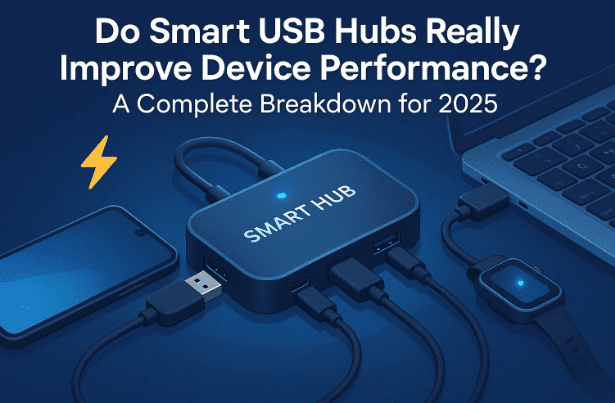
If you’ve ever run out of USB ports on your laptop or desktop and reached for a USB hub, you’ve probably noticed that not all hubs are made equal. Some charge faster, some handle large external drives smoothly, and some simply don’t perform well at all. That’s where smart USB hubs come into the picture.
These newer, feature-rich hubs claim to manage power better, recognize connected devices intelligently, and even protect your PC from overloads. But do they actually improve performance — or is it just clever marketing?
In this article, we’ll take a deep dive into how USB hubs work, what makes a “smart” hub different, and whether it truly boosts device efficiency. We’ll also discuss when you really need one, what to look for when buying, and how to avoid the common pitfalls that come with cheaper hubs.
⚠️ Disclaimer: Some USB hubs require external power adapters or high-current ports to function properly. Always check the voltage and amperage requirements before connecting multiple power-hungry devices to avoid hardware damage.
1️⃣ Understanding the Basics: What is a USB Hub?
Before we jump into the “smart” side of things, let’s start with the foundation — what a USB hub actually does.
A USB hub is a device that expands a single USB port into several, allowing you to connect multiple peripherals such as flash drives, keyboards, mice, game controllers, printers, or external hard drives. In essence, it’s like adding extra sockets to your computer’s USB infrastructure.
However, every USB port — including those on your PC — has a limited power and bandwidth capacity. When multiple devices share that single connection through a hub, both data and power are distributed among them. That’s why the quality of your hub determines whether your system runs smoothly or starts to struggle.
So the question becomes: can a “smarter” hub manage this distribution better than a basic one? Let’s find out.
2️⃣ Bus-Powered vs Self-Powered Hubs: The Key Difference
Let’s move to the next step — understanding how your hub is powered, because this directly affects performance.
USB hubs are generally of two types:
🔹 Bus-Powered Hubs
These hubs draw all their power directly from your computer’s USB port. They don’t have an external power source.








- Advantages: Portable, simple, and convenient for low-power devices.
- Drawbacks: Limited current output — connecting several high-demand devices (like webcams or hard drives) can cause random disconnections, lag, or data corruption.
🔹 Self-Powered (or Externally Powered) Hubs
These hubs come with their own power adapter. The external power supply provides additional current, allowing the hub to feed enough electricity to multiple devices simultaneously.
- Advantages: Ideal for heavy workloads, stable connections, and charging smartphones or tablets.
- Drawbacks: Slightly bulkier, requires an extra socket, and often costs more.
In short, if you’re just connecting a mouse and a keyboard, a bus-powered hub will do fine. But if you’re working with external SSDs, VR headsets, capture cards, or multiple cameras, a self-powered smart hub is essential.
3️⃣ What Makes a USB Hub “Smart”?
The word “smart” is thrown around a lot in tech, but for USB hubs, it has a specific meaning.
A smart USB hub usually includes the following features:
- Automatic Device Detection: Recognizes connected devices and adjusts power output accordingly. For example, it knows a smartphone needs more power than a mouse.
- Individual Port Control: Some models let you manually switch ports on or off, preventing power drain when not in use.
- Over-current and Surge Protection: Shields both the hub and your computer from voltage spikes.
- Fast-charging Ports: Certain ports are dedicated solely for charging (often marked with a lightning symbol).
- Smart Power Balancing: Distributes available wattage across all active ports without overloading the hub.
- LED Indicators or App Control (in premium models): Provide visual or software-based feedback about which ports are active.
These “smart” features don’t magically make your devices faster in the sense of CPU speed or memory — but they do optimize the connection stability, power consistency, and transfer efficiency.
4️⃣ How Power Delivery Affects Device Performance
So far, we’ve done a good job understanding what makes a hub smart. Now let’s dive into the part that most people overlook — power delivery (PD).
When you plug multiple devices into a hub, the available current (measured in milliamps) is split among all the connected peripherals.
If a device doesn’t get enough current, symptoms include:
- External hard drives not spinning up.
- Webcams freezing during use.
- Game controllers disconnecting randomly.
- Data transfer errors.
Powered or “smart” USB hubs handle this by regulating and amplifying power delivery. They use an internal power controller chip that ensures every device receives the necessary amperage without dropping voltage levels.
For example:
- A simple flash drive might draw 100 mA.
- A mechanical external hard drive might require 500 mA or more.
- A VR headset could exceed 900 mA when in use.
Without a powered hub, your computer’s USB port might not handle the total draw.
A smart hub with external power ensures that each port gets full current, allowing every device to operate at its rated performance.
5️⃣ The Role of Speed: USB 2.0 vs 3.0 vs 3.2 Explained
Now that we’ve tackled power, let’s talk about speed — because for devices like external SSDs or capture cards, this matters just as much.
USB standards have evolved significantly over the years:
| Version | Data Transfer Speed | Color Code | Typical Use Case |
|---|---|---|---|
| USB 2.0 | Up to 480 Mbps (0.48 Gbps) | Black | Keyboards, mice, small peripherals |
| USB 3.0 / 3.1 Gen 1 | Up to 5 Gbps | Blue | External HDDs, webcams, mid-range devices |
| USB 3.2 Gen 2 | Up to 10 Gbps | Teal Blue | SSDs, 4K capture cards, VR headsets |
| USB 3.2 Gen 2×2 / 4.0 | Up to 20–40 Gbps | Red / Turquoise | Professional storage, GPUs, docking stations |
When you buy a USB hub, make sure the hub’s specification matches your devices.
For instance, plugging a USB 3.2 SSD into a USB 2.0 hub will bottleneck its speed, no matter how “smart” the hub is.
Also note: speed performance depends on the chipset used inside the hub. Low-quality chipsets may not fully sustain the advertised transfer rates.
6️⃣ Smart Chipsets and Internal Design: Why Build Quality Matters
Let’s move on to the part that separates a premium hub from a budget one — its internal design and chipset quality.
A well-built hub usually includes:
- Independent data lanes for each port (to prevent bandwidth sharing).
- Shielded cabling and grounded frame to reduce electrical interference.
- Efficient heat dissipation to prevent thermal throttling during long file transfers.
- Stable firmware that communicates efficiently with Windows, macOS, or Linux drivers.
Cheaper hubs often use shared bus architecture, meaning all ports fight for the same data lane. As a result, connecting multiple drives can cause slower performance or even crashes.
That’s why smart USB hubs with branded chipsets (from VIA Labs, Genesys Logic, or Realtek) tend to provide much more stable performance, even under heavy loads.
7️⃣ When Do Smart Hubs Actually Improve Performance?
You might be wondering — does all this really translate into better performance for you? The answer depends on how and what you connect.
✅ Situations Where a Smart Hub Makes a Noticeable Difference
- When using multiple external hard drives or SSDs simultaneously.
- For streamers or video editors using capture cards and cameras.
- In gaming setups with several controllers and RGB peripherals.
- When charging phones or tablets while transferring data.
- For office workstations that keep printers, scanners, and USB headsets plugged in 24/7.
In all these cases, the hub’s intelligent power distribution and high-speed data lanes prevent dropouts, lags, or overheating.
⚙️ Situations Where It Might Not Matter Much
- For low-power accessories like mice, keyboards, or USB dongles, a simple unpowered hub will perform almost the same.
- If your computer already has plenty of USB 3.2 ports, adding a hub won’t increase total bandwidth — it simply splits what’s available.
8️⃣ Choosing the Right USB Hub for Your Setup
So far, we’ve covered theory. Let’s move to practical advice — what to look for when buying your hub.
🪫 1. Power Type
- For basic peripherals → Bus-powered hub is fine.
- For multiple drives or heavy devices → Self-powered (smart) hub is a must.
⚡ 2. USB Version
Always match or exceed your device’s speed capability. If your laptop supports USB 3.2, buy a hub rated for USB 3.2 Gen 2.
🧠 3. Smart Features to Look For
- Automatic device recognition
- Over-voltage / short-circuit protection
- Fast-charging port (5 V / 2.4 A or higher)
- On/off port switches
- Power delivery (PD) for laptops if needed
🧩 4. Build and Layout
Choose hubs with well-spaced ports — especially for thick flash drives.
Metal housings dissipate heat better than plastic ones.
🔗 5. Brand and Certification
Look for USB-IF (USB Implementers Forum) certified products.
Official website: https://www.usb.org
Buying from reputable brands ensures reliable internal chipsets and firmware updates.
9️⃣ Common Myths About Smart USB Hubs
Even tech enthusiasts sometimes misunderstand how USB hubs work. Let’s clear up a few myths.
❌ Myth 1: Smart Hubs Increase Actual Data Speed
Not exactly. They maintain stable throughput but can’t exceed the speed of the USB standard itself. A USB 3.0 hub can’t make a USB 2.0 drive faster.
❌ Myth 2: More Ports Always Mean Better Performance
Adding more ports increases load. Without adequate power management, performance can actually degrade.
❌ Myth 3: Smart Hubs “Boost” Device Efficiency Like Software Tweaks
They don’t change how fast your hardware computes — they just ensure every device gets optimal conditions to run without interruption.
✅ Truth: Stability = Performance
A stable connection without dropouts or power issues is real performance. That’s where smart hubs truly shine.
💬 10️⃣ Frequently Asked Questions (FAQ)
Q1. Will using a USB hub slow down my external hard drive?
If you use a low-quality or USB 2.0 hub, yes. But a powered USB 3.2 hub maintains near-native speeds.
Q2. Can I use a smart hub to charge my laptop?
Only if the hub supports USB Power Delivery (PD) and your laptop’s port is PD-compatible. Always check wattage before connecting.
Q3. Is it safe to keep a smart hub plugged in all the time?
Yes, provided it has surge protection and proper ventilation. Avoid covering it with objects during long use.
Q4. Do hubs work differently on Mac and Windows?
Functionally they’re similar, though macOS sometimes restricts certain power states when the system sleeps. Powered hubs bypass this issue.
Q5. How many devices can I safely connect at once?
Most hubs support up to 4–10 ports. The limit depends on total power output and your devices’ combined draw. Always consult the manufacturer’s rating.
🔚 11️⃣ Final Thoughts
USB hubs may seem like simple accessories, but they play a critical role in how efficiently your devices communicate with your computer.
A smart USB hub doesn’t necessarily make your gadgets “faster,” but it makes your setup more stable, reliable, and efficient. By delivering consistent power and maintaining proper bandwidth allocation, it ensures that every connected device performs at its full potential.
If you mostly use low-power peripherals like keyboards and flash drives, a standard hub will do the job. But if you’re a gamer, content creator, or professional with several high-demand peripherals, investing in a powered, high-speed smart USB hub is absolutely worth it.
It’s not about raw performance gains — it’s about removing bottlenecks that silently hold your devices back.
#USBHub #SmartHub #TechExplained #ComputerAccessories #USB32 #DataTransfer #PowerDelivery #TechGuide








