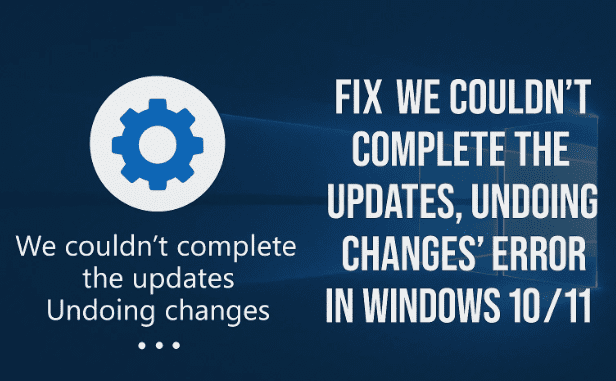
If you’ve ever restarted your PC after installing Windows updates only to see a message like —
“We couldn’t complete the updates, undoing changes. Don’t turn off your computer.”
— you know how frustrating it feels. Your PC might keep rebooting, seem stuck for hours, or roll back the updates again and again.
This problem can appear in Windows 10 or Windows 11, and it usually happens when the update process fails midway — often due to corrupted files, interrupted services, or system configuration conflicts.
But don’t worry — in this article, we’ll walk through every working method to fix this issue step by step. We’ll start with simple solutions and gradually move to advanced ones.
1. Why This Error Appears
Before applying any fix, let’s first understand why Windows says “We couldn’t complete the updates, undoing changes.”
This error message usually means Windows Update started installing patches, but one or more of these things happened:
- The update was interrupted (e.g., you shut down the PC during installation).
- A service like Windows Update or Background Intelligent Transfer Service (BITS) stopped unexpectedly.
- System files got corrupted or permissions were changed.
- There wasn’t enough disk space for temporary update data.
- A recent update conflicted with your current Windows build or drivers.
Once that happens, Windows tries to undo the failed changes and restore your previous state. However, the undo process itself can loop or get stuck.
Let’s fix that step by step.
2. Step 1: Boot Your PC into Safe Mode
To properly repair Windows Update components, you’ll first need to start the computer in Safe Mode.
Safe Mode runs Windows with only the essential drivers and services — no extra software, no auto-start apps, and minimal interference.



How to Enter Safe Mode
If you can log in normally, do this:
- Press Windows + R, type
msconfig, and press Enter. - In the System Configuration window, go to the Boot tab.
- Under Boot options, check Safe boot and select Minimal.
- Click Apply → OK.
- Restart your PC.
Your system will now boot into Safe Mode automatically.
If you can’t log in at all and your computer is looping at startup:
- Turn your PC on. When you see the Windows logo, hold the power button until it turns off.
- Repeat this force shutdown three times.
- On the next startup, Windows will show Automatic Repair.
- Click Advanced options → Troubleshoot → Advanced options → Startup Settings → Restart.
- When you see the numbered list, press 4 or F4 to boot into Safe Mode.
Once you’re in Safe Mode, you can proceed to fix the update services.
3. Step 2: Restart and Check Windows Update Services
Windows relies on several background services to download and install updates. If any of these are disabled or stuck, the update process will fail.
The main services are:
- Windows Update (wuauserv)
- Background Intelligent Transfer Service (BITS)
- Cryptographic Services (CryptSvc)
- Windows Installer (msiserver)
Let’s make sure they’re all running properly.
Steps to Restart Services
- Press Windows + R, type
services.msc, and press Enter. - In the Services window, find and double-click each of the following:
- Windows Update
- Background Intelligent Transfer Service
- Cryptographic Services
- Windows Installer
- For each service:
- Set Startup type to Automatic.
- If the service status says Stopped, click Start.
- Click Apply → OK.
After ensuring all four services are active, minimize this window — you’ll need it again in the next step.
4. Step 3: Clear the SoftwareDistribution Folder
Now that we’ve stabilized the services, it’s time to clear the cache where Windows stores update files.
Windows downloads all update packages into a temporary directory called SoftwareDistribution. If any of these files become corrupted, Windows Update can get stuck in an undo loop.
Let’s fix that.
Steps to Clear SoftwareDistribution Folder
- While still in Safe Mode, open File Explorer.
- Navigate to this path:
C:\Windows\SoftwareDistribution - Press Ctrl + A to select all files and folders inside it.
- Press Delete to remove them.
- Don’t worry — these are only temporary update files.
- Close File Explorer.
Now go back to your Services window (which you opened earlier).
- Right-click Windows Update → choose Start.
- Do the same for BITS.
This will recreate a fresh, empty SoftwareDistribution folder automatically.
Restart your PC normally and see if the message still appears.
5. Step 4: Use System Configuration to Re-enable Normal Boot
After cleaning up update data, we need to ensure your PC starts normally again — not stuck in Safe Mode or diagnostic mode.
Let’s adjust that setting:
- Press Windows + R, type
msconfig, and hit Enter. - In the Boot tab, uncheck “Safe boot.”
- Click Apply → OK.
- Restart your PC.
When the system restarts in normal mode, check whether the update loop is gone.
If the issue persists, we’ll move on to reinstall or verify the pending updates.
6. Step 5: Reinstall or Re-check Pending Updates
Sometimes, the failure happens because of a partially installed or incompatible update. To fix this, you can uninstall the latest update and reinstall it properly.
Let’s walk through both possibilities.
A. Uninstall the Problematic Update
- Open Settings → Windows Update → Update History.
- Scroll down and click Uninstall updates.
- In the list, look for the most recent cumulative update — usually labeled like: “Security Update for Microsoft Windows (KB xxxxxxx)”
- Select it → click Uninstall.
- Restart your PC.
After uninstalling, check if the “undoing changes” message disappears.
B. Manually Download and Reinstall the Update
If uninstalling works but the update is still required, download it manually from the official Microsoft Update Catalog:
- Go to the Microsoft Update Catalog website:
🔗 https://www.catalog.update.microsoft.com - In the search box, enter the KB number of the update (e.g., KB 5030219).
- Download the correct version for your system (x64, ARM64, etc.).
- Run the
.msuinstaller file to reinstall it. - Restart your PC afterward.
7. Additional Advanced Fixes
If the above steps don’t solve the issue, here are some deeper troubleshooting methods you can try.
Let’s take them one by one — these are optional but very effective if your Windows installation is heavily corrupted.
🧩 A. Run the System File Checker (SFC)
System files might have been damaged during the update process. Running the SFC command repairs these automatically.
- Press Windows + R, type
cmd, and press Ctrl + Shift + Enter to open Command Prompt as Administrator. - Type the following command and press Enter:
sfc /scannow - Wait until the scan reaches 100%.
- Restart your PC.
SFC will automatically replace any missing or corrupted system files.
🧱 B. Use the DISM Tool
If SFC doesn’t fix everything, use DISM (Deployment Image Servicing and Management) to repair the Windows image.
In the same elevated Command Prompt, type these commands one by one:
DISM /Online /Cleanup-Image /CheckHealth
DISM /Online /Cleanup-Image /ScanHealth
DISM /Online /Cleanup-Image /RestoreHealth
Each command may take several minutes — don’t close the window until it finishes.
After it’s done, restart the system again.
🧰 C. Perform a Clean Boot
A third-party program (like antivirus or driver utility) could be interfering with updates. Performing a Clean Boot isolates Windows from these startup apps.
- Press Windows + R, type
msconfig, and hit Enter. - Under the Services tab, check Hide all Microsoft services.
- Click Disable all.
- Open the Startup tab → click Open Task Manager.
- Disable all startup items.
- Click OK → Restart your PC.
Now, retry the update process.
After updates finish, return to msconfig and re-enable your normal startup settings.
💾 D. Check Disk Health and Space
Windows updates need sufficient free space (at least 10–20 GB). Check your drive:
- Open File Explorer → This PC.
- Right-click the system drive (C:) → Properties.
- Use Disk Cleanup to remove temporary files.
Also, run a quick disk check to rule out errors:
chkdsk C: /f
If it asks to schedule the check at next reboot, type Y and restart.
🧯 E. Reset Windows Update Components (Manual Method)
If nothing else works, you can manually reset all Windows Update components.
Open Command Prompt as Administrator and run these commands one by one:
net stop wuauserv
net stop bits
net stop cryptsvc
ren C:\Windows\SoftwareDistribution SoftwareDistribution.old
ren C:\Windows\System32\catroot2 catroot2.old
net start wuauserv
net start bits
net start cryptsvc
Restart your PC afterward. This resets all update-related services and cache folders completely.
8. Frequently Asked Questions (FAQ)
Let’s address some common doubts users have while fixing this issue.
Q1. How long should I wait when Windows says “Undoing changes”?
Usually, this process takes 5 – 30 minutes. If it’s stuck for more than an hour, force-restart your PC and boot into Safe Mode to apply the fixes above.
Q2. Will deleting the SoftwareDistribution folder remove my data?
No. It only clears temporary update files — your personal documents, photos, and apps remain safe.
Q3. Can I stop Windows updates completely to avoid this?
You can pause updates temporarily (for up to 5 weeks in Windows 11), but it’s not recommended to disable them permanently because updates often include critical security patches.
Q4. Why does this error keep coming back even after fixing once?
This may happen if your system image is damaged, your disk is nearly full, or a third-party antivirus modifies system services. Running DISM and keeping enough free space usually prevents recurrence.
Q5. Should I use third-party update repair tools?
No need. Everything you need is already built into Windows — through Safe Mode, Command Prompt, and official utilities like SFC, DISM, and msconfig.
9. Final Thoughts
The “We couldn’t complete the updates, undoing changes” error might look serious, but in most cases, it’s fixable with patience and the right sequence of steps.
To summarize what we’ve done:
- Booted the PC into Safe Mode.
- Restarted and re-enabled Windows Update services.
- Cleared the SoftwareDistribution folder.
- Restored normal boot and checked updates again.
- Used SFC / DISM / Clean Boot if necessary.
If you follow these methods carefully, your PC should stop looping and successfully apply future updates.
And once everything’s working fine again, consider creating a System Restore Point so that if Windows misbehaves in the future, you can easily revert to this healthy state.
Disclaimer:
This article provides step-by-step troubleshooting instructions for Windows 10 / 11 update failures. Editing system files or registry entries incorrectly may cause issues. Proceed carefully and back up your important data before making major changes. The author is not affiliated with Microsoft. For official Windows support, visit: https://support.microsoft.com/windows
Tags: Windows 10 update error, Windows 11 undoing changes, SoftwareDistribution folder, Windows update fix, safe mode, DISM tool, SFC scan, clean boot, Windows update loop
Hashtags: #Windows11 #Windows10 #UpdateError #UndoingChanges #TechFix #WindowsUpdate #SafeMode #Troubleshooting








