OneDrive is Microsoft’s built-in cloud storage service that helps you keep your files safe and synced across devices. It sounds convenient, right? However, there’s one feature that often confuses users and, in some cases, causes serious frustration — the OneDrive backup feature.
This so-called “backup” function promises to protect your Desktop, Documents, and Pictures folders by automatically syncing them to OneDrive. But in practice, it can move your files in unexpected ways, consume your cloud space, and complicate your file management.
If you’ve recently turned off the OneDrive backup feature and found your files missing or misplaced, this guide is for you.
We’ll go step-by-step through what really happens when you enable or disable this feature, how to restore your documents, and how to keep control of your file structure in the future.
💡 1. Understanding What the OneDrive Backup Feature Actually Does
Before we jump into the recovery process, it’s important to understand what this feature really does — because the name “backup” is somewhat misleading.
When you enable the OneDrive backup feature, Windows takes the contents of your Documents, Pictures, and Desktop folders and moves them into corresponding folders inside your OneDrive directory.
For example:
C:\Users\<YourName>\Documents
becomes
C:\Users\<YourName>\OneDrive\Documents
This means that your original Documents folder on the local drive is emptied and replaced by a shortcut pointing to OneDrive. The same happens for Desktop and Pictures folders if you enable those options.
While your files do get uploaded to the cloud, they’re no longer physically stored in the original Windows folders you’re used to. Instead, they’re now being managed entirely by the OneDrive service.
⚠️ 2. Why It Can Cause Problems for Users
Microsoft’s goal with this feature is simple — convenience and safety. But in reality, it introduces several hidden issues that many users discover only after it’s too late.
Let’s go through a few common problems:
1️⃣ Confusing File Locations
After enabling backup, users often open their Documents folder and panic — it’s suddenly empty!
The files haven’t been deleted; they’ve simply been moved into OneDrive’s subfolder structure.







2️⃣ Limited Cloud Storage
Free OneDrive accounts offer only 5 GB of space. If your Documents or Pictures exceed that, the upload fails, and syncing stops.
This not only causes storage warnings but can also block Outlook.com emails, since your overall Microsoft account quota is shared between services.
3️⃣ Sync Conflicts and Missing Files
Because files are constantly syncing to the cloud, conflicts can occur if you modify them from multiple devices. In some cases, version mismatches can even lead to accidental overwrites or data loss.
4️⃣ Dependency on Internet and Microsoft Account
Once your critical files live inside OneDrive, you depend on Microsoft’s servers and internet connectivity to access or sync them.
So while the “backup feature” sounds protective, it’s more of a file relocation system than a true backup.
🧩 3. What Happens When You Turn the Feature On
To fully grasp how to recover your files later, let’s visualize what actually happens the moment you enable the OneDrive backup.
Step 1: Access the Settings
- Click the OneDrive cloud icon in the taskbar (bottom right).
- Select the Gear (⚙️) icon → Settings → Sync and Backup → Manage Backup.
Step 2: Choose Folders
You’ll see checkboxes for five main folders:
- Desktop
- Documents
- Pictures
- Music
- Videos
Many users check Documents or Desktop thinking, “Why not?”
Step 3: The Hidden Change
Once you enable the option and click Save Changes, your files immediately move from their default Windows directories to OneDrive-managed locations.
For example:
Documents→ moves toOneDrive\DocumentsPictures→ moves toOneDrive\Pictures
This means your old Documents folder under “This PC” is now just an alias, while all real files sit inside your OneDrive storage.
🔁 4. What Happens When You Turn the Feature Off
Here’s where things get tricky.
When you disable the OneDrive backup, you might expect your files to move back to their original folders automatically. Unfortunately — that doesn’t happen.
What Actually Happens:
- OneDrive stops syncing those folders.
- The cloud-linked
Documentsfolder remains inOneDrive\Documents. - Your original Documents directory (
C:\Users\<YourName>\Documents) stays empty. - A shortcut appears there, pointing to the OneDrive version.
So now your system is confused: OneDrive thinks you’re done backing up, but your files are still under its management.
Your local Documents folder remains barren, and your cloud storage stays full.
🛠️ 5. How to Recover Your Files After Disabling OneDrive Backup
Now that you’ve turned off the backup and your Documents folder is empty, let’s fix it properly.
We’ll manually move your files back to their original location and restore normal local control.
Step 1: Open Both Folders in File Explorer
Open two File Explorer windows side by side:
- Left window: Navigate to your OneDrive Documents folder, usually
C:\Users\<YourName>\OneDrive\Documents - Right window: Open your original Documents folder,
C:\Users\<YourName>\Documents
You’ll probably notice the left one full of files and the right one empty.
Step 2: Move Your Files Back
Select all items inside the OneDrive Documents folder (Ctrl + A),
then drag them into your local Documents folder.
💡 Tip:
Hold down the Shift key while dragging to move files instead of copying them.
This ensures they leave OneDrive entirely and no longer sync to the cloud.
Step 3: Verify and Clean Up
Once the transfer completes:
- Double-check that all files are visible in your local Documents folder.
- Confirm that the OneDrive\Documents folder is now empty.
If everything looks correct, you can safely delete the leftover empty folder from OneDrive.
Now your Documents are back in their proper location, completely disconnected from OneDrive.
🧹 6. Optional: Removing the Empty OneDrive Folder
If you’re not planning to use OneDrive anymore, you might want to tidy up.
To safely remove the empty folder:
- Right-click the OneDrive\Documents folder.
- Choose Delete.
- If prompted, confirm deletion.
If you also wish to unlink OneDrive from your PC entirely:
- Right-click the OneDrive icon → Settings → Account → Unlink this PC.
- Files will remain locally stored; syncing stops completely.
🚫 7. How to Prevent OneDrive From Enabling Backup Again
Microsoft is known for “helpfully” re-enabling features after system updates. The OneDrive backup toggle is one of those persistent ones that can reappear without warning.
Here’s how to make sure it stays off:
- Check after major Windows updates.
After every significant update, right-click the OneDrive icon → Settings → Sync and Backup → Manage Backup and verify all switches are turned off. - Ignore OneDrive prompts.
When Windows says “Your files aren’t backed up,” it’s referring to OneDrive, not your real backup strategy. - Disable OneDrive autostart (optional).
Go to Task Manager → Startup Apps → OneDrive → Disable to stop it from launching on boot. - Use a dedicated backup method (explained below) instead of this sync-based pseudo-backup.
💾 8. Alternative Ways to Back Up Your Files Safely
If you disable OneDrive’s automatic folder sync, you still need a reliable backup plan. Here are some better alternatives that offer true data protection:
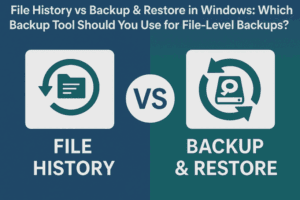
1️⃣ Use Windows File History
A built-in feature that keeps previous versions of your files.
- Go to Settings → System → Storage → Advanced Storage Settings → Backup options.
- Turn on File History and select an external drive or network location.
2️⃣ Create System Images
For a complete backup of your Windows installation, use Windows Backup or third-party tools like Macrium Reflect or Acronis True Image.
3️⃣ Cloud Storage (on your terms)
You can still use OneDrive, Google Drive, or Dropbox — just manually upload selected folders instead of letting them move your system directories.
4️⃣ External Hard Drive or NAS
Keep a local copy of your important folders using drag-and-drop or automatic software like SyncBack or FreeFileSync.
The key takeaway:
A true backup duplicates your files elsewhere; it doesn’t move them.
❓ 9. FAQ: Common Questions About OneDrive and File Backups
Q1. Why did my Documents folder suddenly appear inside OneDrive?
Because the backup feature was enabled. It automatically moves system folders like Documents, Desktop, and Pictures into OneDrive for syncing.
Q2. I turned off backup — why are my files still in OneDrive?
Disabling the feature stops syncing but doesn’t move files back. You must manually move them to your local folder.
Q3. Can I delete the OneDrive Documents folder?
Yes, after confirming all files have been safely moved back to your local drive.
Q4. What if my files didn’t sync properly before disabling backup?
Sign in to your OneDrive cloud account at onedrive.live.com and download any files that may not have been fully uploaded.
Q5. Will disabling backup delete my OneDrive data online?
No, files already uploaded remain in your cloud storage until you delete them manually.
Q6. Can Windows updates re-enable backup automatically?
Yes, in some cases. That’s why it’s smart to check OneDrive settings after every major system update.
Q7. What’s the safest backup strategy for Windows users?
Use multiple layers:
- Local backups (external drive or NAS).
- Cloud copies (optional).
- Version history (via File History or professional backup software).
🏁 10. Final Thoughts
The OneDrive backup feature may sound helpful on paper, but in practice, it’s often more confusing than protective. By understanding what it actually does — moving your files rather than truly backing them up — you can avoid panic and keep full control over your data.
If you’ve already turned it off and found your Documents folder empty, don’t worry — your files are still safe inside OneDrive.
Just follow the recovery steps above to move them back, verify everything, and disable the feature permanently.
Finally, always remember:
A real backup is a second copy stored elsewhere, not a single folder moved into the cloud.
⚠️ Disclaimer
The procedures in this article are based on Windows 11 (as of 2025) and OneDrive’s current behavior. Interface names and settings may change with future updates. Always confirm the folder paths before deleting or moving files.
For official OneDrive documentation and troubleshooting, visit:
👉 https://support.microsoft.com/onedrive
#OneDrive #Windows11 #Backup #DataRecovery #CloudStorage #FileManagement #MicrosoftTips








